TESTED · EVERYDAY TECH
Incognito downloads do not disappear when you close Chrome
Understand which Incognito data Chrome removes, why downloads and bookmarks remain, and try a harmless local storage example.
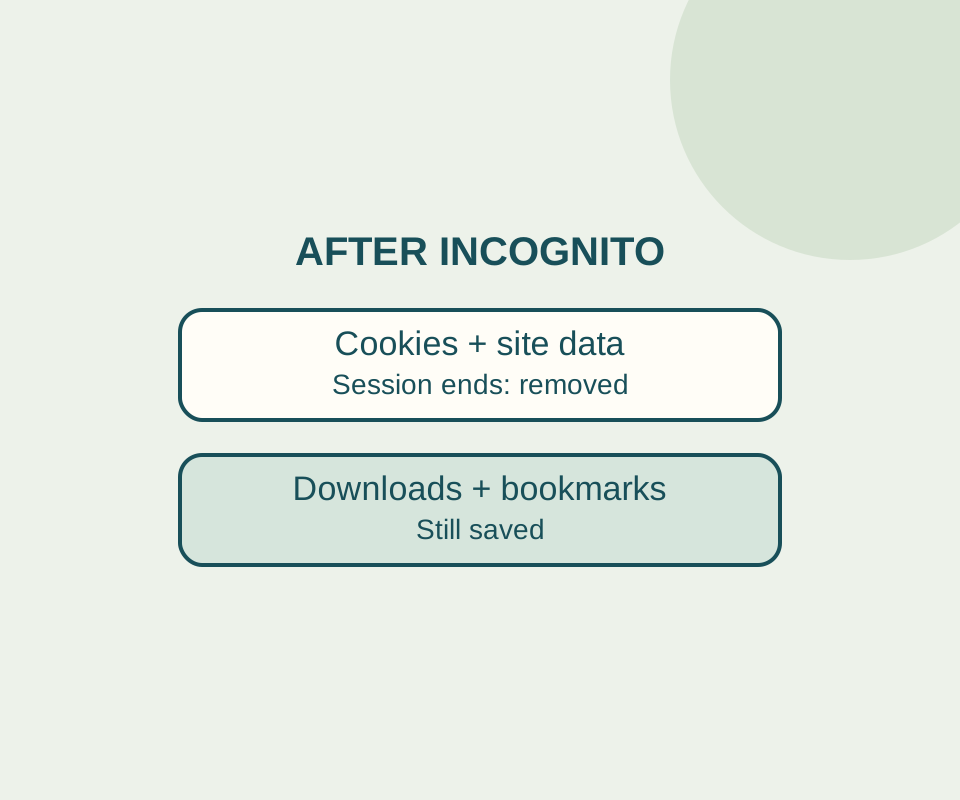
Closing every Chrome Incognito window clears the session’s site data and record of visited sites from Chrome, but it does not delete files you downloaded. Bookmarks and Reading List items you save also remain available in regular browsing.
What closing Incognito clears
Incognito opens a separate browsing session. It does not automatically sign you in to Google or other sites. While that session is open, a site can use data such as cookies; when all Incognito windows close, Chrome does not retain the session’s site cookies and data or its record of visited sites. Closing one Incognito window while another remains open does not end the session.
That limit applies to what Chrome saves on your device. Sites can still collect data, and an employer, school, or internet service provider may be able to observe your activity. Incognito does not make browsing invisible to them.
You can open an Incognito window with Ctrl+Shift+N on Windows, Linux, or ChromeOS, or Command+Shift+N on a Mac.
What stays on your computer
A downloaded file stays where it was saved until you delete it. For example, if you download a confidential PDF on a shared computer, closing every Incognito window does not remove that PDF. Locate the saved file and follow the computer’s local deletion process if it should not remain there. Deleting a file is not a guarantee of unrecoverable erasure.
Bookmarks and Reading List items saved during Incognito browsing are available in a regular Chrome session. Remove a bookmark separately if you do not want to keep it.
Try the session example
The Incognito practice page offers a small example using only its own site data. In a regular window, choose Save sample marker, then Read this origin to see what the page saved. Repeat those steps in an Incognito window. Close all Incognito windows, open a new one, return to the page, and choose Read this origin again.
The marker is the invented value HARBOR-27. The page saves it as a first-party cookie and in local storage for its own origin; it cannot read your history on other sites. Clear sample marker removes the example data. The page also links to a real, harmless sample note that you can download to see where your browser saves a file.
In an isolated Chrome 154 private-context test, saving the marker made it readable from a second page in the same private context. It remained readable after the first page closed. After the private context closed, a fresh one could read neither the cookie nor the local-storage value. The downloaded note still existed on disk. That test supports the example’s data and download behavior; Chrome’s rule about closing all Incognito windows comes from Google’s Incognito help, because the test closed an automation context rather than native window buttons. It did not test accounts, bookmarks, or network privacy.
If you want ongoing separation between browsing setups, Chrome profiles are another feature to consider. They do not provide a privacy guarantee.
KEEP GOING
More to explore.
SOURCE-CHECKEDEveryday tech
Android Private Space installs a second app, not a hidden copy
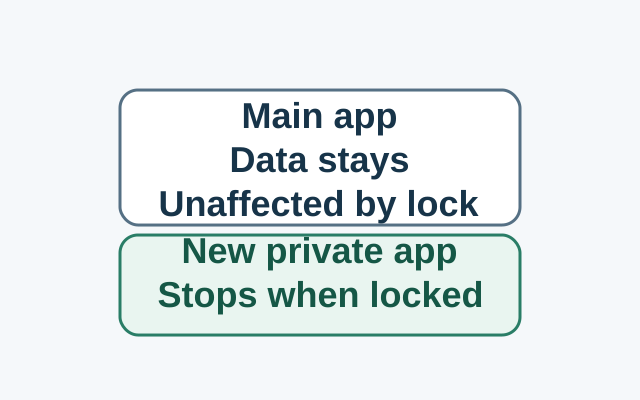
Installing in Private Space creates a separate app instance. The original app and its data stay in the main space; locking stops the private instance, while the original is unaffected.
TESTEDEveryday tech
Chrome profiles: keep bookmarks and browsing settings separate
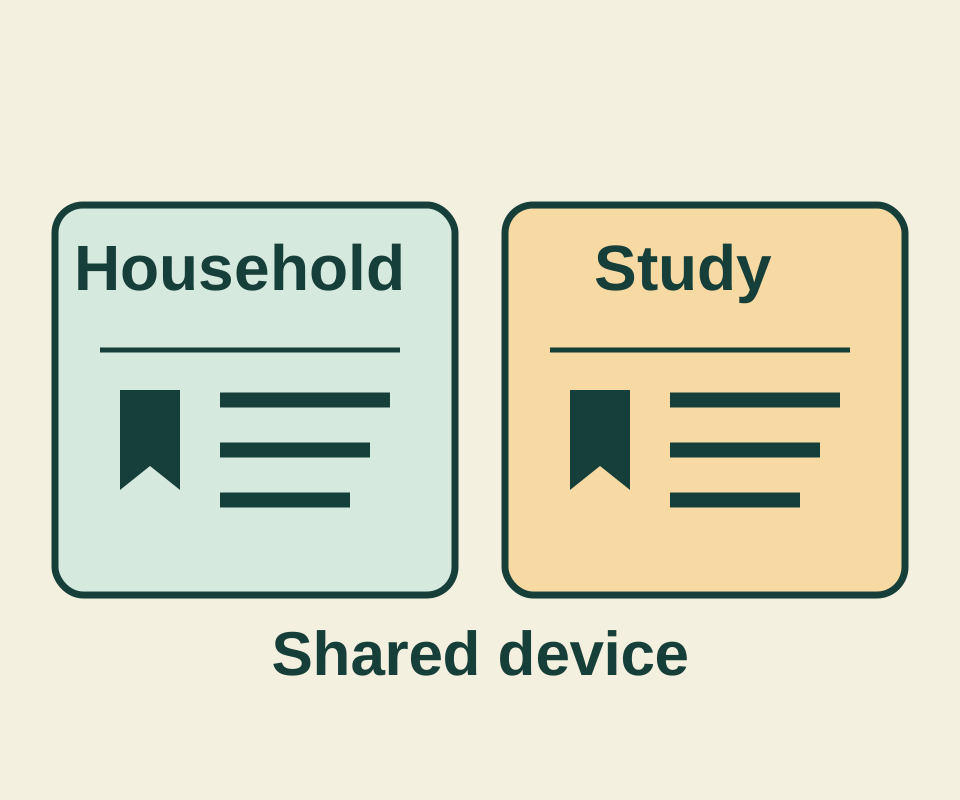
Two Chrome profiles kept a bookmark called Reference after reopening. Their addresses differed, showing why a familiar title alone cannot identify the intended link.