SOURCE-CHECKED · EVERYDAY TECH
How to reopen closed tabs and windows in Chrome
Reopen an accidentally closed Chrome tab or window, or find a specific visited page in History when the shortcut brings back something else.
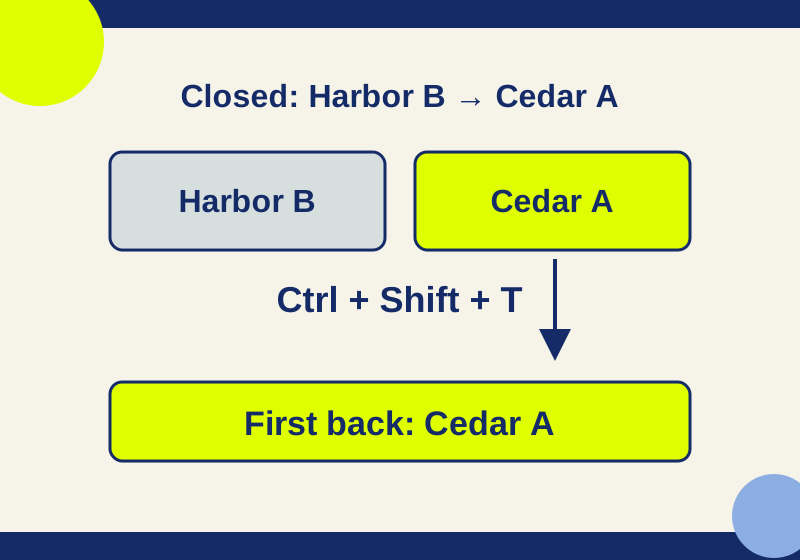
On Windows or Linux, press Ctrl+Shift+T to reopen a closed Chrome tab. On a Mac, press Command+Shift+T. Check the title and address of the tab that appears before pressing the shortcut again. Chrome reopens tabs in the order they were closed, starting with the most recent, so the first page back may be an unrelated one you closed afterward. Google’s Chrome shortcut guide documents that order.
Check whether the tab is still open
A missing page may be open in another Chrome window. Before restoring closed tabs, search the tabs you already have. Type @tabs in Chrome’s address bar, press Tab or Space, then enter a distinctive word from the page’s title or site. You can also open Tab Search with Ctrl+Shift+A on Windows or Linux, or Command+Shift+A on a Mac. These tools find open tabs; they do not recover closed ones. Chrome Help describes both methods.
If several results contain the same keyword, check the site as well as the title before selecting one. Finding the page that is already open saves you from stepping backward through tabs you meant to close.
Try the closure order with two safe tabs
Suppose you opened a page titled HowCurio recovery Cedar A, followed its link to HowCurio recovery Harbor B, then accidentally closed Harbor B and Cedar A. Cedar A was closed last. One press of Ctrl+Shift+T should reopen Cedar A; a second should reopen Harbor B, following Chrome’s documented order.
The shortcut does not search for the page you have in mind. If you closed a different tab after Cedar A, expect that tab first. Check each restored tab’s title and address before reopening another. Chrome also documents the same shortcut for reopening an accidentally closed window, though the hands-on check described below covered a tab, not a window. Chrome Help
You can try the tab sequence with two simple practice pages: open HowCurio recovery Cedar A, then use its link to open HowCurio recovery Harbor B in a new tab. Keep a third, ordinary tab open in the window. Close Harbor B, then Cedar A, and press the reopen shortcut once to look for Cedar A. Press it again to look for Harbor B. Use practice tabs for this exercise, and leave your work tabs and last Chrome window open.
Find a page when the shortcut brings back the wrong one
If you no longer know when you closed the page, search Chrome History instead of reopening tabs one by one. Open More > History > History and search for a distinctive title word. On Windows, Ctrl+H opens History. Another route is to type @history in the address bar, press Tab or Space, and enter the keyword. Select the matching page after checking its title and site; if similar pages appear, check the visit date where available. Google’s History instructions
For the practice example, Cedar is a more useful search term than recovery: both practice titles contain “recovery,” but only one contains “Cedar.” History helps you find a visited page even when the reopen shortcut’s closure order is no longer useful.
Chrome says History lists pages visited in the last 90 days. It excludes Incognito pages, deleted entries, and chrome:// pages. History from signed-in, synced devices can also appear, so check that a result belongs to the site and visit you meant to find. Deleting synced history also deletes it on other signed-in, synced devices; clearing History is not a recovery step. Chrome Help
Reopening a tab or finding its URL gets you back to a page. Do not count on it to recover unsaved text or the page’s earlier login or cart state.
Scope: On October 7, 2026, an isolated, signed-out Chrome 154 Windows profile loaded the two local practice pages. After Harbor B and then Cedar A were closed, a native Ctrl+Shift+T reopened Cedar A. The second reopening, other operating systems, closed windows, crashes, Incognito, deleted history, and synced accounts were not tested; those directions above come from Google’s linked help pages.
KEEP GOING
More to explore.
SOURCE-CHECKEDEveryday tech
Chrome tabs keep reloading? Check Memory Saver and site exceptions
Keep a useful site active while allowing other inactive tabs to release memory.
SOURCE-CHECKEDEveryday tech
PowerToys Screen Ruler: measure a window gap without guessing its edges
Measure crisp edges first, then diagnose shadows, scaling and live capture.