TESTED · EVERYDAY TECH
How to change Chrome's download folder or choose a location each time
Choose a default Chrome download folder, turn on the per-file save prompt, and find where a downloaded file actually went.
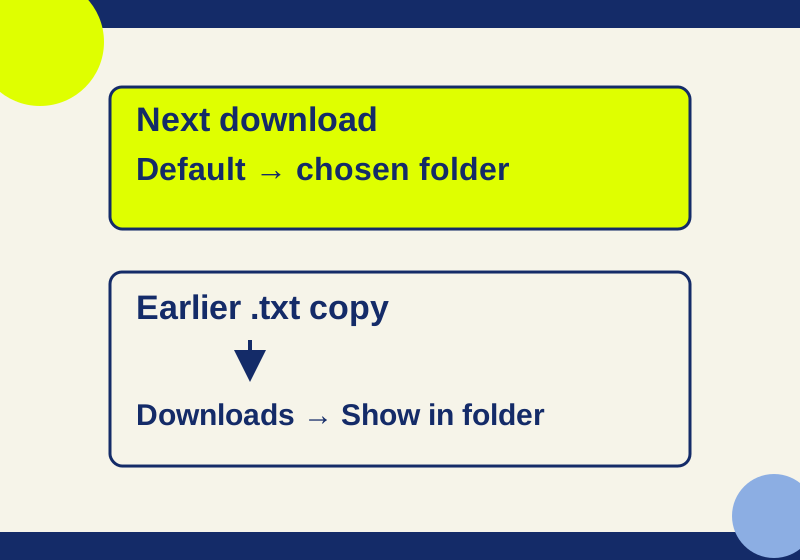
Open Chrome’s Settings > Downloads to choose a default folder or turn on Ask where to save each file before downloading. To locate a file you already downloaded, open Chrome’s Downloads list and use Show in folder. The current default setting cannot tell you where an earlier download ended up.
Choose where the next file goes
In desktop Chrome, open the three-dot More menu, then Settings > Downloads. The location shown there is the configured default for future downloads. Select Change to choose another folder.
Turn on Ask where to save each file before downloading when you want to choose separately for each file. You can leave the default folder in place and select a destination in each Save dialog. Check the selected folder before saving.
Chrome’s unchanged default is the Downloads folder under your user account: \Users\<username>\Downloads on Windows, /Users/<username>/Downloads on Mac, and /home/<username>/Downloads on Linux. Read the location displayed in your own settings before relying on that default. These are desktop instructions; a phone’s browser and file manager use different controls.
Find one small download from start to finish
Open the download location practice page. Its button downloads howcurio-location-practice.txt, a harmless 149-byte text file. You can open it in a text editor to see this message:
HowCurio download location practice
This is harmless plain text.
Choose a folder, download this file, and use Show in folder to verify its location.
The small file makes the result recognizable. There is no account, upload or personal document involved. Keep the practice page open while you work through these steps:
- Look at Settings > Downloads. Note the default folder or turn on the per-file Save option.
- Click the practice download button once. If Chrome asks where to save it, choose a folder and remember its name.
- Open More > Downloads and find
howcurio-location-practice.txt. - Use Show in folder, then check the full folder path and actual filename in your file manager.
- Open the saved text file and compare it with the message above.
The text confirms you found the practice file, while the folder path identifies where this copy went. If you already have a file with a similar name, compare the names and dates shown in the file manager instead of assuming which one is newest. The actual name is more useful than the name you expected the website to supply.
If you want to compare folders, change the destination first, then run another download. Locate each saved copy through its own Downloads entry. A later folder setting affects the next download; it does not move the copy you found in the first folder.
Recover a download from before you changed the setting
Open More > Downloads and look for its filename. Point to the entry and use Show in folder. This is a better starting point than searching only in the folder currently named under Settings > Downloads.
For example, the practice file may already exist in Downloads when you choose another default folder. Find that original copy before clicking its button again. A second click starts another download attempt; it does not locate or relocate the first one. If you want the original in the new folder, move that saved file in your file manager.
You can also access recent files through Chrome’s recent-downloads tray. Use the file’s folder action there when its entry is still available. A link that opens the file may launch its associated application; Show in folder is the action that helps locate it.
Check what removing download history does
The practice file lets you try this without losing anything important. First find its saved copy in your file manager. Then remove only that file’s entry from Chrome’s Downloads history and check the folder again.
In the Windows Chrome 154 trial, removing the history entry made it disappear from the browser’s list, while the saved 149-byte text file remained in the configured folder. Chrome also displayed a message explaining that the file remained on the device. Remove from history clears the record; delete the saved file in your file manager when you want the file itself gone.
The reverse situation can also occur: a history entry remains after somebody moves or deletes its saved file. A Downloads entry is not a backup. If its original folder no longer contains the file, search your file manager for the exact displayed filename.
Diagnose the result you actually see
No download entry appeared
Check whether the link opened content in a tab instead of starting a download. Use the practice page’s explicit download button as a comparison. If you canceled a Save prompt, that attempt should not leave a saved file. Repeating the click before understanding the first result makes it harder to identify the copy you want.
The file opens in the wrong application
Find its folder before troubleshooting the application. Which program opens a file and where Chrome saved it are separate questions. PDFs also have a separate open-or-download control under Site settings > Additional content settings > PDF documents.
Chrome displays an error
For Insufficient permissions or System busy, Chrome could not save locally. Cancel and retry, or use Save link as with a folder you can access. Disk full points to available storage. No file or File missing points to a file unavailable on the server. Needs authorization or Forbidden calls for checking website access. Google’s download error guidance explains these cases.
A dangerous, suspicious, unverified or insecure warning concerns download protection. Changing the destination does not resolve that warning; take it seriously and keep protection enabled. Google’s blocked-download guidance covers the warning categories. A site’s permission to download multiple related files is another separate control.
Source and test note: Google’s desktop download instructions were checked October 7, 2026. In a new isolated Windows Chrome 154.0.8037.93 profile, a clicked text-file link saved the expected 149 bytes to the configured folder; the actual file matched the supplied content. Native history removal left the local file in place, and the per-file prompt toggle was checked. The native folder picker and per-file Save dialog were not exercised; their instructions follow Google’s documentation.
KEEP GOING
More to explore.
TESTEDEveryday tech
Chrome PDF open or download: fix the setting that changes the result
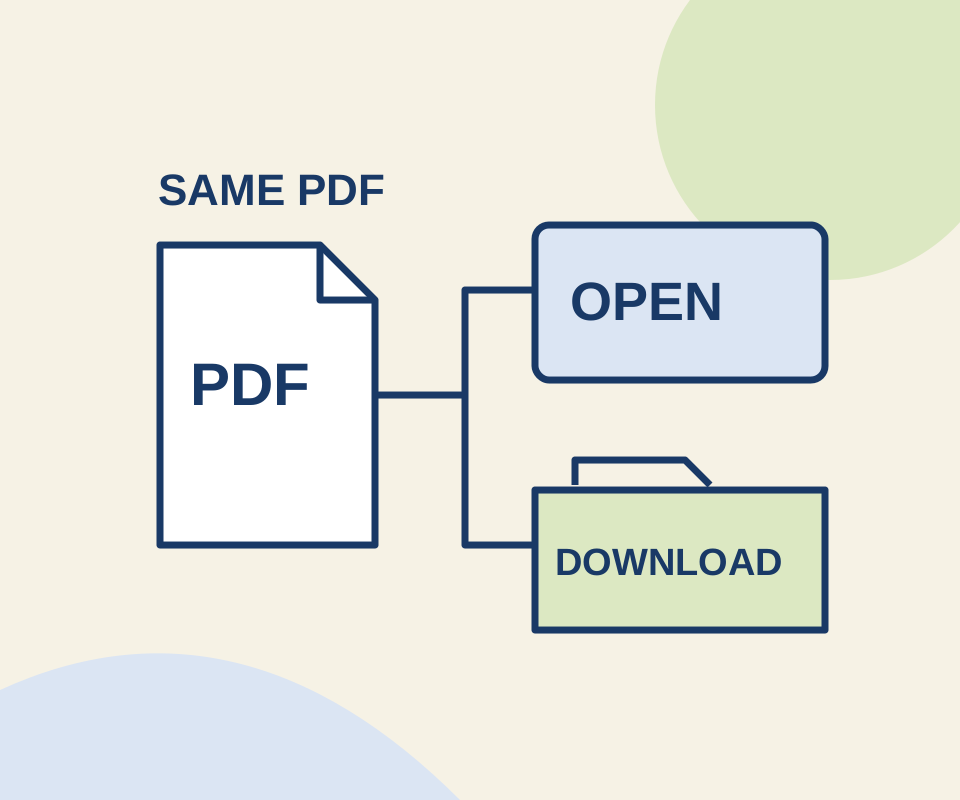
Two links use the same original PDF. A routing check shows why the Open setting does not make an explicit download link behave like an ordinary link.
TESTEDEveryday tech
Chrome startup pages and Home button: set the page that opens at the right time
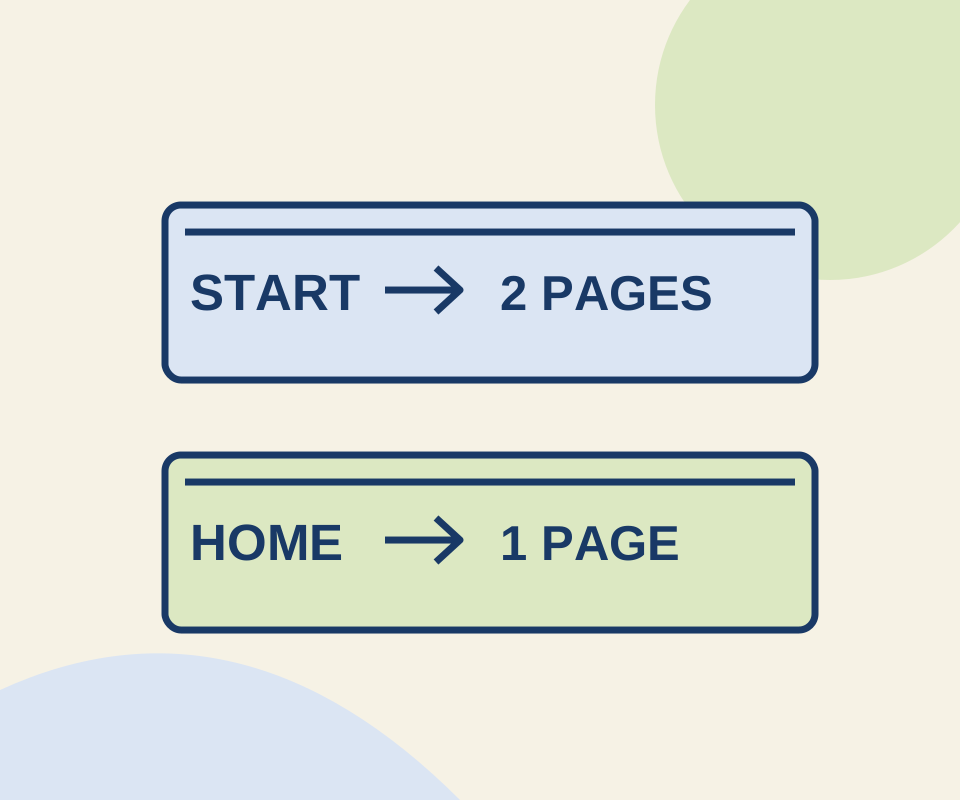
Two configured pages reopened after a full Chrome relaunch. Use the same small exercise to distinguish a startup set from the Home button's destination.