SOURCE-CHECKED · EVERYDAY TECH
Chrome site search shortcuts: fix the %s URL and skip the homepage
Add Chrome address-bar shortcuts for site searches, fix a missing %s query slot, and inspect an original URL builder with punctuation and Unicode examples.
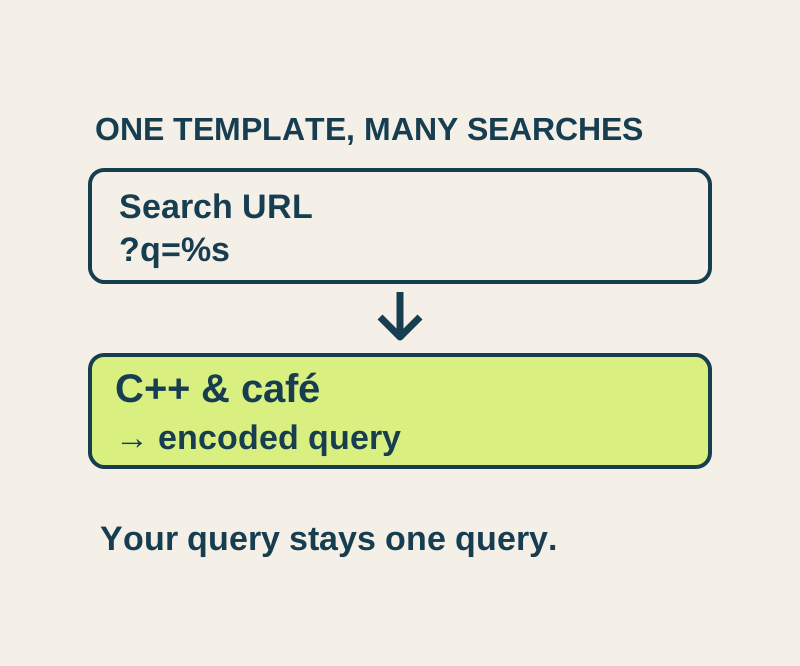
A Chrome site search shortcut lets you search a particular site from the address bar without opening its homepage first. The shortcut’s URL needs the correct query slot: %s must stand where that site puts your search term. You can add one for Chrome Help or Wikipedia without changing Chrome’s default search engine.
Add a site search
First, search the site normally and look at the results URL. Find the value containing your search term, then replace that value with the literal %s. Keep the rest of the URL intact.
In Chrome, open Settings > Search engine > Manage search engines and site search. Select Add beside Site search, then enter a name, shortcut, and URL. Chrome Help’s site search instructions describe these fields.
For example, you can enter:
- Search engine: Chrome Help · Shortcut:
ch· URL:https://support.google.com/chrome/search?q=%s&hl=en - Search engine: Wikipedia · Shortcut:
wiki· URL:https://en.wikipedia.org/w/index.php?search=%s
To use a shortcut, focus the address bar, type its shortcut, press Tab when Chrome offers that site’s search mode, type your term, and press Enter. You can focus the address bar with Ctrl+L on Windows or Linux, or Command+L on Mac. Chrome’s address bar help covers shortcut search and those keys.
Check the %s placement
The Chrome Help homepage, https://support.google.com/chrome/, has no place for a search term. Its search URL does: in https://support.google.com/chrome/search?q=%s&hl=en, %s occupies the value of q.
Save %s exactly, rather than %25s. If an old term such as bookmarks remains in the saved URL, the shortcut may keep searching for that term. Replace only the search value; the same word elsewhere in a path or another parameter may have a different purpose.
Special characters show why the query needs URL encoding. For C++ & café, an independently constructed Chrome Help URL is:
https://support.google.com/chrome/search?q=C%2B%2B%20%26%20caf%C3%A9&hl=en
Here, the plus signs and ampersand belong to the search term. A raw & in that position would instead separate URL parameters. MDN’s encoding reference explains how characters such as these are escaped. Enter the ordinary term when using a Chrome shortcut; the encoded URL is useful for understanding and checking the template.
If a site’s search term does not appear in its results URL, or its search uses a form submission that does not put the term there, this copy-and-replace method does not establish a working template. Use another search approach supported by that site.
If a saved shortcut is unavailable, check Chrome’s Inactive shortcuts list and activate it there. A work or school administrator may also manage search settings.
Try the original site-search URL builder to inspect the result before opening it. Choose Chrome Help or Wikipedia, enter an ordinary search term, and select Build URL. The displayed result has a separate Open this search link. Building the URL stays on the page; opening it sends the query to the selected destination. The builder changes no Chrome settings and stores no input.
The builder was tested in Chrome 154 with the two URLs above and four terms per URL, including C++ & café. In all eight submissions, its displayed URL matched its link, and parsing the URL returned the original term. An external Wikipedia search for bookmarks redirected to a disambiguation page. Chrome settings and address bar shortcut behavior were not tested.
KEEP GOING
More to explore.
TESTEDEveryday tech
Chrome camera or microphone blocked? Check permission before the device
A permission preflight checks camera and microphone independently without opening a stream; a controlled Chrome setting change shows prompt, denied and granted.
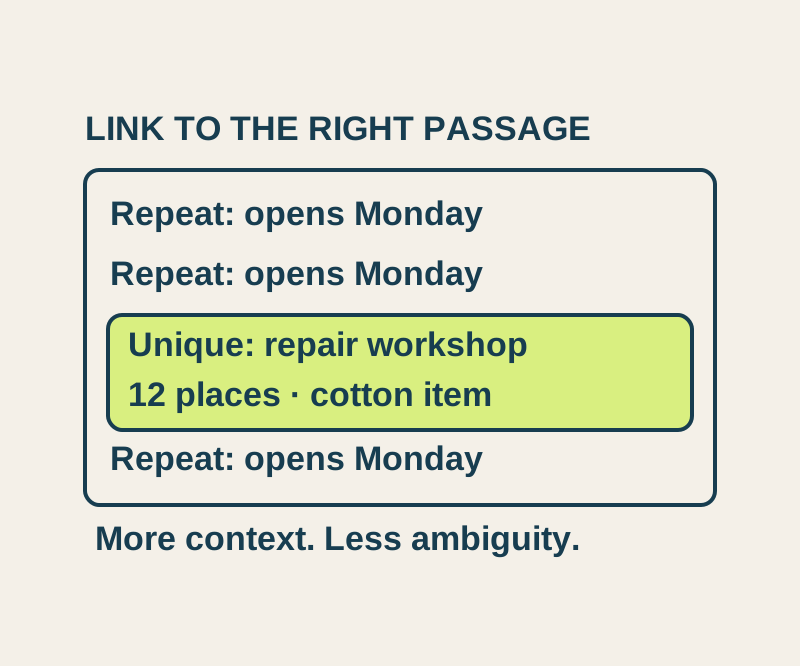
SOURCE-CHECKEDEveryday tech
Chrome Copy link to highlight: share a passage and fix the wrong match
Send a precise passage, understand repeated matches, and try four real text-link outcomes in an original sample notice.