SOURCE-CHECKED · SHARING WORKFLOWS
How to limit access to a Google Drive folder without changing its parent
Restrict one Google Drive subfolder, trace direct, group, and inherited access, and understand why a gray folder or Access removed entry does not prove exclusion.
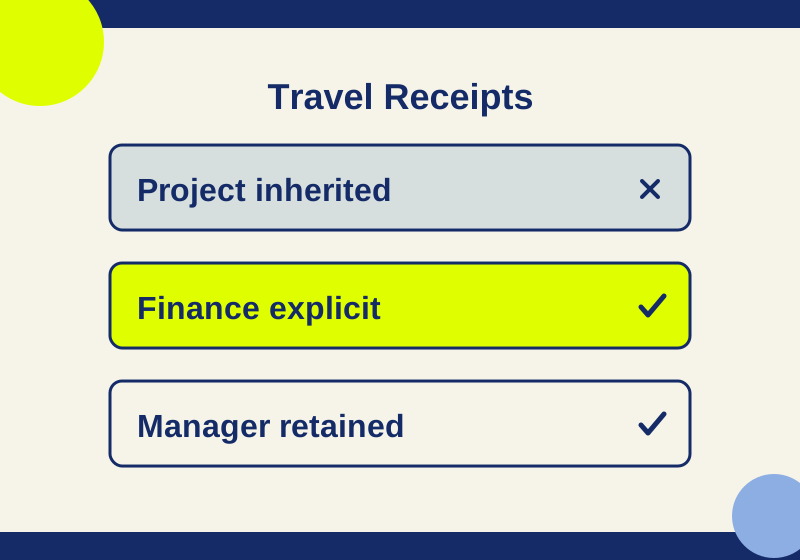
If someone needs access to a Google Drive project folder but should not open one folder inside it, use Limit access on the smaller folder. Changing that person’s role on an individual child item will not lower a role inherited from the parent. Google’s guidance is to put the exception in a limited folder. Google Drive sharing help
Before treating the folder as restricted, check every way the person might reach it. A direct invitation, group membership, or General access setting can still grant access after the parent’s inherited permission is removed. A shared drive Manager retains access; a My Drive owner does too. Google’s limited-access folder guide
Turn on Limit access
In Google Drive on the web, right-click the folder and select Share > Share > Settings > Limit access. Select Back, then review the people and groups with access. Add the intended recipients to the limited folder and remove entries that should no longer grant access. The People with access section is the place to inspect remaining direct and group entries, along with any General access setting. Google’s limited-access folder guide
The location determines who can change the setting:
- In My Drive, the owner can limit access. An editor can do so when Editors can change permissions is enabled.
- In a shared drive, a Manager can turn Limit access on or off. A Content Manager can change the access list only when a Manager allows folder sharing; this does not let the Content Manager turn Limit access on or off.
If the control is missing, check the folder’s location, your role, and the applicable sharing setting. Google Drive for desktop does not provide the controls for managing limited access; use Drive on the web. Google’s limited-access folder guide
Map each permission route
Consider an illustrative shared drive folder called Project, with a limited subfolder called Travel Receipts. It contains a file named Quote Comparison. The following is a reasoned example of permissions to check, not the result of a live account test.
| Person | Route into Travel Receipts | Expected access in this example |
|---|---|---|
| Lee | Project group permission inherited from the parent | Removed by the limited folder |
| Noor | Direct permission on Travel Receipts | Available at the granted role |
| Sam | Project group permission inherited from the parent | Removed by the limited folder |
| Sam | Separate Finance group permission on Travel Receipts | Still available at the group’s role |
| Pat | Shared drive Manager role | Retained |
Sam belongs to both groups in this example. If the inherited Project route shows Access removed, that entry alone does not mean Sam is excluded. The Finance group is a second route to inspect. If Sam must be excluded, review whether that group belongs on Travel Receipts at all. Removing Sam from Finance would affect other resources that group grants, so ask the person responsible for the folder and group to choose the intended scope of the change. Likewise, removing a direct invitation would not remove access supplied by another group or by General access. Google describes direct, group, domain, and anyone permissions as separate sharing paths, with parent permissions propagating to children. Google Drive sharing help · Drive API sharing guide
Give every access route its own row. For Sam, write two rows, one for the inherited Project group and one for the directly added Finance group. Leave observed_result blank until someone actually checks it. An expected “cannot open” result in a planning sheet must never become an observed “blocked” result through copying.
For each person whose access matters, record the exact item, the person or group, every applicable route, its role or setting, and the result you expect. The blank limited-folder access map (CSV) has columns for item_path, person_or_group, access_route, role_or_setting, expected_result, observed_result, checked_date, and remaining_question. Its observation fields are empty so you can edit a local copy with findings from your own account.
Check the folder and its contents separately
Google says a manually limited folder can appear gray in Drive on the web to someone who cannot access its contents. An inaccessible limited folder is absent in Drive for desktop. An automatically limited item created during migration may be hidden instead. Those differences matter when someone reports that they can see a folder name, cannot open it, or cannot find it at all. Google’s limited-access folder guide
For the fictional example, Travel Receipts is itself a revealing name. Seeing a gray folder is different from opening Quote Comparison, but the gray folder may still expose its name. Choose folder and file names with that visibility in mind; the documented behavior does not establish that every name is concealed.
A copied file link is not a separate URL for each recipient. It points to the same file, while the recipient’s permission routes determine access. Check the recipient’s access to the exact item instead of treating possession of a link as proof that the sharing setup is correct. Drive API sharing guide
Fix common access surprises
A role dropdown will not lower inherited access. If Lee has a role through the Project parent, changing Lee’s role on Quote Comparison cannot reduce that inherited role for just the file. Put the exception in a limited subfolder and review any separate direct, group, or General access permissions there. A direct grant with higher privileges can also affect the access the person has. Google Drive sharing help · Drive API sharing guide
An automatically limited file needs different treatment. Google says an individual file can be automatically limited, but if you turn off its automatically applied limited access, you cannot manually add it back to that file. For an individual file that needs manually managed limited access, place it in a limited subfolder. Moving a hierarchy preserves its limited folders, so review those settings after a move rather than assuming the destination changed them. Google’s limited-access folder guide
Someone needs access again. Grant that person explicit access to the limited folder and check the resulting role. You do not need to broaden permissions on Project to restore access to Travel Receipts. If you can arrange a recipient check, use a harmless marker document inside the limited folder and record what that recipient can open. That check covers the marker and the tested permission route; it does not establish the state of every confidential item in the folder.
Source note: This guide uses Google’s Drive documentation listed above, read October 7, 2026. No Google account or Drive client was tested. The Project example describes an illustrative permission setup and expected access, not observed results.
KEEP GOING
More to explore.
SOURCE-CHECKEDSharing workflows
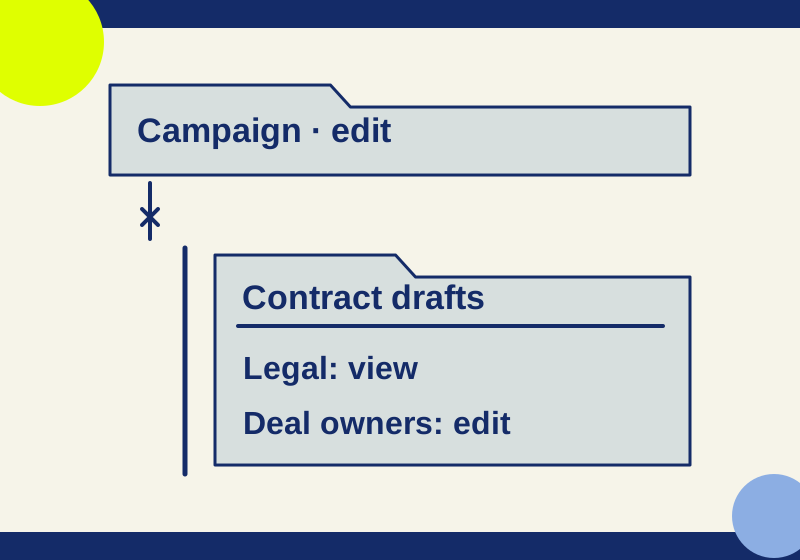
Restrict a Dropbox subfolder while keeping the parent available
Remove the broad child-folder grant, retain the smaller audience, and distinguish parent-access resets from deleted-folder restores.
SOURCE-CHECKEDSharing workflows
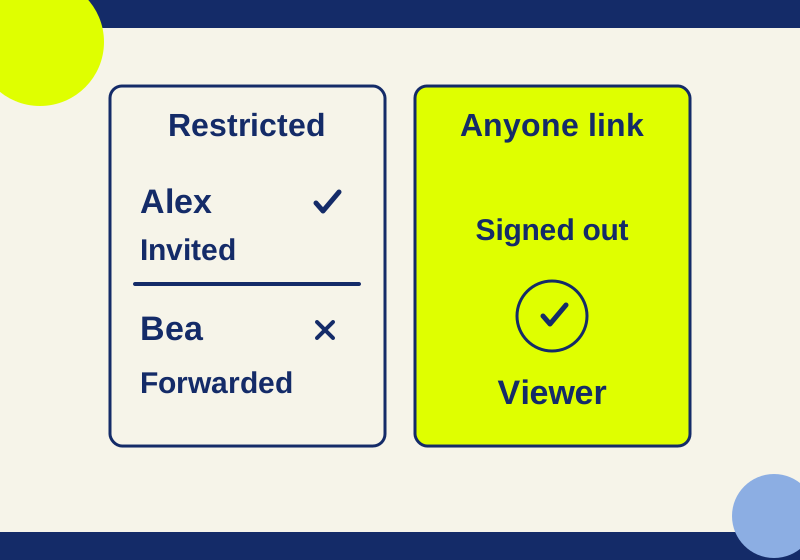
Google Drive Restricted vs Anyone with the link: who can open your file?
Restricted can still include folder and group members. Trace who can open your file before you send its link.