SOURCE-CHECKED GUIDE · SHARING WORKFLOWS
Choose restricted or link access in Google Drive
Choose a Google Drive audience and role that fit one file or folder handoff.
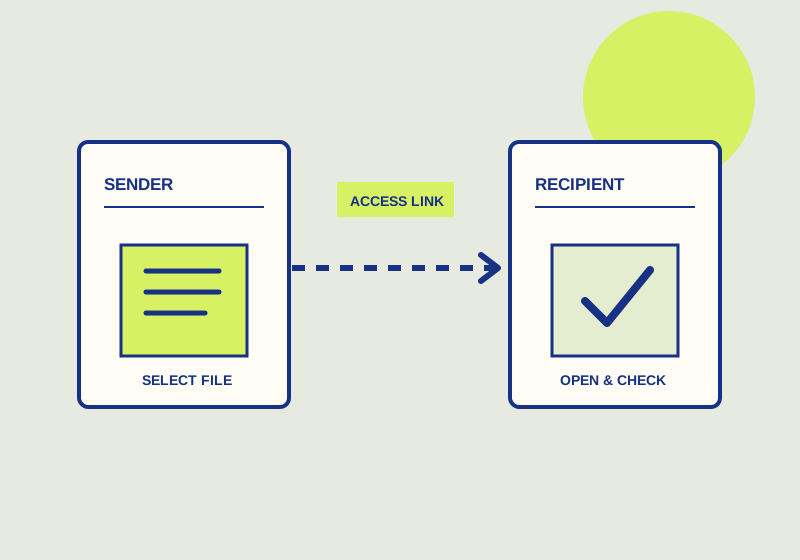
Use restricted access when a Google Drive file or folder is meant for named people. Use Anyone with the link only when access can extend to whoever receives the link, including someone who is not signed in. Then assign a Viewer, Commenter, or Editor role according to the work the recipient needs to do. Google explains these settings in its Drive sharing guide.
Choose the audience for this item
Start with the item itself. A single file sent for review may need a smaller audience than a folder used by a project group. Identify the people who should receive each item before choosing its access setting. If you can name every intended recipient, restricted access fits that handoff. Add those people rather than using a broader link as a shortcut.
For a broader handoff, consider what happens when the link is copied into another message. Anyone with the link can use it without signing in. If the material should stay within a named group, that setting is too broad for the stated audience. A Workspace organization may instead allow visitor sharing with named people who lack Google Accounts. Visitors verify their email with a PIN; the option depends on the administrator. Check that option before opening a sensitive file to everyone holding a link.
Match the role to the request
Choose Viewer for someone who needs to see the item, Commenter for someone asked to leave feedback, and Editor for someone who must make changes. An Editor has broader capabilities, so assign that role for a specific editing task. For instance, a reviewer who will comment on a draft has a different assignment from a collaborator responsible for revising it. The two people can have the same audience setting while needing different roles.
Write the expected action into the handoff message. “Please review and leave comments by Friday” gives the recipient a clearer task than “Here is the file.” If direct revisions are needed, say which material the recipient is expected to edit. This also gives you a practical way to check the role before sending: the selected role should support the action described in the message.
Check the handoff before sending
Review the sharing settings for the exact file or folder you intend to send. Confirm the audience, check every named recipient if access is restricted, and read the assigned role. If you are sharing both a file and a folder, check them separately. Ask one intended recipient to open the invitation and confirm they can perform the requested view, comment, or edit action. For visitor sharing, that includes completing the PIN step.
The owner can control some download, print, and copy settings. Review those controls if they matter to this handoff, but do not promise that they prevent someone from retaining or passing along information. Keep the recipient instructions focused on the access that was actually selected.
Account for unavailable options
An organization policy may limit sharing choices. If the desired audience or role is unavailable, use an option that meets the task within the organization’s policy or ask the administrator what is permitted. Before telling recipients how to open the item, confirm the final setting. For restricted access, identify the named recipients. For Anyone with the link, explain that the link can be used without signing in.
This guide explains a workflow using the linked primary sources. We did not independently run every step or verify the result for your files; check the current service screen and your own output.
Primary sources:
KEEP GOING
Related checks.
SOURCE-CHECKED GUIDESharing workflows
Remove access to a Google Drive file
Check both the file’s general access and its individual collaborators before deciding what to revoke.
SOURCE-CHECKED GUIDESharing workflows
Protect a Proton Drive link with a password
Require a password for the link, then give the recipient the link and password.