SOURCE-CHECKED GUIDE · SHARING WORKFLOWS
Protect a Proton Drive link with a password
Add a password to a Proton Drive file or folder link and plan the recipient handoff.
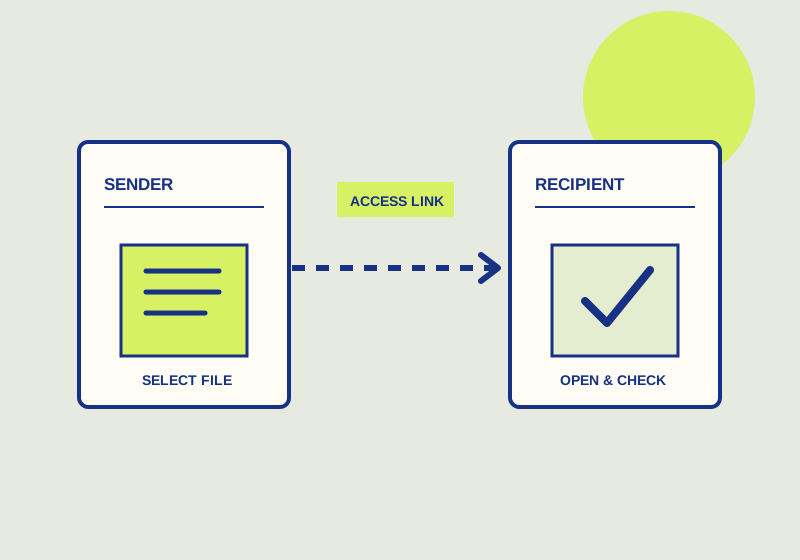
To password-protect a Proton Drive link, select the file or folder in the web app, open Manage share, choose Set password or expiration date, enable Require password, and save. The recipient will need both the link and the password. Proton recommends sending the password separately by a secure channel in its password protection instructions.
Plan the two deliveries
Identify the file or folder and the person who should receive it before changing the share setting. Decide where to send the link and which separate secure channel you will use for the password. If both are placed in one message, anyone who receives that message has both pieces. Make the messages clear enough that the recipient can match the password to the correct link without putting them together in a single delivery.
For a handoff involving several files, name the intended item in your communication plan. A recipient should be able to tell whether a password belongs to the report link or the folder link. Keep that distinction clear when sending the separate messages, especially if the recipient is expecting more than one item.
Require the password
In the Proton Drive web app, select the intended file or folder. Open Manage share and then Set password or expiration date. Enable Require password and save. Check that the item selected is the one named in your handoff message. A password added to a different file or folder would leave the intended handoff unresolved.
Expiration is optional. If the recipient only needs access during a defined period, decide whether to set an expiration date while working in the sharing settings. If the handoff has no agreed end date, you can leave expiration unset. Tell the recipient about an expiration date only when you set one, and give the date in the handoff so they know when to act.
Send and check the handoff
Send the link to the intended recipient, then send its password through the separate secure channel you selected. State that both are needed to use the link. A concise link message can identify the item and the requested action, such as reviewing a named document by a specified date. The password message can identify the same item without repeating the link.
Ask the recipient to open the link, enter the password, and confirm that the intended file or folder appears. If they report a problem, establish whether they received the link, saw a password prompt, entered the current password, and reached the right item before changing the share setting. Your own check should cover the selected item, the saved Require password setting, the two delivery channels, and any expiration date you chose.
For example, a consultant sending signed-scope.pdf could email the link and give the agreed password in a separate call. The recipient can confirm three observable points: the link asks for a password, the password opens signed-scope.pdf, and the first page is the agreed scope rather than an older draft. If no prompt appears, the sender should inspect the saved Require password setting and confirm that the link points to the intended item. If the prompt rejects the password, compare the password delivered through the second channel with the current setting. If a different file appears after entry, replace the incorrect link. A successful password entry alone does not prove that the right document was sent.
Describe the protection accurately
Requiring a password means a recipient needs the link and password. It does not prevent someone who can see the content from capturing it or sharing it again. Describe the handoff as a password-protected link, and avoid promising control over screenshots or later redistribution.
If the handoff should end, Proton’s access-management guide describes stopping a public link. That ends future access through the link; it does not recall a copy the recipient already saved.
KEEP GOING
Related checks.
SOURCE-CHECKED GUIDESharing workflows
Set and check a OneDrive link expiration
An eligible link can expire, but direct access and folder-sharing requirements need separate attention.
SOURCE-CHECKED GUIDESharing workflows
Revoke a Proton Drive public link
Stop sharing deletes the public link and removes access for everyone, including invitees.