SOURCE-CHECKED GUIDE · SHARING WORKFLOWS
Remove access to a Google Drive file
Audit an old Google Drive file link and remove access that is no longer needed.
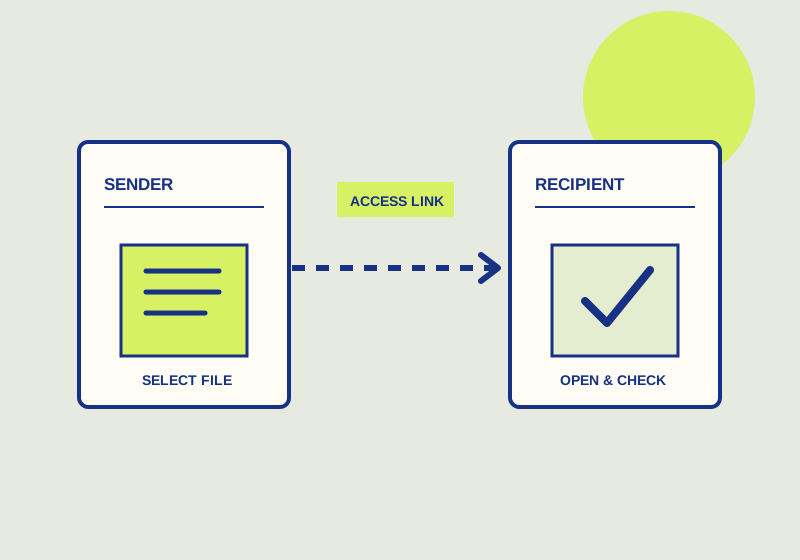
To remove access to a Google Drive file you own, set General access to Restricted if an old link should stop providing access. Then use Share > Manage access to remove people whose access has ended. Google’s sharing instructions also describe changing a person’s role when they still need the file.
Prepare the access list
Find the file and identify the work it supports. A completed vendor review may leave a vendor with access that is no longer needed, while an internal teammate may still be using the same file. Write down the people who should retain access and the roles they need. This gives you a reference when you review the sharing settings and helps you explain the change to anyone coordinating the work.
If you are taking over the file from another owner or project lead, confirm the handoff date and any remaining review tasks first. A collaborator awaiting a final decision may need time to finish. Once that work is complete, you can remove their access without interrupting the agreed handoff.
Change the sharing settings
- Open the file’s sharing controls and review General access. If the link was intended for a finished review, change General access back to Restricted. Record which review or handoff prompted the change.
- Open Share > Manage access and examine the individual people listed. Removing a link is a separate decision from removing a named collaborator. Compare each person with your prepared access list.
- Remove people whose work with the file has ended. For someone who still needs the file, consider changing their role if their current role grants more access than the task requires.
- Review whether editors should be allowed to share the file. Editors may share unless the owner turns off that setting. If you own the file and want to control future sharing yourself, make that choice during this audit.
Tell affected collaborators what changed when it matters to their work. A brief handoff note can name the file, the date access ended, and whom to contact if unfinished work was overlooked. Keep the note focused on the decision; it need not include a copy of the file or its contents.
Check the result
Return to General access and Share > Manage access. Confirm that General access matches your intended link policy, that the remaining people match your list, and that each remaining role still fits the work. If someone can still open the file after their direct access is removed, inspect the containing folder: Google notes that folder permissions can apply to files within it. Ask the affected recipient to confirm the result using their own account rather than inferring access from your owner’s view. If an expected sharing control is unavailable, ask your organization’s administrator about its restrictions.
These permission changes cannot retrieve material someone copied or downloaded before access was removed. Account for earlier copies separately if the file contains information that requires follow-up. The sharing review establishes who should have access to the Drive file now; it cannot establish what happened to material obtained earlier.
This guide explains a workflow using the linked primary sources. We did not independently run every step or verify the result for your files; check the current service screen and your own output.
Primary sources:
KEEP GOING
Related checks.
SOURCE-CHECKED GUIDESharing workflows
Choose restricted or link access in Google Drive
Use restricted access for named recipients and link access for a broader audience.

SOURCE-CHECKED GUIDESharing workflows
Box or Google shared drives for an outside agency
Choose a collaboration space that can contain agency access to a defined project.