SOURCE-CHECKED · SHARING WORKFLOWS
Restrict a Dropbox subfolder while keeping the parent available
Keep a Dropbox parent folder shared while narrowing one child folder, with a downloadable access plan, overlapping-grant examples, and restore warnings.
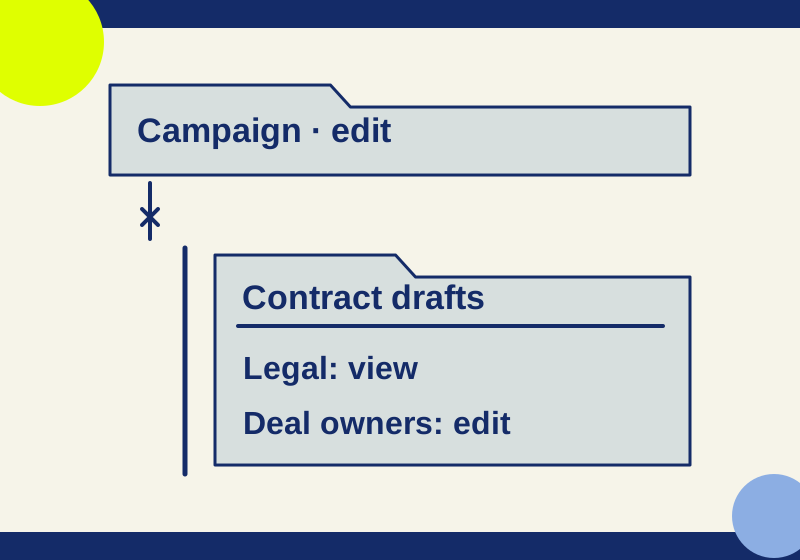
To keep a team’s Campaign folder available while limiting access to Contract drafts, restrict the child folder and remove the people or groups who should not have access there. Creating a child folder alone does not do this: it inherits the parent folder’s members. Dropbox supports restricting a folder inside a team folder on Standard, Advanced, Business, Business Plus, and Enterprise plans. Dropbox’s restricted-folder instructions describe the available controls.
Map the routes into the child folder
Before changing permissions, list every route by which a person may have access: a broad parent group, a more specific group, or a direct share. Dropbox applies the highest permission a person receives through their individual and group grants. Leaving an editor route in place will not make that person a viewer merely because another route says “view.” Dropbox’s group-permission guidance explains this rule.
Here is an illustrative access plan. The Campaign group can continue editing the parent folder, while access to Contract drafts depends on the routes retained at the child:
| Person | Access to Campaign | Intended access to Contract drafts | Child-folder change |
|---|---|---|---|
| Nora | Edit through Campaign group | None | Remove the Campaign group route; confirm she has no other route |
| Ezra | Edit through Campaign group | View through Legal reviewers | Remove the Campaign group route and retain Legal reviewers |
| Priya | Edit through Campaign group | Edit through Deal owners | Remove the Campaign group route and retain Deal owners |
| Ivo | None | View through a direct child share | Retain the child-only share |
| Amir | Admin-console access | Admin-console access | Treat separately from ordinary member permissions |
The broad Campaign group stays on the parent. Removing that group from the parent or changing its membership would disrupt the work that is meant to remain available. The child folder is where the broad route is removed.
The worked parent-and-child access plan records these routes one per row. Use the blank parent-and-child worksheet to copy all routes for your own people before changing the child, then record the intended parent and child access. The CSVs are planning aids, not permission scanners or automatic changes. Compare their expected results with actual access afterward.
Remove the unwanted child entries
In Dropbox on the web, open the child folder’s More menu, choose Manage permissions, select the relevant person or group’s dropdown, choose Remove, and confirm. Dropbox also documents an admin-console path: Products > Dropbox > Content > Manage Access > Remove, followed by confirmation. Follow the restricted-folder instructions for the interface available to your team.
Work from the complete route list. In the example, removing the Campaign group route at Contract drafts leaves Ezra’s Legal reviewers view route and Priya’s Deal owners edit route. Nora has no remaining ordinary member route only if the roster check finds no other grant.
A view role is not exclusion. Dropbox says viewers can open, download, comment on, and share content, though they cannot add, edit, or delete it; a direct share cannot be set to prevent downloading. If someone must be excluded from Contract drafts, remove every relevant access route instead of changing an editor grant to view. Available sharing controls may also depend on team admin settings. Dropbox’s file and folder permissions guide describes these roles.
Ezra can view the drafts after the editor route is removed
In the example, Ezra has two routes into Contract drafts: Campaign grants editing, while Legal reviewers grants viewing. Changing Legal reviewers to view does nothing to the Campaign editor grant. Remove Campaign from the child, retain Legal reviewers, then check whether Ezra has any direct editor invitation or another editor group. The expected result is view only when all remaining ordinary member routes permit no more than viewing.
Priya needs a different result. Keep the Deal owners editor route so she can change drafts, while removing the broad Campaign route from the child. Inspect who belongs to Deal owners before treating that group as the smaller audience. If Nora is also a Deal owners member, she still has an editor route despite the Campaign removal. Resolve the actual roster or grant instead of repeatedly removing Campaign.
Ivo needs only to read the drafts. In the legacy layout described by Dropbox’s team-folder guide, a child-only invitation can provide that access without exposing its containing folder structure. Record his parent expectation as none and his child expectation as view; giving him the whole Campaign folder would change that scope. The guide addresses teams without the team space experience; check which account layout you use before following its navigation. Verify his result on the child itself. A missing parent folder in his navigation is not enough to diagnose failed child access.
Check access with ordinary members
Use a disposable example document at the intended child-folder path. Have an ordinary member who should retain access open it and check the intended ability to edit or view. Have an ordinary member whose routes were removed try the same server path from their own account. Record the account, path, and observed open or edit permission separately from the worksheet’s prediction. A copy that someone opened or downloaded earlier does not establish their current cloud access.
Do not use an admin account as the exclusion test. Dropbox says an admin can access all team folders from the admin console without being a member. That is an exception to the ordinary member routes in this example, not a promise that Contract drafts is hidden from company admins. Dropbox’s restricted-folder instructions describe that admin access.
Check links separately if particular file URLs matter to your team. Dropbox says you cannot create a shared link to a restricted folder. That statement alone does not establish what happens to every previously shared individual file URL, and changing folder membership does not recall copies already downloaded. Inventory the relevant links and test the required file URLs with the appropriate accounts.
If access changes later
Two actions have different effects. In the admin console, Content > Share > Share with everyone > Share restores parent access and makes the folder no longer restricted. That is a deliberate change to inheritance, not a way to refine the child’s member list. Dropbox documents the operation.
For the legacy team-folder layout covered by Dropbox’s team-folder guide, restoring a deleted child folder also restores its previous sharing permissions. Suppose a former reviewer had a direct viewer invitation when the folder was deleted. A later restore can bring that old invitation back with the folder. Review the restored permission list and remove previous members who should no longer have access. Keep the restored content out of routine use until you have checked the intended audience. Moving the content out of the team folder changes the access setting you are relying on, so keep the restriction work at the child folder unless a move is itself the intended change.
Sources and scope: The linked Dropbox help pages were checked October 7, 2026. The seven-route, five-person example produced the stated expected roles in a local route calculation; no affected Dropbox account was tested, so the example does not show that any real user was blocked.
KEEP GOING
More to explore.
SOURCE-CHECKEDSharing workflows
Dropbox personal folders vs. team folders: keep projects working when people leave
Put shared projects in the right team folder, separate restricted files, and use the correct ownership or account-transfer process when someone leaves.
SOURCE-CHECKEDSharing workflows
How to limit access to a Google Drive folder without changing its parent
Map each route into a restricted subfolder and check the Manager, group, and General access exceptions.