SOURCE-CHECKED · SHARING WORKFLOWS
Dropbox personal folders vs. team folders: keep projects working when people leave
Move Dropbox project work safely, transfer shared-folder ownership, and handle departed team members without losing the files your successor needs.
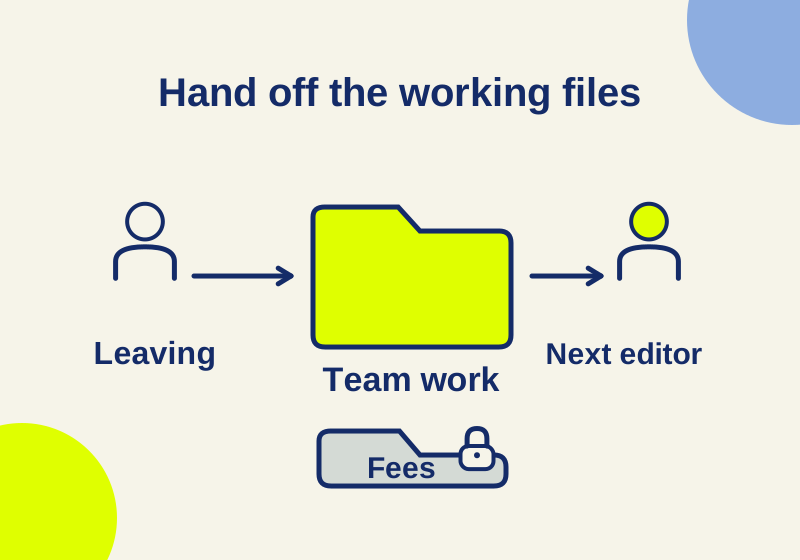
On a Dropbox team account, a project can live in a member’s personal folder or a team folder. The choice affects who can reach the work when that member leaves. For work that several people must maintain, set up a team folder with the right access, move the project into it, and confirm the successor can work there before the departure.
A shared folder in someone’s personal space needs a different handoff: its owner may have to transfer ownership. If the member’s account has already been deleted, an eligible admin has a separate, time-limited file transfer process. Neither step should be treated as an automatic transfer of every client-facing link.
Choose the project location
In the current Dropbox team space, members have personal folders alongside team folders. An ordinary coworker cannot see another member’s personal folder unless its contents are shared. A team folder can be assigned to the whole team or to selected groups and people, with different access levels. When owned content moves from a personal folder into a destination, it takes on that destination’s audience. The owner needs access to the content and edit access to the destination to make the move. Dropbox’s team space overview explains these distinctions.
A personal folder inside a work account has a different privacy boundary from a separate personal Dropbox account. On Advanced, Business Plus, and Enterprise, team admins can sign in as a member and access work-account files. That feature is unavailable on Standard and Business and does not give access to a separate personal account linked to the work account. Keep personal employment papers in your separate personal account according to your organization’s policy. Dropbox explains administrator access.
In the current team space, create the folder for “Only specific people” and select their view or edit rights. Admins may restrict top-level folder creation; that restriction does not settle access inside an existing project. Dropbox’s folder management guide covers these controls.
Dropbox also documents an older team-folder experience with different sharing behavior. In that experience, people invited only to a child folder must accept the invitation, and they do not gain access to the parent folder or its structure. It also does not allow a link to the whole team folder in the way the current team space does. Use the instructions for the interface your team has, particularly when arranging access for someone outside the project’s main group. Dropbox labels its older team-folder guide accordingly.
Build access around the work
Consider a hypothetical six-person design agency with two existing clients, Cedar and Alder. Maya leads Cedar; Theo will take over. Freelancer Luis needs to view Cedar’s final deliveries, while Rina handles fees. This is a proposed layout, not a tested Dropbox setup:
Team space/
  CedarSpring/                 team folder
    Working/
    ClientDelivery/
    Fees/
  Alder/                       separate team folder
  Maya/                        personal folder
    Drafts/
      Cedar-project/
      employment.pdf
The agency would move the owned Cedar project work from Maya’s Drafts into CedarSpring/Working. It would keep Alder in its own project location and leave employment.pdf out of the Cedar move.
| Folder | Proposed access | Reason |
|---|---|---|
CedarSpring |
Maya and Theo | Keep the parent audience limited to the people running Cedar. |
Working |
Maya and Theo, with edit access | Let Theo continue the active project. |
ClientDelivery |
Maya and Theo; Luis with view access | Give Luis the finals he needs to see. |
Fees |
Maya and Rina | Keep fee material outside Theo’s and Luis’s intended access. |
Create and restrict Fees while it is empty, before importing fee files. A new subfolder initially inherits its parent’s members; inside a team folder, its permissions can then be changed by removing people or groups. For this layout, that means removing Theo from Fees and adding Rina. Dropbox says restricted folders cannot have a shared link, and admins can access team folders even when they are not listed as members. The web control is More options → Manage permissions → person or group menu → Remove, followed by confirmation. Dropbox’s restricted-folder instructions describe those steps.
This layout gives Theo project access through membership and permissions. It does not depend on making him a “team-folder owner”: Dropbox says team folders have no individual owner. Before Maya leaves, Theo needs edit access to Working. Give him the exact project path and have him open the current working document through his own account. If he can open ClientDelivery but cannot find Working, a child-folder invitation has supplied only part of the access he needs. If Fees is unavailable, that matches this example’s intended separation. Those two outcomes require different responses.
A usable handoff message would be:
Cedar’s working files are in
CedarSpring/Working. The latest editable project isCedar-layout-v06.indd; the approved client PDF is inClientDelivery. Theo is the project editor. Rina owns fee decisions and is the contact forFees. Luis has view access to the delivery folder only. The Alder project stays in its separate folder.
The names and filenames are examples you can replace. A path without the current editable filename leaves the successor choosing among exports; a filename without the folder leaves them dependent on the previous person’s links. For a project with linked artwork, include the associated assets in the same handoff description so the successor knows which files to ask for if the document reports missing resources. This is an instruction for the agency’s handoff, not a claim that Dropbox validates design-file dependencies.
Move the existing Cedar work
First identify the Cedar folder that Maya owns. Do not move all of Drafts: the employment document is unrelated to the client handoff. Confirm that Maya can edit CedarSpring/Working and that its intended audience is in place. On the web, Dropbox’s move instructions use More options → Move, followed by the destination and Move.
If the item being moved is itself a shared folder, there are additional conditions: its owner must be on the same team, the person moving it needs edit access, its access management must be set to “Folder members,” and the destination needs edit access. An ordinary shared folder cannot simply be nested inside another ordinary shared folder; a team plan can move one into a team folder. Dropbox lists the shared-folder move conditions.
A copy is a separate copy of the contents, not a copy of the folder’s permissions. A move out of a shared location can cause other people to lose access. After a copy, invite the intended audience to the new location explicitly. Before a move out of team storage, account for the people who will lose access. Dropbox’s folder management guide addresses both cases.
Transfer ownership only where it applies
Suppose the agency keeps another project in a shared folder owned by Maya in her personal space. The folder owner can make Theo the new owner, provided Theo is an active member of that folder. On the web, the owner uses More options → Manage permissions, opens Theo’s menu, chooses Make owner, and confirms. Ownership transfers at the parent shared folder; a nested folder does not have an independently transferable owner. Dropbox’s ownership instructions set out the procedure.
If Make owner is missing, check which folder is open and who is acting. The option is unavailable to someone who is not the owner, on a nested folder, or on a team folder. For CedarSpring, the relevant handoff is Theo’s access to the team folder, not an ownership change.
Ownership transfer also does not hand Theo the original creator’s shared view-only links. Where clients rely on individual file links created by Maya, Theo should create new links under his own account and give clients the replacements as needed. Dropbox distinguishes those links from folder ownership.
Handle a deleted member’s files separately
For eligible Dropbox team plans, an admin can transfer a deleted member’s files to one current team member, once, within the applicable version-history window. The admin route is Admin console → Members → Removed → Deleted → More beside the former member → Manage files → Transfer them to another team member, then select the recipient and submit. Dropbox lists Standard, Advanced, Business, Business Plus, and Enterprise for this procedure. It is an offboarding operation, not a reason to delete an account merely to reorganize a project. Dropbox’s account-transfer guide and member-deletion guide cover the separate actions.
The recipient gets the former member’s personal folder under the former member’s name, with areas such as Shared, Previously Shared, and Home. The current admin guide lists shared-folder ownership, team-owned memberships, previous versions, and links among transferred material, while excluding group memberships, Backup, and other people’s unowned Paper content. That bulk transfer is distinct from Maya directly making Theo the owner of a particular shared folder. It also makes the example’s employment.pdf relevant: leaving it out of the Cedar project move does not mean it is outside a later transfer of Maya’s personal files. The admin must account for it when choosing the recipient and handling the departure. Dropbox describes the transfer’s scope.
If the project has links in invoices, client emails, or a project portal, keep a list of those locations during the handoff. A new link under Theo’s account is useful only when the client receives it. Update the actual message or portal entry that people use, and distinguish the approved delivery file from any editable working file when sending replacements.
Source note: The linked Dropbox help pages were reviewed October 7, 2026; no account, migration, admin transfer, or offboarding steps were independently tested.
KEEP GOING
More to explore.
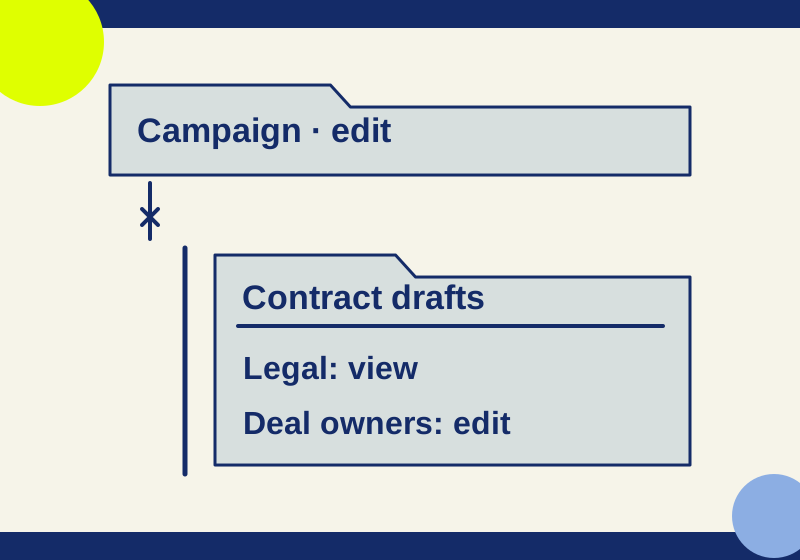
SOURCE-CHECKEDSharing workflows
Restrict a Dropbox subfolder while keeping the parent available
Remove the broad child-folder grant, retain the smaller audience, and distinguish parent-access resets from deleted-folder restores.
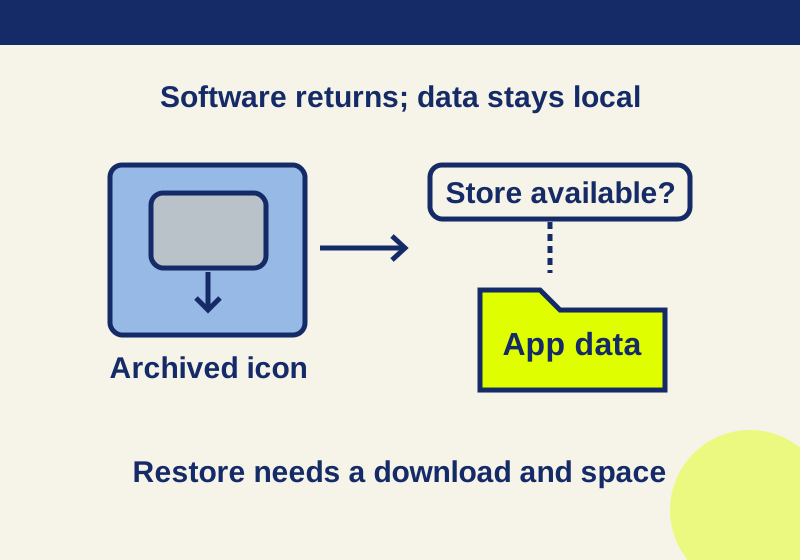
SOURCE-CHECKEDEveryday tech
Android archived apps: restore faded icons and keep the data
A faded icon can preserve app data while the software needs downloading again. Follow the recovery branch that matches your phone.