SOURCE-CHECKED · SHARING WORKFLOWS
Share Workspace Drive files with non-Google visitors, and fix PIN problems
Use an organization-enabled Workspace visitor invitation to share a Drive file with a non-Google recipient, then fix PIN, address, and seven-day verification problems.
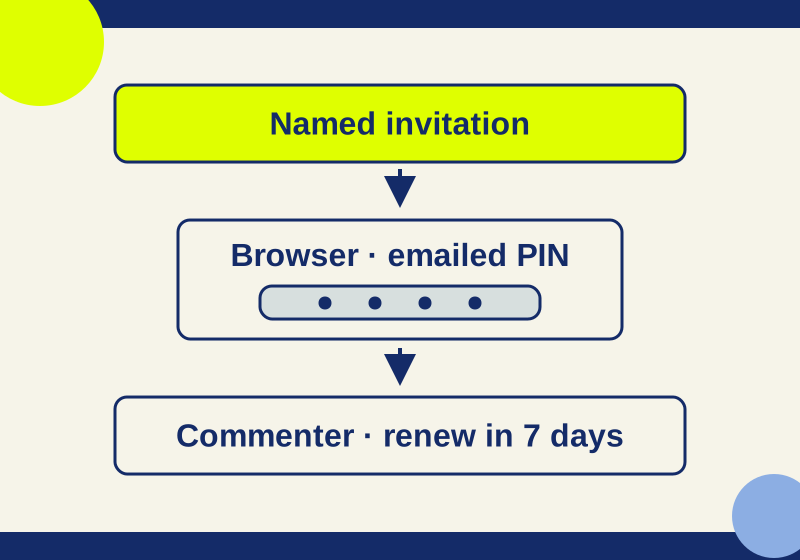
From a work or school Google account, you can send a named visitor invitation only when your organization enables visitor sharing and permits that recipient. This workflow is not a visitor-PIN sharing option for an ordinary personal Gmail sender. An invited recipient without a Google account opens the file by opening the invitation, entering the PIN emailed to the invited address in the Verification tab, and selecting Next. The visitor can then read, comment, or edit according to the permission the sender granted. Verification lasts seven days; after that, the visitor can return to the original invitation to verify again. Google Drive visitor sharing help
When that process stalls, find the step that stopped: before the invitation arrived, before the PIN arrived, during PIN entry, or when reopening the file later. The recipient handles the invitation and code; the sender checks the address, role, and organizational sharing policy.
Send the invitation from the work or school account
Use the account that belongs to the organization allowing visitor sharing. In Drive on a computer, select the file and open Share. Under Share with people and groups, enter the recipient’s exact non-Google email address and press Enter. Choose Viewer, Commenter, or Editor from the role dropdown, then select Send. These are Google’s documented sender steps; no invitation was sent for this article. Google Drive visitor sharing help
For a proof review, Commenter lets the recipient leave feedback without giving them ordinary file-editing permission. Confirm the address and the requested task before sending. If the organization allows visitor sharing only to trusted domains, the administrator must permit the recipient’s domain; changing the file role cannot override that policy. Workspace administrator guidance
If the invitation is missing
The sender should compare the address on the invitation with the address the recipient confirms they use. A named invitation is tied to its recipient; changing a file’s Viewer, Commenter, or Editor setting does not correct an invitation sent to the wrong address.
In this illustrative proof review, the invitation is sent to proof@studio.example, while the reviewer is checking proof@freelancer.example. Giving proof@studio.example Editor access would still leave the reviewer looking in the other mailbox. The sender needs to resolve the address mismatch first.
If the address is correct and visitor sharing remains blocked, the sender can ask a Workspace administrator whether organizational visitor-sharing rules allow that recipient. An organization may restrict visitors to trusted domains, and visitor sharing has edition and feature exceptions. Workspace administrator guidance
A short sender message keeps the repair focused:
Please confirm the exact email address where you expect the Google Drive invitation. I’ll compare it with the address on the file invitation. If they match and access is still blocked, I’ll check our visitor-sharing policy.
If the PIN email does not arrive
The PIN goes to the invited address. The recipient should check that mailbox, while the sender checks which address received the named invitation. The sender cannot repair a PIN destination problem by widening the file’s general or link audience. Named access and general access are separate sharing choices. Google Drive sharing permissions
The recipient should keep the PIN private. To describe a failure, they can report whether the invitation arrived, whether a PIN arrived at the invited address, and the exact error text with private content removed. They do not need to send the code to anyone.
If the PIN arrives but the file does not open
The documented sequence is specific: open the invitation, enter the emailed PIN in the Verification tab, then select Next. If the recipient has been trying a different link or sign-in route, return to the original invitation and follow those steps in a computer web browser. Google Drive visitor sharing help
A successful verification also does not grant an action the file permission excludes. A Viewer can read, a Commenter can leave feedback, and an Editor can modify the file. If the task is to comment and the visitor can only view, the sender should check the permission assigned to that invited address. Google Drive sharing permissions
If the review continues next week
Suppose a reviewer verifies on Monday and reopens the proof the following week. If Drive asks for verification again, the reviewer should use the original invitation. The seven-day period is measured from verification; there is no need to guess an exact expiry time from the day of the week. Google Drive visitor sharing help
Re-verification is different from starting over after a visitor session has been deleted. Deleting that session removes access and requires the sender to share the file again. Deleting the session also removes the visitor’s name from previous changes and comments, which Google attributes to an unknown user. For that reason, session deletion is a poor routine fix for a missing PIN or an expired verification period. Google Drive visitor sharing help
If the link opens in an app
Visitor sharing is supported in a browser, not in mobile or downloaded clients or Drive for desktop. A recipient who reaches an app instead should open the original invitation in a computer web browser and follow the PIN steps there. Workspace administrator guidance
Check which kind of recipient is being invited, too. A visitor without a Google account is distinct from a hosted Guest account, which Google marks with a cyan Guest badge. If the person already has a provisioned Guest address, the sender should use that existing address. Google Drive visitor sharing help
Check the requested action before sharing a sensitive file
For a comment review, the sender can use a harmless placeholder document to check the invitation flow. Invite the confirmed address as a Commenter, ask the recipient to open it in a computer browser and leave a simple comment, then check whether the requested action worked. This is a suggested check, not a reported product test.
If the task grows into sharing a folder of working files, check its location and the sender’s edition first. Visitors cannot own files, join the root of a shared drive, upload or create files in My Drive, or download folders. Visitor creation and upload in shared drives are unavailable in Education Fundamentals, Essentials Starter, Nonprofits, and G Suite Business. Google Drive visitor sharing help Workspace administrator guidance
For the first reply, send only the document title and the action you need. A report such as “The invitation arrived, the PIN arrived at the same address, and I can open the proof, but the comment control is unavailable” points the sender toward the assigned role. “The link does not work” leaves the sender to investigate every step. Neither reply needs the verification code or private document content.
The visitor review note provides fields for the document title, invited address, requested action, browser, last known verification date, observed result, and reply contact. Fill it locally and leave PINs out. Its suggested recipient message is:
Please open the original Google invitation in a computer browser. Use the verification code sent to the invited address in the Verification tab. Please confirm that you can open the named document and leave feedback. Never send me your verification code.
When the review is finished, the sender should remove the visitor’s file access if continued access is no longer wanted. Waiting for the seven-day verification period addresses the next verification step; it does not serve as the sender’s access-removal step.
Source note: This guide uses the linked Google help and administrator guidance read October 7, 2026. No live Google account, invitation, or client was tested for this article.
KEEP GOING
More to explore.
SOURCE-CHECKEDSharing workflows
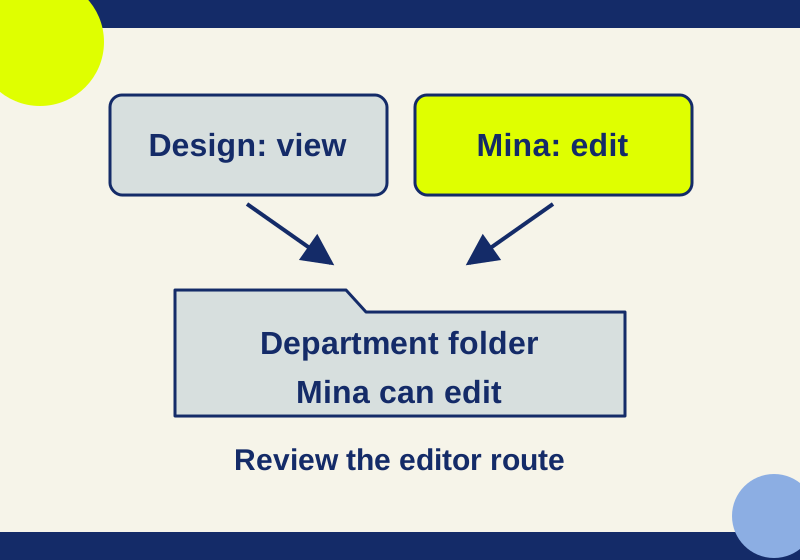
Share a Dropbox folder with a group and fix unexpected edit access
A view-only group can coexist with an editor grant. Follow five worked access cases and keep membership changes scoped.
SOURCE-CHECKEDSharing workflows
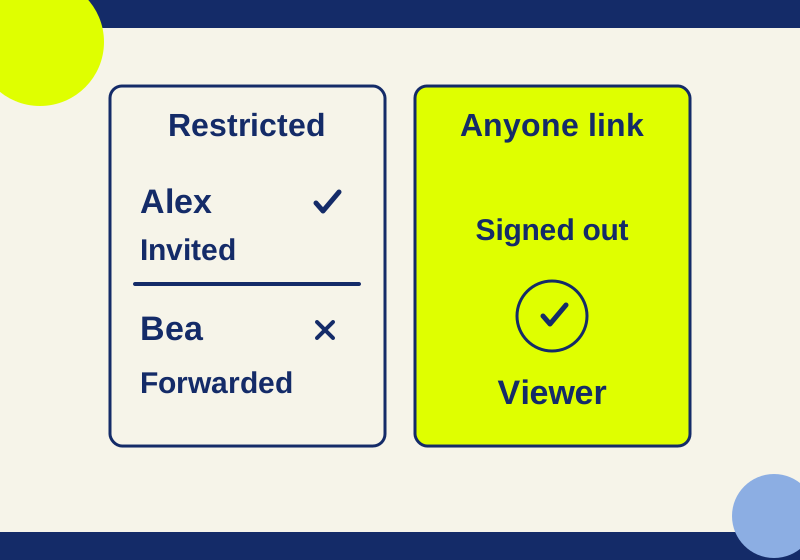
Google Drive Restricted vs Anyone with the link: who can open your file?
Restricted can still include folder and group members. Trace who can open your file before you send its link.