SOURCE-CHECKED · SHARING WORKFLOWS
Share a Dropbox folder with a group and fix unexpected edit access
Trace overlapping Dropbox group and individual grants, fix unexpected editor access, and use a downloadable worksheet without changing unrelated folders.
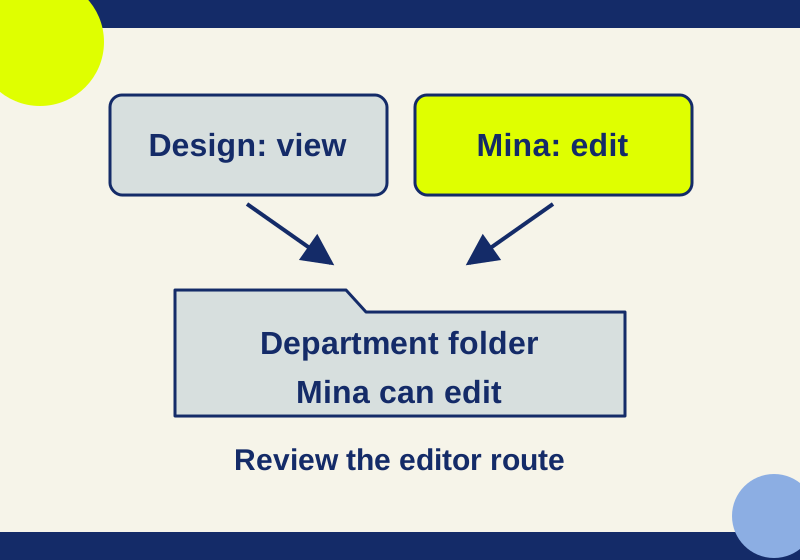
Share the folder with your department group, choose Can view or Can edit, then check whether members also have access through another group or an individual share. Dropbox applies the highest active permission a person receives. Changing the Design group to view-only will not make Mina a viewer if Mina still has a separate individual editor grant to the same folder.
That rule also explains why removing someone from a department group may leave them able to open the folder. Group membership is only one access route; a direct share or another group can remain.
Choose who manages membership
First, identify how the group is managed. For a company-managed group, only admins can create the group or add and remove members. For a user-managed group, team members can create groups if their admin allows it; admins and group managers can add and remove members. The person responsible for the folder’s access should know which of those authorities controls the group before relying on membership changes.
Dropbox also has an “Everyone at [Your Team Name]” group. It automatically includes current and new team members, and its membership cannot be modified. If a folder is shared with that group, removing someone from Design will not remove their Everyone group route while they remain a team member. Check that route when department membership appears to have changed but access has not.
These group features are documented for Standard, Advanced, Business, Business Plus, and Enterprise teams.
Grant the group access to the folder
When sharing the folder, enter the group as the Share recipient and assign its role: Can view for members who should read the contents, or Can edit for members who need to change them. Dropbox’s admin route is Admin console > Groups > Manage Access, where an admin can select folders and permission levels for a group.
The role defines what the grant allows. A viewer can view, download, comment on, and share files, but cannot add, edit, or delete them. An editor can add, edit, and delete files, as well as share and download them. A view-only grant is therefore an editing restriction, not a download restriction; direct sharing does not offer a way to disable downloading. Team settings may also affect sharing permissions. Dropbox describes these actions in its file and folder permissions guide.
Dropbox’s team-folder guide also describes Editor and view-only group roles, but that page specifically addresses teams without the team space experience. Use your team’s actual interface for folder navigation; the team space identification guide helps establish which experience applies.
Trace the five-person Design example
Suppose a department folder is shared with the Design group as view-only. The table shows five illustrative people and the routes listed for each. “Before” is the result of calculating those listed routes, not an observation from a Dropbox account.
| Person | Listed routes | Before | Intended |
|---|---|---|---|
| Mina | Design view active; individual edit active | Edit | View |
| Rowan | Design view active; Publishing group edit active | Edit | View |
| Tessa | Design view removed; direct view active | View | None |
| Otis | Design view removed; no other route listed | None | None |
| Leena | Design view pending | Unknown | Unknown |
Tessa’s removal from Design does not revoke her unrelated direct viewer grant. Otis has no access in the listed example, but an incomplete route list cannot establish that a real account has no other group, individual, link, or administrative route. Leena’s pending invitation does not verify that she can open the folder. Inspect the invitation status and check access from the affected account.
Fix one editor exception without changing the department
Mina needs to read the Design folder, but her previous assignment gave her an individual editor invitation. Keep the Design viewer grant. Review the individual invitation on that same folder and remove or reduce its editor access if the assignment has ended. A separate Publishing group editor grant would still need attention if Mina also had one. The useful record is the complete set of routes remaining after the change.
For Rowan, the editor route belongs to Publishing. Removing Publishing from the folder affects everyone who relied on that grant there. Removing Rowan from Publishing affects his access to other folders shared with that group. Write down which scope is intended before choosing between those actions. If Publishing still needs to edit this folder and Rowan still needs Publishing access elsewhere, review a different group arrangement with the admin. A viewer invitation for Rowan will not override a retained editor group grant.
A folder access question can therefore require a roster decision. The person who manages a user-managed group may handle membership; a company-managed group requires an admin. Ask for the specific route and folder to be changed. A request saying only “make Rowan a viewer” omits the editor route that prevents that result.
Account for every folder shared with the group
Adding a member to a group invites that person to all folders shared with the group, not just the department folder that prompted the change. Removing a member changes that group route across the group’s shared folders. Before changing membership to solve one folder problem, review which other folders use the group.
Keep that membership effect separate from folder permissions. A person may lose the Design route but retain a direct share, as Tessa does, or an editor route through another group, as Rowan does. Conversely, assigning Design Can view does not reduce a higher individual editor grant.
External sharing invitations follow a different rule: when a person belongs to multiple groups with invitation limits enabled, Dropbox applies the most restrictive setting. That invitation rule does not change the highest-grant rule used to determine the person’s folder editing permission.
Record routes, then check the affected account
Use the worked permission-route example to see the five cases as rows, and copy the blank permission-route worksheet for your own folder. Enter one row per grant using its fields: Person, Access route, Route type, Role, Route state, Intended member access, and Action to review. Record whether each route is active, removed, or pending; those states should not be treated alike. The CSV files contain plain data and do not scan Dropbox or detect permissions automatically.
Inventory the actual group and individual grants to the same folder for each affected account. After a targeted change, confirm the result from that account. If an editing check is needed, use an ordinary disposable file rather than a proprietary document. If the account’s behavior conflicts with the routes you recorded, recheck the folder, the account, and any missing grant before changing permissions. Requesting a new editor grant would obscure the cause of an unexpected editor result.
Source and scope: Dropbox’s groups, permissions, and team-folders pages were checked October 7, 2026. The five illustrative worksheet outcomes were calculated and checked locally; no Dropbox team-account grant was changed or tested.
KEEP GOING
More to explore.
SOURCE-CHECKEDSharing workflows
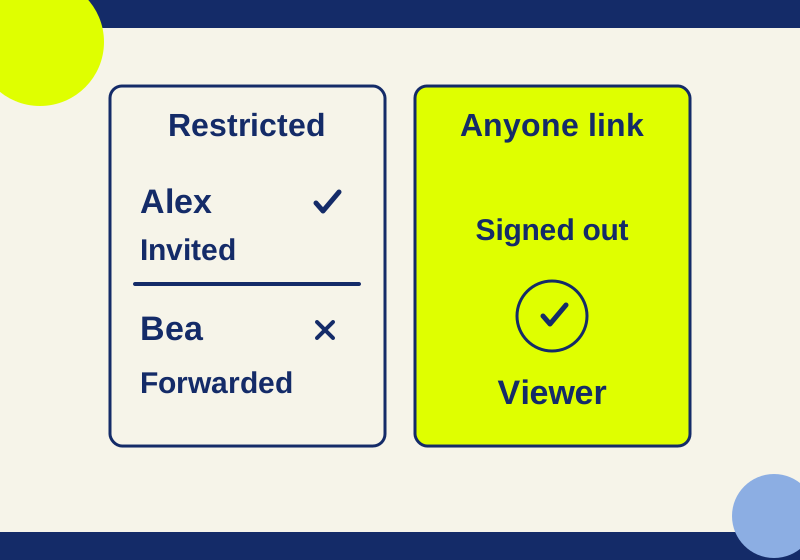
Google Drive Restricted vs Anyone with the link: who can open your file?
Restricted can still include folder and group members. Trace who can open your file before you send its link.
SOURCE-CHECKEDSharing workflows
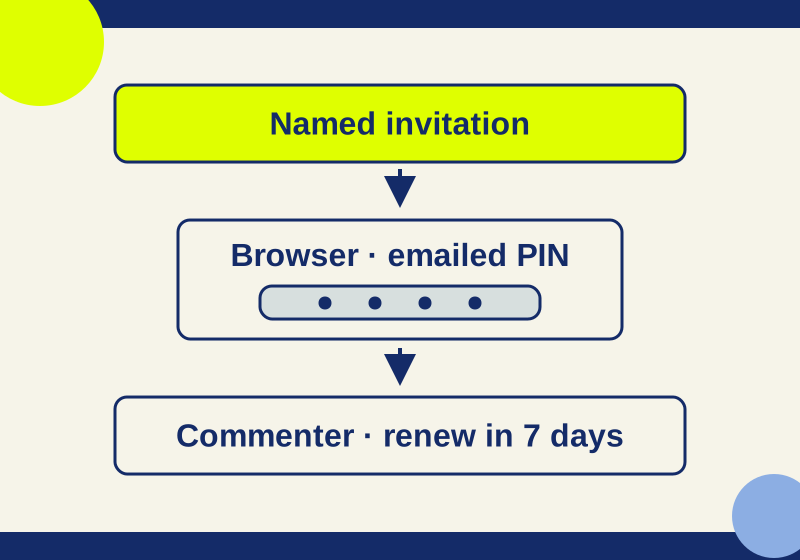
Share Workspace Drive files with non-Google visitors, and fix PIN problems
Work through invitation, PIN, browser, and re-verification problems with a recipient note you can reuse.