SOURCE-CHECKED GUIDE · SHARING WORKFLOWS
Request files from others with WeTransfer
Create a WeTransfer File request for named deliverables and use a separate tracking method when sender identity must be checked.
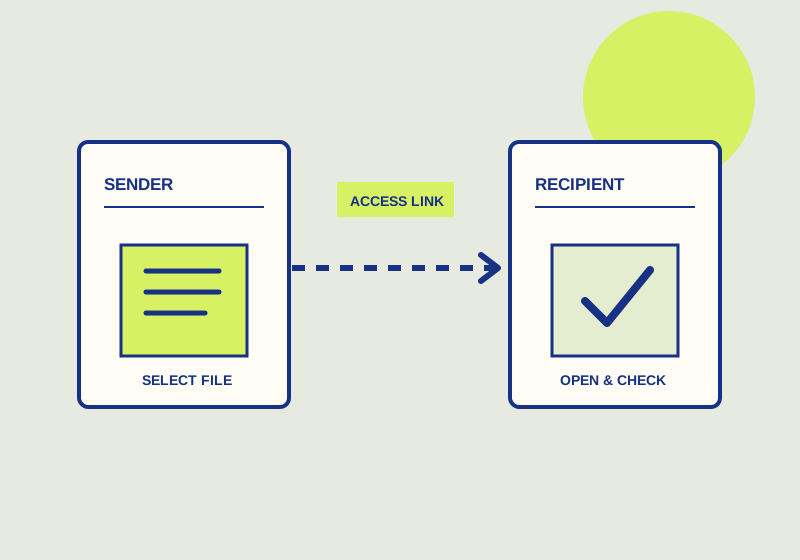
A WeTransfer File request gives others a link for uploading files. Put deliverable instructions above the upload area, then send the request to the people expected to respond. Uploaders verify their email addresses, so received transfers identify that verified email. The request has no custom required fields for a person’s name or company. Keep a roster of who owes each item and which email they will use. WeTransfer explains the upload and identification process in its File requests guide.
Define the deliverables
Start with a roster. Record each person, the files expected from them, and the date you need those files. An editor gathering material from three contributors, for instance, could list one final image and one caption document for each contributor. That produces six specific items to check when uploads arrive. Add any format or version instruction that the project actually requires, and make sure the people sending files receive the same description.
Create the File request and write instructions that a submitter can follow without a separate explanation. Say what to upload, how to name the files, and whom to contact about a correction. A useful filename pattern might begin with a project code and the contributor’s name. Keep the pattern short enough to copy correctly. The verified email helps identify the uploader; the filename helps match the upload to a deliverable. If someone will use a personal address, ask them to tell you which address before sending.
Send the request link with a message that identifies the project and deadline. If several people will use one link, explain that each person should upload their own deliverables with the agreed names. Ask each uploader to confirm that the transfer finished. Then match the verified email and downloaded files against the roster before marking the work received.
Reconcile the responses
- List every expected deliverable before sending the link.
- Review each email notification and open the available downloads.
- Match files to the roster by content and filename.
- Mark missing, duplicate, outdated, or unclear items for follow-up.
- Compare the verified uploader email with the expected contact address.
- Confirm an unexpected address through a channel you already use with that person.
An upload notification is a prompt to review a submission. Open the files before marking a deliverable complete: a document can have the expected name while containing an earlier version, and an image can be the wrong size for the intended work. If a contributor sends a correction, note which copy you accepted. This keeps the roster useful as a record of the final set, not merely a count of uploads.
Check identity where it matters
File requests do not let you add custom required name or company fields. They do identify uploads by a verified email, which is more useful than a filename alone but may differ from the contact address on your roster. For a signed document or another item where attribution matters, ask the expected sender through an established channel to confirm an unexpected address or file.
The request tracking guide says a request remains available until closed or deleted, while transfers received through it expire according to the request owner’s plan. Download and inspect each submission before that transfer expires. Closing the request stops new uploads; it does not extend the life of files already received. Finish by checking each roster entry against the downloaded file you intend to use, and ask for missing or corrected items by name.
This guide explains a workflow using the linked primary sources. We did not independently run every step or verify the result for your files; check the current service screen and your own output.
Primary sources:
KEEP GOING
Related checks.

SOURCE-CHECKED GUIDEWeb research
Track unread Zotero sources with a tag
A saved tag search can show sources still awaiting your review.

SOURCE-CHECKED GUIDESharing workflows
Dropbox or OneDrive links for client deliverables
Choose a delivery link for a client who needs view access and a clear expiry.