SOURCE-CHECKED GUIDE · SHARING WORKFLOWS
Make a OneDrive link for specific people
Set up a OneDrive handoff for named recipients and explain common access errors.
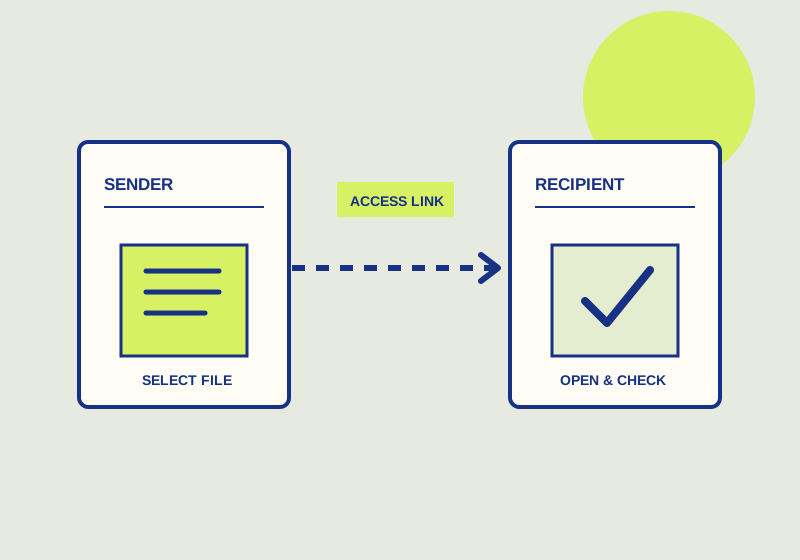
Select Specific people for a OneDrive link intended for named recipients. Specify those people and choose view or edit permission for the handoff. If a recipient forwards that link, the forwarded message does not grant a new person access. Microsoft lists Specific people alongside Anyone, organization, and existing access links in its OneDrive sharing guide.
Build the recipient list
Before creating the link, identify each person who needs the item. Use names or addresses you can check against the handoff request. A message addressed to a team is not enough detail if only some team members should receive access. With Specific people, the list you specify defines who can use the link, so review it before you send the message.
Decide whether the handoff is for an existing set of recipients or whether the audience has changed. OneDrive offers other link types, including Anyone, organization, and existing access. For a named handoff, keep Specific people selected. Microsoft’s external-sharing guidance distinguishes work or school accounts, which can invite outside people, from personal accounts, whose Specific people option is limited to people with Microsoft personal accounts. Check the account and recipient before promising outside access.
Choose permission and send context
Select view when the recipient needs to read the item and edit when the recipient is expected to change it. A draft sent for direct revisions calls for a different permission from a copy sent for reading. Check the permission against the request before sending the link; a correct recipient list alone does not establish that people can do the assigned work.
In the message, identify the item and the expected action. “Please read this proposal before Tuesday’s meeting” tells a viewer what to do. “Please update the assigned section” tells an editor what changes are expected. Include the link for the specified recipients and avoid describing it as a link that anyone on a forwarded message can use.
Diagnose a forwarded-link complaint
When someone says a forwarded link will not open for them, first check whether that person was specified. Forwarding a Specific people link does not add recipients. If the person now needs access, update the named handoff through the sharing controls. If they were not intended to receive it, explain that the link was issued to specific people and ask the sender to handle any new access request.
For a complaint from an intended recipient, compare the person reporting the problem with the specified list and review the chosen view or edit permission. Ask them to open the link while signed in to the account named in the invitation and report the screen or action that fails. A forwarded link explains one possible access problem; the same explanation should not be assumed for every report.
Review and remove the link
Before sending, confirm the intended item, specified people, permission, and Specific people link type. If the handoff ends and the link is no longer needed, OneDrive’s Manage access controls can remove it. An organization administrator may disable some sharing choices. If a choice described here is unavailable, use the options your organization permits rather than telling recipients that a disabled setting was applied.
This guide explains a workflow using the linked primary sources. We did not independently run every step or verify the result for your files; check the current service screen and your own output.
Primary sources:
KEEP GOING
Related checks.

SOURCE-CHECKED GUIDEBusiness documents
Share one SharePoint file with specific people
Invite named outside collaborators to one file rather than exposing a wider folder.
SOURCE-CHECKED GUIDEBusiness documents
See who can access a OneDrive or SharePoint file
Review a file’s existing people and link access before client handoff.