SOURCE-CHECKED GUIDE · SHARING WORKFLOWS
Set and check a OneDrive link expiration
Plan a time-limited OneDrive review link and check what access may remain when it expires.
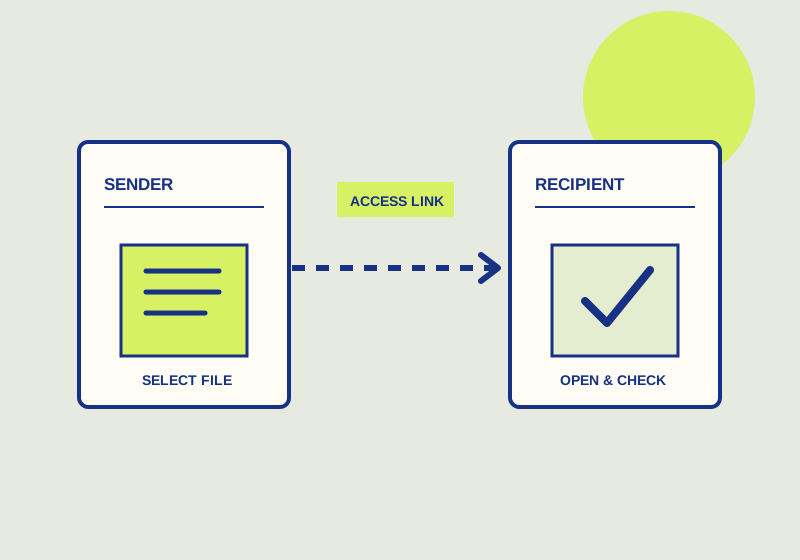
Set an expiration date in OneDrive link settings when a recipient needs access for a defined review period. Microsoft’s OneDrive sharing guide says this setting is available to eligible Microsoft 365 subscribers. After the date passes, the link stops working. Continued access requires a new link, so plan the recipient handoff before the deadline.
Choose a workable deadline
Agree on when the recipient will finish reviewing the material and when you will handle any questions. Leave room between those dates and the link’s expiration. For a weeklong external review, you might request feedback several days before the link expires and use the remaining days to resolve open points. Send the recipient the expiration date along with the review request so the deadline is clear.
Check whether you are sharing a file or a folder. Expiration for a folder is available only with Anyone sharing. If that sharing choice does not fit the material or is unavailable to you, reconsider the folder handoff before sending a link. Sharing the intended file may be more suitable, depending on what the recipient needs to review.
Set and manage the link
- Open the link settings for the item you intend to share. Confirm that the expiration-date option is available for your account and sharing choice before you give the recipient a deadline based on it.
- Set the date that matches the review agreement. Check the selected date before sending the link, especially if the request was rescheduled.
- Send the recipient the link, the expiration date, and the specific work you need back. Ask them to confirm that the item opens before the review begins. Name a contact for questions that might arise near the end of the window.
- If the schedule changes, use Manage access to review the link. Microsoft says you can change link settings or remove a link there. Update the recipient about any new deadline you set.
At the handoff, decide whether the recipient’s work is complete. If continued access is necessary after expiration, arrange a new link and send it to the intended recipient. The old link will no longer work once it expires; an earlier email containing it will not provide continued access.
Check remaining access
Review Manage access against your handoff plan. Expiration affects the link, while other direct access may remain. Identify any direct access that should continue for ongoing work and any that should end with the review. Do not treat the link’s deadline as a decision about every route to the item.
Before closing the review, confirm the item shared, the date selected, and whether a new link is needed. For a folder, confirm that the required Anyone sharing choice is acceptable. Those checks connect the recipient’s deadline to the particular link you set and leave separate access decisions visible.
This guide explains a workflow using the linked primary sources. We did not independently run every step or verify the result for your files; check the current service screen and your own output.
Primary sources:
KEEP GOING
Related checks.
SOURCE-CHECKED GUIDESharing workflows
Protect a Proton Drive link with a password
Require a password for the link, then give the recipient the link and password.

SOURCE-CHECKED GUIDEBusiness documents
See who can access a OneDrive or SharePoint file
Review a file’s existing people and link access before client handoff.