SOURCE-CHECKED GUIDE · SHARING WORKFLOWS
Suggest edits without changing the original Google Doc
Use Google Docs Suggesting mode to propose wording changes while the document owner keeps the final text decision.
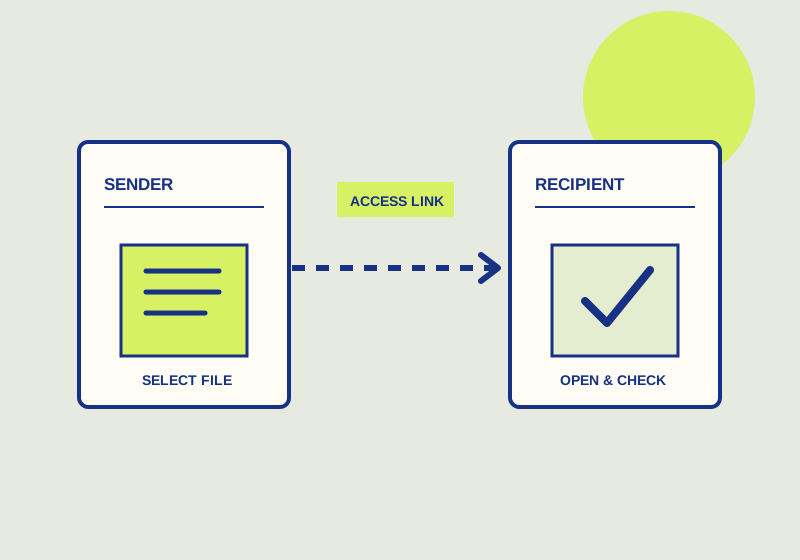
Use Suggesting mode to propose wording changes while the author keeps control of the final text. In Google Docs, a commenter or editor can suggest textual changes, and the owner or an editor can accept or reject them. Suggested deletions appear crossed out, and additions appear in color. Until a suggestion is accepted, treat it as proposed wording. See Google’s guide to suggesting edits.
Set a useful review scope
Tell reviewers which passages need attention and what kind of change would help. A request to “improve the draft” gives little direction. A request to shorten the introduction while keeping its dates and figures gives the reviewer a clearer task. If a statement needs factual confirmation, name that question separately. A smoother sentence cannot resolve uncertainty about the underlying information.
Name the person who will make the final text decisions. Reviewers can propose alternatives, but someone needs to read each proposal in context and decide whether it belongs in the document. For a review with several contributors, specify when suggestions are due and which sections each person should cover. That makes it easier for the decision maker to work through the proposals without losing track of the document’s purpose.
Make proposals easy to evaluate
- Open the shared document with commenter or editor access and use Suggesting mode before changing the passage under review. Check that the change appears as a suggestion rather than treating your new wording as final text.
- Keep each proposal close to the problem it solves. Replace a confusing phrase with a clearer one, or remove wording that repeats a point. Read the sentence before and after your change to check that the passage still makes sense as a whole.
- Add a comment when the reason for a change would otherwise be unclear. For instance, explain that a term has two possible meanings or that a proposed sentence depends on the author’s choice of audience. Comments can accompany suggestions, so the explanation can remain with the proposed text.
- Where a passage raises more than one issue, distinguish them. A wording proposal and a question about a date require different decisions. Keeping those decisions clear helps the author accept useful language without accidentally treating an unanswered question as settled.
The visual markings help during review: crossed-out text shows a proposed deletion, while colored text shows a proposed addition. Read both sides of a replacement. Removing a qualifier can change the meaning even when the added sentence sounds clearer on its own.
Consider a review of a client handoff draft that says “Send the signed form soon.” A reviewer could suggest “Send the signed form by the agreed deadline” and comment that the actual date still needs confirmation. The added text should appear in color and the replaced words should be crossed out. If the reviewer instead sees the sentence change as ordinary document text, check whether they are in Editing rather than Suggesting before making more changes. If Suggesting is unavailable, Google’s guide says to request edit access or ask for Commenter or Editor permission. The proposal is ready for a decision only after the owner confirms the deadline and checks the pending suggestion.
Decide what enters the document
The owner or an editor should examine each suggestion alongside its comments and surrounding text, then accept or reject it. Before accepting, check whether the proposal preserves names, dates, conditions, and intended meaning. If a comment identifies an unresolved factual question, settle it before accepting wording that assumes an answer. For competing proposals, choose the language that serves the document’s audience and record any remaining question in the review discussion.
Before circulating a finished draft, check the passages that received suggestions and read the resulting text continuously. Confirm that the accepted sentences work together and that any pending proposals are identified as pending when discussing the draft with others. Suggesting mode provides a way to propose and decide on textual changes; it does not verify the accuracy of the claims those sentences contain.
This guide explains a workflow using the linked primary sources. We did not independently run every step or verify the result for your files; check the current service screen and your own output.
Primary sources:
KEEP GOING
Related checks.
SOURCE-CHECKED GUIDESharing workflows
Remove access to a Google Drive file
Check both the file’s general access and its individual collaborators before deciding what to revoke.

SOURCE-CHECKED GUIDEBusiness documents
Google My Drive or shared drives for team-owned files
Move lasting team files away from personal ownership without surprising collaborators.