SOURCE-CHECKED GUIDE · SHARING WORKFLOWS
Set FigJam file access before sending a link
Check the audience, individual permissions, inherited access, and link destination before sharing a FigJam file.
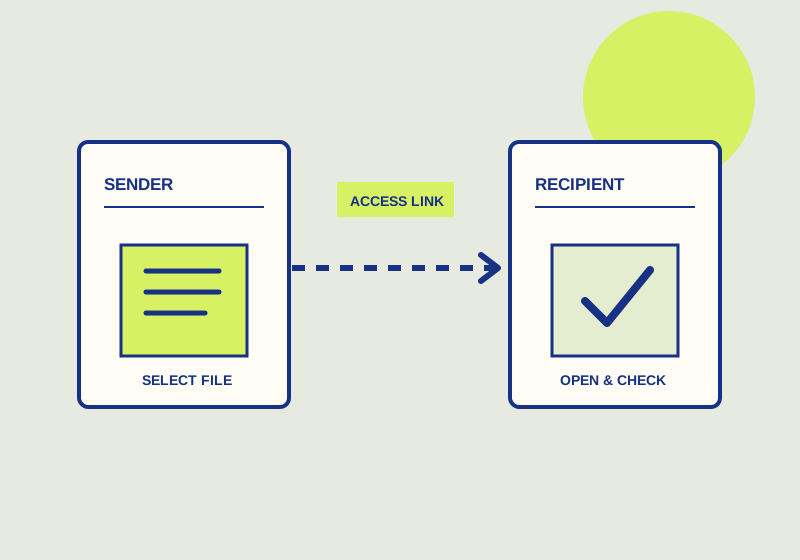
Before sending a FigJam file, check the link audience, direct invitations, inherited folder access, and the destination of the copied link. Figma’s guide to sharing files and prototypes describes invitations and link sharing in the Share modal. Audience choices include Anyone and Only invited people, with organization or workspace choices available depending on the plan. Individual permissions and inherited access can affect who reaches the file.
Map each collaborator to a task
List the people who need to participate and describe their work in one line each. A planning group may need to contribute to the file during a meeting, while a reviewer may only need to inspect a particular section afterward. Use those tasks to decide whom to invite and which permissions to examine. Figma’s file and folder permissions guide says editing a file requires both Can edit permission and a seat that includes the product. Check both before promising a collaborator they can edit FigJam.
Choose the audience in the Share modal with the file’s contents in mind. Only invited people suits a handoff intended for named recipients. Anyone permits a broader link audience. If an organization or workspace choice appears, decide whether that group matches the intended audience. Do not treat the list of people invited directly as the complete access list until you have checked the folder containing the file.
Inherited folder access deserves its own review. Figma says files always inherit individual user roles from the folder that contains them; that inheritance cannot be turned off on one file. Setting a file to Only invited people will not remove access held through its parent folder. If a particular person must be excluded, change the folder access or move the file to a folder they cannot reach. Compare audience choice, direct invitations, and inherited roles against your task list before sending the URL.
Send recipients to the intended work
Decide whether the message should point to the file generally or to a particular frame or node. Figma says a copied link may point to a selected frame or node. Check the selection when copying, and name the destination in the invitation. For instance, a request to review the “Customer questions” area should say which decisions need feedback, even when the link points to that area. The text helps the recipient recognize the intended work if the file contains several conversations.
FigJam also offers an open session option. If the handoff is for a scheduled session, state when people should join and what they are expected to work on. For an independent review, state what feedback should come back and when. In either case, review the file’s audience and permissions as part of preparing the invitation.
Check before sending
- Match each recipient to a participation or review task.
- Check the Share modal’s audience choice.
- Review direct invitations and individual permissions.
- Check access inherited from the containing folder.
- Confirm that each intended editor has both the file role and the product seat needed to edit.
- Copy the link with the intended frame or node selected, then name that destination in the message.
- Ask the recipient to open the link and confirm that they reach the intended spot and can perform the planned view, comment, or edit action.
The available sharing choices depend partly on the plan, and the suitable audience depends on the file’s contents. Resolve both before describing the link as ready for a particular group.
This guide explains a workflow using the linked primary sources. We did not independently run every step or verify the result for your files; check the current service screen and your own output.
Primary sources:
KEEP GOING
Related checks.
SOURCE-CHECKED GUIDESharing workflows
Revoke a Proton Drive public link
Stop sharing deletes the public link and removes access for everyone, including invitees.
SOURCE-CHECKED GUIDESharing workflows
Share a Whimsical board for outside review
Choose the reviewer’s access, link position, and any password before sending the board.