SOURCE-CHECKED · BUSINESS DOCUMENTS
Box Shield confidential links: why an invited agency can still open the file
Follow a Box Shield file through shared links and inherited folder invitations, with five worked policy cases and a recipient test worksheet.
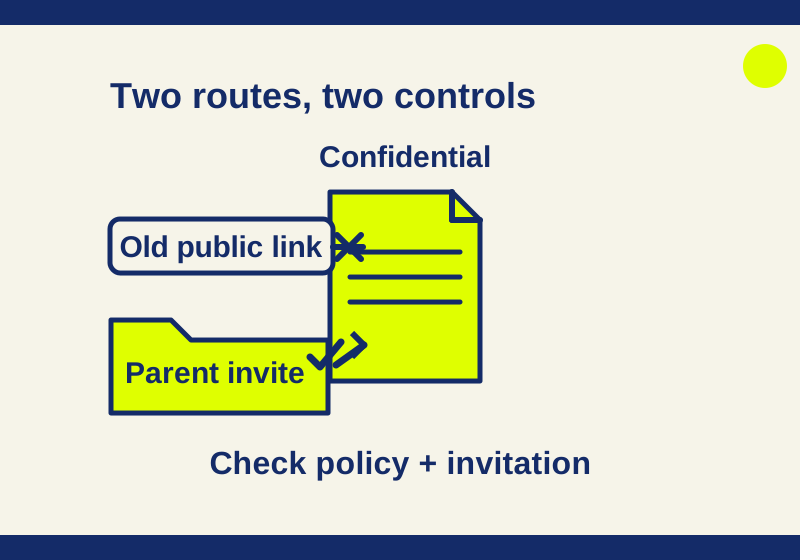
If an external agency can still open a Box file after you set its shared link to Invited people only, first check how that person reaches the file. An active Shield policy set to Enforce restrictions can restrict the shared-link route for content matching a classification label. It does not, by itself, cancel an agency member’s existing folder invitation. External collaboration is a separate policy control. Box Shield access policy settings, folder permissions
At handover, decide whether the agency should keep working through an invitation or lose access altogether. Removing a parent-folder invitation can affect other work still in progress.
Trace the person’s route to the file
Consider a fictional project file, /Clients/Orion/Final/proof.pdf, labeled Confidential. Alex, an agency Editor, was invited to the parent folder /Clients/Orion in 2025. Casey has never been invited but saved an old public link to proof.pdf.
An authorized administrator applies an active Shield policy to Confidential content, sets its enforcement action to Enforce restrictions, and selects Invited people only for shared links. No external collaboration restriction is set. In that configuration, Casey’s old link is expected to stop providing access. Alex’s invitation remains a separate route to the file. Enforced shared-link restrictions apply to existing as well as new links; Box’s folder permissions also flow down from a parent collaboration. Security control types, folder permissions
Ask each person to identify the account and route used in the reported attempt. “Alex opened the file from All Files through the invited folder” tells you something different from “Casey followed the old link while uninvited.” If Alex follows that same link while signed into an invited account, the Invited people only setting still describes Alex. A screenshot of the link setting alone cannot establish whether Alex’s folder invitation has ended.
Box presents a Confidential policy with Invited people only as an example of a possible setup, not as a default that every Confidential label automatically receives. The label, matching policy, active state, and enforcement action all need to be checked in the account at issue. Box industry policy examples, Shield access policy settings
Compare the controls against the route
These five synthetic cases assume that a Confidential file matches the stated active policy. The outcomes are documented expectations for the specified route, with no live Box recipient results.
| Case | Policy and person | Route | Expected interpretation |
|---|---|---|---|
| L1 | Enforce; Invited people only; no external collaboration restriction. Casey is uninvited. | Old public file link | Link access is expected to be blocked. |
| L2 | Same policy. Alex is an external Editor on the parent folder. | Invited folder collaboration | Alex’s invitation route remains available. |
| L3 | Monitor restriction violations only; Invited people only. Casey is uninvited. | Public file link | Monitoring does not enforce the proposed block. |
| L4 | Enforce; Invited people only; Block all external collaboration applies only to new collaborations. Alex already collaborates on the parent folder. | Existing parent collaboration | Review the existing membership separately; the new-only setting does not remove it. |
| L5 | Enforce; Invited people only; Block all external collaboration applies to existing and new collaborations. Alex already collaborates on the parent folder. | Matched file | Viewing the matched file is expected to be restricted after the policy applies, but Alex’s collaborator membership is not removed. |
Download the five-case route example CSV to inspect the assumptions alongside each expected result. The file contains synthetic cases, not Box-generated access results.
Two settings deserve particular attention. Monitor restriction violations only logs without warning or blocking, so its presence does not explain a successful access denial. For external collaboration, Only new external collaborations has a different effect from Existing and new external collaborations. Box notes that a file-level new-only control can leave an existing invitation inherited from its parent; applying a control to existing collaborations can restrict viewing without deleting membership, and identifying existing collaborations may take time. Shield access policy settings
Check what matches before changing access
Start with the exact file, not the project’s general description of it. Confirm the file’s label and the policy that selects content with that label. Box permits one classification label per file or folder. An authorized admin can find label creation under Admin Console > Classification > Classification Labels > Create New. Check the organization’s permitted label-changing roles rather than assuming a project owner can change labels; external users cannot change them. Deleting a label permanently removes it from matched content, so deletion is not a suitable way to undo this access decision. Classification labels, classification modification permissions
Next, read the matching policy’s active state, Enforcement Action, Shared Link Restriction, and any External Collaboration Restriction with its Apply To choice. Record the policy identifier and the time of the check. A Confidential label on proof.pdf is only one part of the trace: the relevant policy must match the file and be enforcing the restriction you intend.
Then locate Alex’s invitation. Box’s collaborator information includes Added To, which helps distinguish an invitation on this file from one inherited through a folder. If Alex was added at /Clients/Orion, changing a nested folder’s collaborators will not reduce that parent grant. Removing the invitation at its grant origin can affect Alex’s access throughout the parent folder, so assess the other project files before making that change. Managing collaborators, folder permissions
Read the effective link status
A Shared Links Report offers a useful check when someone points to an old link labeled “Open.” Compare Shared Link Status with Derived Status. The first can describe the link’s original configuration; the second reflects a Shield restriction. Under the documented mappings, an enforced Invited people only restriction can appear as Collaborators in Derived Status, while People in your company and invited people can appear as Company. Shared Links Report
A synthetic Shared Links Report CSV illustrates the reading. Its fictional row for item 9003, proof.pdf, has Shared Link Status: Open and Derived Status: Collaborators. Read that pair as an adjusted link scope. Alex’s current invitation is a separate record.
For Invited people only links, Box documents a known issue where Permissions may show an incorrect value such as preview. Ignore that field for this link scope; determine the invited person’s permissions from the collaboration. Shared Links Report
If an account’s report and a recipient’s result appear to disagree, keep their subjects aligned: the same item, recipient account, route, policy state, and time. A link report answers a narrower question than a collaborator record.
Choose the change the project needs
If the agency is meant to keep access until handover, retaining Alex’s invitation while enforcing Invited people only can close the uninvited shared-link route without interrupting that intended collaboration. Check the actual matched policy and link’s Derived Status, then record an authorized recipient attempt. Do not describe the agency’s continued folder access as a failed link restriction when that access is still intended.
If the agency should no longer view the matched file, decide whether the owner needs an external collaboration restriction applying to existing and new collaborations or needs to remove Alex’s invitation at /Clients/Orion. The former restricts viewing of matched content without removing collaborator membership; if that restriction is lifted, the retained membership can matter again. The latter changes access flowing from the parent and may affect other project material. Neither decision follows automatically from selecting Invited people only. Shield access policy settings, folder permissions
Keep the investigation tied to the reported access. Shared-link and collaboration controls do not stand in for separate download, print, integration, or Box Sign request controls. In particular, a changed download restriction does not remove copies already downloaded to Box Drive or Box Mobile. Review those controls when the project’s concern actually involves them. Security control types
For a disputed result, use disposable files and test accounts in an authorized tenant. The recipient test template CSV has separate Expected and Observed columns; its observation row is intentionally blank. A useful record might identify item 9003, the file and parent labels, the policy ID and action, Alex’s actual account and invitation origin, the route tried, the UTC time, and a redacted evidence reference. Keep live credentials and working file links out of an escalation email.
Source and test scope: The linked Box documentation was checked October 7, 2026. The downloadable CSV examples were created and parsed locally. Their policy outcomes are documented expectations; no Box tenant access trial or recipient result was recorded. Shield and related security tools are not available on every account, so an authorized admin should check the organization’s entitlement without assuming a particular plan or price. About Box Security
KEEP GOING
More to explore.
SOURCE-CHECKEDSharing workflows
FigJam permissions: why view-only links can still allow edits
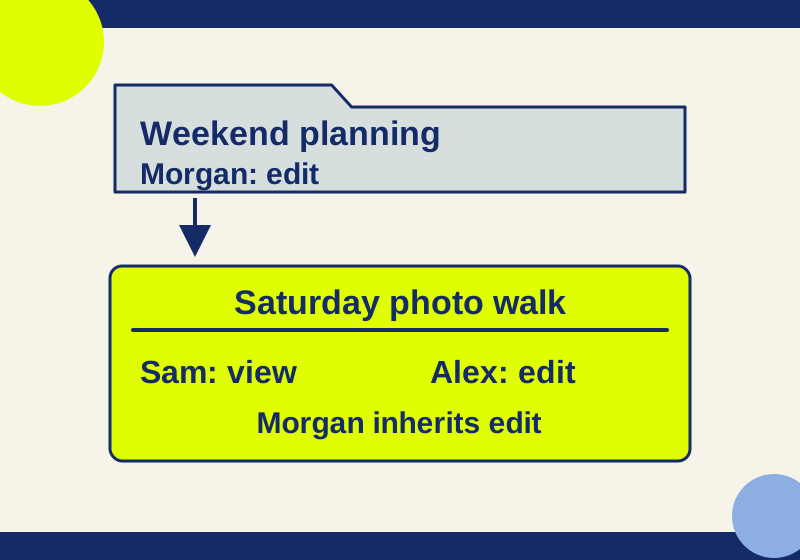
A view-only link can coexist with editor invitations. Follow each person’s access path before changing a FigJam board’s sharing.
SOURCE-CHECKEDBusiness documents
Remove someone's OneDrive or SharePoint access: trace every permission route
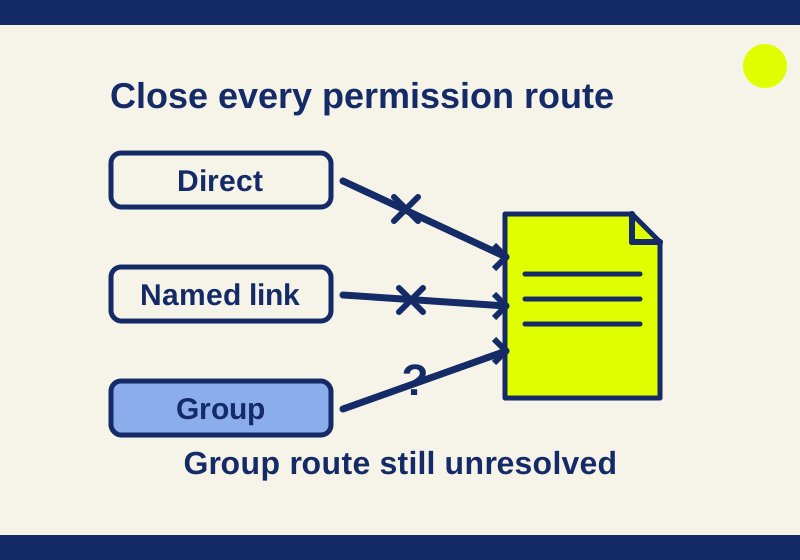
Find why someone can still open a shared file after you remove a link, and close the right permission routes.