SOURCE-CHECKED · SHARING WORKFLOWS
Open and download Dropbox files without an account
Open a Dropbox shared link without signing up, distinguish invitations and preview errors, and change download mode without losing the link key.
A Dropbox shared link can let you open a file in your browser and download a local copy without creating an account. Start with the complete link the sender gave you. If Dropbox instead asks you to join a folder, request access, or enter a password, the next step depends on that message. Signing up will not repair every link problem.
Dropbox documents opening shared file links without an account and downloading through a shared link.
Open the link and download the file
Paste the sender’s complete URL into your browser. Keep everything after the ? and # if the link contains them. Once the file opens, look for the Download icon at the top right: a downward arrow above a line. Select it to download a copy.
When the download finishes, check your browser’s downloads list or chosen download folder, confirm the filename, and open the local file in an application that supports it.
A downloaded copy is separate from the sender’s Dropbox file. Edits you make to it do not sync back. If you need to edit the shared item with the sender, or join a shared folder, that is a different request. Joining a shared folder requires an account. If you need to send the sender a file, ask how they want to receive it; a Dropbox file request is a separate upload route, not the same as joining their folder.
If Dropbox asks you to sign in
First check whether the sender gave you a shared file link or an invitation to a shared folder. An invitation can require the account associated with the invited email address. For example, if a work address was invited but you are signed in with a personal address, creating another account at random will not correct the invitation. Dropbox’s “Request access” guidance says to sign in with the invited account or ask the sender to correct the invitation.
If you only need to read or download the file, send the owner a specific request:
Could you send me a Dropbox shared link to the file that lets me view and download it without joining the folder, if your sharing settings allow that? I only need a local copy. Please keep any access settings you need.
If the sender intended to invite you, ask them to confirm the email address used for the invitation instead.
Match the error to the fix
Request access
This message can appear when a folder invitation is associated with a different account. It can also appear on a folder link restricted to members, as Dropbox explains in its link-permissions guide. Send the wording to the owner and confirm which account or membership is required. The message alone does not establish that creating an account will grant access.
A 404 or a link that no longer works
Ask the owner to check the item and send a working link. Dropbox lists a deleted item or link, an expired link, and team sharing rules among possible causes. Creating an account will not restore a deleted or expired link. If the page seems affected by a browser session, Dropbox also suggests signing out and reopening the link; consider whether you need to keep that session signed in before doing so.
The preview fails
A preview error does not by itself mean the file cannot be downloaded. Dropbox says an unsupported file type or a file too large to preview may still be downloadable and openable in a suitable application, if downloading is allowed. An upload that has not finished may require waiting. Dropbox also distinguishes a password on the shared link from a password protecting the file itself; passing one does not necessarily open the other. See its file preview error guide.
Download is gray
The owner may have restricted downloads for that link. Changing browsers or altering the URL’s download setting cannot override that permission. Dropbox describes this control in its link permissions guide. Tell the sender exactly what you can do:
I can open the link and see the file, but Download is gray. Could you confirm whether downloads are allowed for this link? I need a local copy of [filename].
If both preview and download fail, report both results rather than assuming that the preview error explains the download problem.
Change a preview link to a download link
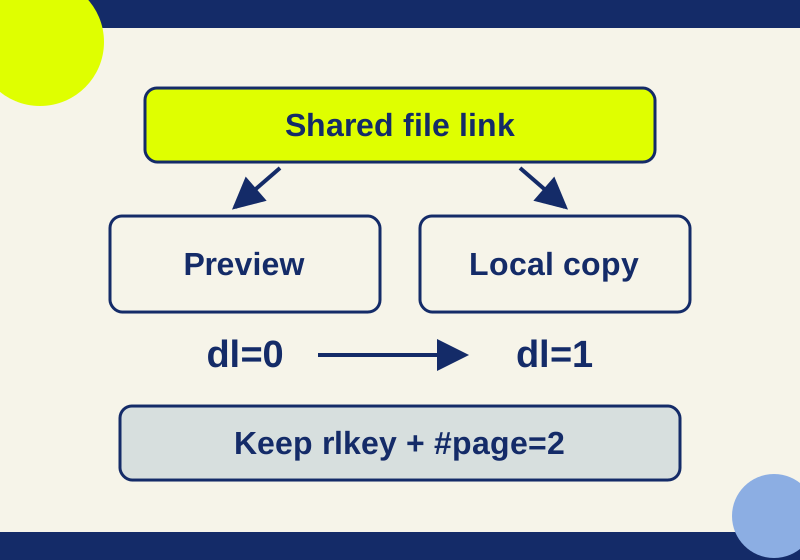
A Dropbox shared URL can use dl=0 for preview or dl=1 for download, according to Dropbox’s force-download instructions. If an existing link ends in dl=0, change that value to dl=1 while preserving the rest of the URL. This example uses placeholder tokens and is not a working file link:
Preview:
https://www.dropbox.com/scl/fi/SAMPLE/agenda.pdf?rlkey=SAMPLEKEY&dl=0#page=2

Download:
https://www.dropbox.com/scl/fi/SAMPLE/agenda.pdf?rlkey=SAMPLEKEY&dl=1#page=2
Here, the rlkey value and #page=2 fragment stay in place. If the URL already has a ?, do not add a second one. Preserve its other parameters when editing dl. Changing dl changes how the link requests the file; it does not create access, remove a password, or enable a download the owner has restricted.
For a longer URL, you can use the self-contained Dropbox link-mode helper: save the HTML file and open it locally in a browser. Paste the link, choose preview or download, and copy the resulting URL. The helper accepts Dropbox shared paths beginning /s/, /scl/fi/, or /scl/fo/; it rejects invitations, file requests, and other URLs. It preserves other URL parameters and fragments, removes raw, and sets one dl value. It does not check whether the file exists or whether you have permission to open it. Your input stays in the page; the helper sends no upload or network request. A real URL may contain an access token, so keep it out of public screenshots and messages.
Keep track of the copy you received
If the file may change, record the filename and the date you downloaded it, along with the title shown on the Dropbox page if one is visible. Open the local copy to check that it is the file you expected. A browser filename alone does not establish that your copy is the sender’s newest version.
When you change a downloaded file, return it through a channel you and the sender agree on. Your local edits will not appear in their shared file automatically. If you need a fresh version later, return to the sender’s link or ask them which version to use.
Send a useful error report
The recipient message pack has editable messages for requesting a viewing link, correcting an account mismatch, reporting a failed preview or link, and confirming a local file. Replace the bracketed fields before sending. A preview report can be this short:
The link opens and shows [filename], but the preview says [exact error]. I [could/could not] download it. Please confirm the format or send a previewable copy if downloads are restricted.
Include the time and time zone when reporting a link that stopped working. That helps the sender compare your attempt with an expiration or a recent file change. Send the report through the existing conversation so the owner can identify the original link. Keep the password and access-bearing URL out of public support posts.
Source note: Dropbox service behavior comes from the linked Help pages. The helper passed eight local URL-parser cases and separate Chrome file:// checks for preview/download mode, a rejected file-request URL, and Clear. No live private Dropbox link, file access, or download was tested.
KEEP GOING
More to explore.
SOURCE-CHECKEDSharing workflows
How to disable Dropbox downloads without blocking a useful review
Dropbox view-link download restrictions depend on the plan and preview support; use a review copy that fits the recipient’s task.
SOURCE-CHECKEDSharing workflows
Dropbox vs OneDrive sharing links: what your client can open
Set up client review links with the right recipient access, download controls and expiry in Dropbox or OneDrive.