SOURCE-CHECKED GUIDE · SHARING WORKFLOWS
Limit downloads from a Dropbox shared link
Use Dropbox’s download control for a preview review while understanding its practical limits.
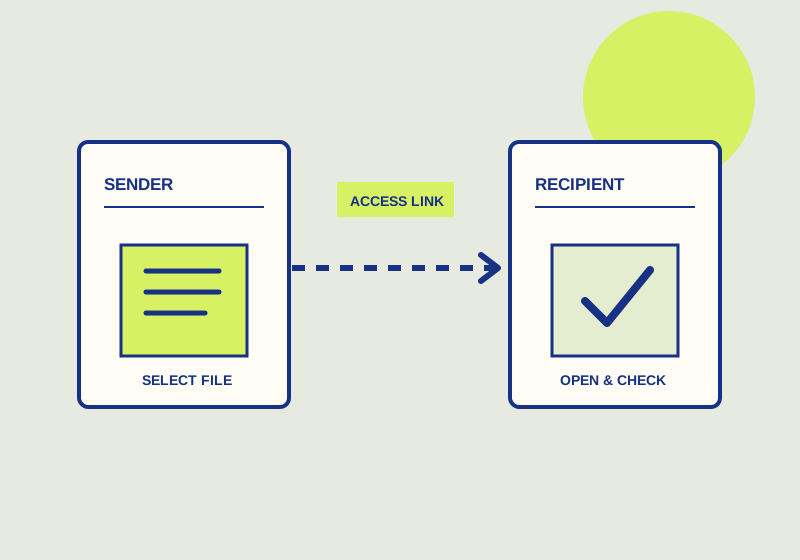
Dropbox allows the paid plans listed in its link-permissions article to disable downloads for a view link. When the file supports preview, a recipient can still preview it and the Download button is grayed out. Use the control for a review that can be completed by viewing the material, while making clear what the recipient is expected to return.
Confirm the file is suitable
Check your plan against the official list before promising a link with downloads disabled. Then check the file type. Some file types cannot be previewed and cannot be shared with downloads disabled. A restriction that depends on preview will not suit a file the recipient cannot view through the link.
Match the review request to the material. A draft that only needs a visual check may be suitable for a view link if its file type supports preview. A recipient who must work from an ordinary downloaded copy needs a different arrangement. Ask what they need to inspect and how they will send feedback before choosing the link permission. For example, you can request a list of page numbers and comments through the communication channel already used for the project, without assuming the shared link provides a feedback tool.
Prepare the review link
- Select the exact file the recipient should review. Make sure the version and filename in your handoff message identify the same material.
- Confirm that your Dropbox plan supports disabling downloads and that the file can be previewed. Resolve either limitation before sending the review request.
- Create a view link and select the permission that disables downloads. Check the selected permission while preparing the link.
- Send the link with a clear request: what to review, when feedback is due, and where to send it. Tell the recipient that the link is intended for preview and that the ordinary Download button is unavailable for supported previews.
- Ask the recipient to confirm that the file opens in preview and that the intended feedback can be completed there. If the file cannot be previewed, choose another delivery method before the review deadline.
If the recipient says they need a copy to complete the task, decide how to handle that request before the deadline. The download setting should reflect the work you actually asked them to do. Changing the review instructions after the recipient starts can leave them without a practical way to finish.
Assess the limit
Disabling downloads affects the Download button; it does not prevent saving content by other methods. Anyone allowed to view sensitive material may be able to retain what they see. Decide whether that possibility is acceptable for this recipient and this file before sharing it. Do not describe the link as preventing all copies.
A useful final check is specific: Is your plan eligible? Does this file type support preview? Can the recipient complete the assigned review by viewing it? Have you stated the feedback route and deadline? If one answer changes, revisit the link permission or the review arrangement. The setting is useful for limiting an ordinary download action, within the file and plan limits Dropbox describes.
This guide explains a workflow using the linked primary sources. We did not independently run every step or verify the result for your files; check the current service screen and your own output.
Primary sources:
KEEP GOING
Related checks.

SOURCE-CHECKED GUIDESharing workflows
Dropbox Transfer or Box shared link for a finished deliverable
Set up a one-time deliverable handoff with the right expiry and file behavior.
SOURCE-CHECKED GUIDESharing workflows
Dropbox or OneDrive links for client deliverables
Choose a delivery link for a client who needs view access and a clear expiry.