SOURCE-CHECKED · BUSINESS DOCUMENTS
Move Docusign templates to Dropbox Sign without losing the workflow
Check Docusign template migration limits, missing fields and recipient actions in Dropbox Sign, with a reusable manifest and local assessment script.
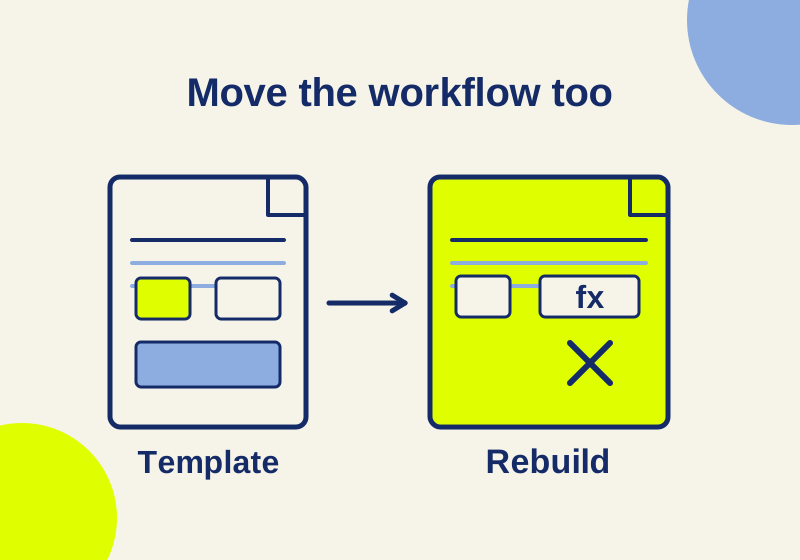
Docusign templates can move into Dropbox Sign, but a converted document can still lose a calculation, a payment step or an internal approval. Inventory those parts before uploading. Start with a simple template, inspect the converted fields and recipients, then use a controlled request to find workflow changes before a customer encounters them.
This process covers reusable templates. Signed historical agreements need a separate archive plan. Docusign’s template documentation describes templates supplying documents and fields, with recipient identities assigned when creating a request. That is why copying a template’s name is insufficient: the fields and the people expected to act on them need to survive the move too.
Check capacity and importer access
Dropbox’s migration guide lists Standard and Premium eligibility. Standard permits 15 templates including existing ones; Premium permits unlimited templates. Limits remain 50 JSON files per transfer, 40 MB per upload, and 200 fields and 400 pages per template.
In the admin console, Settings > Documents and templates controls migration access. The admins-only template-creation restriction also restricts the importer. Documented upload routes are Templates > Migrated > Migrate template and Transfer templates > Add file, accepting a ZIP or individual JSON.
Check that the operator can reach the intended route before scheduling the move. Inspect real exports offline and keep them in approved storage: template files can carry document content and identifiers. Sending a real export to a public JSON validator creates an unnecessary copy outside that workflow.
Download a specimen you can inspect locally
The sample manifest, assessment script and computed assessment are a local planning example. The JSON contains six synthetic template records, with no real email addresses, document bytes or customer identifiers. It is a worksheet schema, not a Docusign export or a file to upload to Dropbox Sign.
Each record supplies a field count, page count and normalized feature names. The script reads those supplied values; it does not discover fields inside a vendor export, upload a document or predict the vendor’s conversion status.
| Synthetic template | Recorded contents | Local disposition | Work to resolve |
|---|---|---|---|
| Plain NDA | 12 fields, 3 pages; signature, text, date signed | Candidate for product review | Inspect signer assignment, position and required settings after conversion. |
| Priced statement of work | 24 fields, 6 pages; signature, formula, payment item | Redesign workflow | Decide how the amount is calculated and payment collected. |
| Long onboarding form | 201 fields, 20 pages; text, initials | Redesign size | Reduce the actual count to 200 fields or fewer. |
| Internal approval routing | 15 fields, 4 pages; signature, Approve, Needs to Review | Redesign workflow | Preserve the approval or rejection result before creating a signing request. |
| Policy manual | 20 fields, 401 pages; signature, text | Redesign size | Rework the document and the signing arrangement. |
| Supplier notice | 10 fields, 2 pages; signature, CC roles, email subject | Manual review | Set the intended CC email and request subject. |
The native local result is two size redesigns, two workflow redesigns, one manual review and one candidate. Those are planning dispositions. Every record’s product import status remains not-run.
Read the quota arithmetic before choosing a batch
The example starts with 12 existing Dropbox Sign templates and selects six for migration. Importing all six would produce 18. Standard’s capacity leaves three available slots and puts three selected templates beyond the quota.
Removing the two oversized templates from the proposed import leaves four selected templates. The target would then contain 16, so resolving the field and page problems alone still does not resolve Standard capacity. You would need to remove another template from this scope, reduce the existing library appropriately or choose a plan with enough capacity. Do not delete a live template solely to clear a number without checking what uses it.
Six selected JSON files need at least one batch by file count. That result says nothing about the archive’s byte size. The downloadable manifest is small because it stores counts and feature labels, not the actual documents. Its size cannot establish that a real export fits 40 MB. Measure the archive being uploaded separately.
The size check is also per template. Compressing the onboarding form’s ZIP does not change its 201 fields. If the policy manual becomes two documents, decide which document each recipient signs and whether the resulting requests still express the required agreement. Splitting a file is a document-design change, not proof that the revised transaction is correct.
Run the local assessment on your own inventory
Save the manifest and script in one folder. In a private copy, replace the sample counts and feature labels with values inspected from your templates. Keep the normalized-planning-manifest schema marker, select Standard or Premium, and set existingTemplates to the target library’s actual count. The synthetic flag describes your input: set it to false when the rows represent your real inventory.
Run:
node template-assessment.mjs template-manifest.jsonThe script prints JSON and makes no network call. Counts at 200 fields and 400 pages pass its local size check; 201 fields or 401 pages require size redesign. Known omitted workflow features trigger workflow redesign. Unknown feature or recipient-action labels require manual review, so an unfamiliar business rule cannot disappear into an automatic pass. Invalid counts are rejected.
The labels are deliberately separate from a conversion result. A candidate-for-product-review entry is small enough and uses recognized basic fields in this worksheet; a real imported template still needs inspection. The supplied assessment records the same limitation even if you change the target plan to Premium.
Deal with the workflow changes
The migration mapping lists signature, text, initials, date signed, name, company, email, checkbox, radio and dropdown fields as supported. Title fields are partial. CC emails need manual handling, and request subjects default to the template name. Stamp, Approve, Decline, Payment Item, Drawing and Formula/Calculation are unsupported; recipient actions can become default signature requests. Official conversion mappings
For the priced statement of work, identify where the old formula obtained its inputs and which amount the recipient agreed to. Moving the final amount into an ordinary text field can preserve a displayed value, but does not recreate the calculation. A separate payment arrangement also needs an explicit design before anyone receives the request. Keep the amount’s source and the required payment step together in the migration record.
The approval-routing specimen needs a different repair. Its internal reviewer was expected to approve or reject before the agreement advanced. A signature field changes the action requested of that reviewer; it does not recreate the omitted approval branch. Write down the intended result for approval and rejection, then choose a supported process that produces those results. If that process cannot be maintained acceptably, leave this template out of the switch.
For the supplier notice, compare the actual CC recipient and outgoing subject with the intended notification. Looking at a template label does not show what the receiving colleague will see in an inbox. Put those checks in the request review rather than treating every manual change as a failed import.
Inspect the fields, then send a controlled request
Dropbox’s CSV reports successful conversion, partial conversion with skipped elements, or failure. Quota, corrupt JSON and transient errors are possible failure causes. The missing-fields warning is red; black means no missing fields. Report and review guidance
Keep that CSV alongside the inventory. Resolve each skipped element by its intended purpose, and retain the distinction between a technical transfer error and a workflow that needs redesign.
Open the Dropbox Sign editor for the imported template. Fields come from the left panel; selecting one exposes its settings on the right. You can move and resize a field, assign it to a signer and change whether it is required. Compare each meaningful field with the source: its page position, its recipient and whether completion requires it. A signature box in the right position but assigned to the wrong signer is still wrong.
Use the plain NDA for the first controlled request because the specimen has few ordinary fields. With consenting internal test recipients, follow Dropbox’s template-request procedure: open the template, assign signer names and emails, review the title and message, then send for signature. Inspect the first signer’s experience and the CC delivery where applicable. Record the observed result before using the template for a live customer.
The downloadable assessment ran locally against synthetic data. No paid Dropbox import, real export or recipient signing test was performed for this article; the product steps above are documented instructions for the migration you carry out.
KEEP GOING
More to explore.
SOURCE-CHECKEDBusiness documents
OneDrive vs SharePoint: move team files before a coworker leaves
Transfer operating files into the right team library, preserve required history, and replace the links coworkers and guests actually use.
SOURCE-CHECKEDBusiness documents
Bynder vs Dropbox for brand assets: fix the search before you move
Build an eight-field brand taxonomy, add valid Dropbox tags and follow specific lookup routes for approved logos and campaign images.