SOURCE-CHECKED · EVERYDAY TECH
Use Pixel Data Saver without interrupting one important app
Keep Data Saver on while allowing an app that needs background access to use mobile data when Wi-Fi is unavailable.
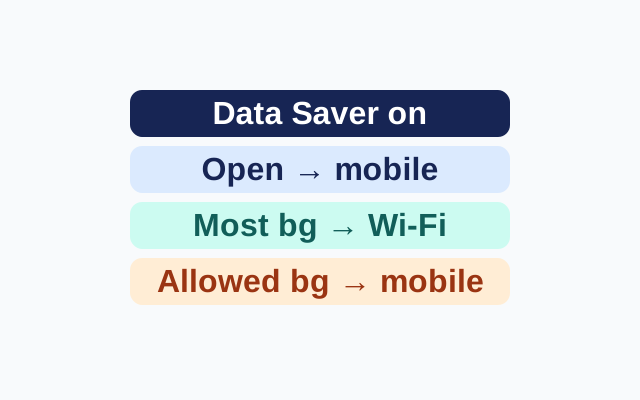
With Data Saver on, the app you are using can access mobile data. Most apps and services get background data only over Wi-Fi. If one app needs mobile data after you switch away from it, you can allow it under Unrestricted data.
Choose the app
Suppose you check a weather app only while it is open, but want a messaging app to receive information after you switch apps. The weather app can use mobile data while active. The messaging app is the one to consider for Unrestricted data when Wi-Fi is unavailable. An app loading when you open it shows that active access works; it does not show whether background mobile access is available.
Turn on the exception
- Open Settings, then Network & internet, then Data Saver. Turn on Data Saver.
- Open Unrestricted data on the same screen.
- Turn it on for the app or service that needs background mobile data.
Google says a Data Saver icon appears in the status bar while the mode is on. These instructions come from Google Pixel Phone Help and were not tested for this article. Steps may differ on customized Android versions, and some require Android 8.0 or later.
KEEP GOING
More to explore.
SOURCE-CHECKEDEveryday tech
Change one Android app’s language without changing the phone
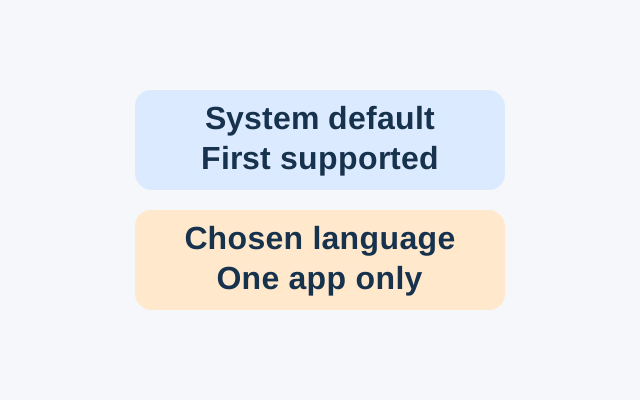
Android’s App Languages setting lets you choose a language for an individual app. An app following the system default instead uses the first language in the system list that it supports.
SOURCE-CHECKEDEveryday tech
Pixel alerts suddenly get quieter? Check Notification cooldown
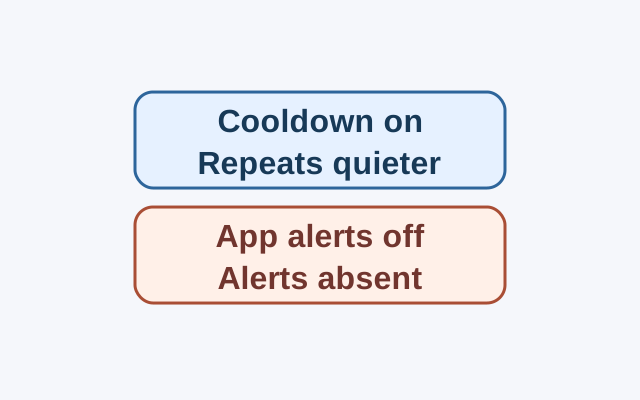
On Pixel phones running Android 14 or later, Notification cooldown can lower the volume of repeated notifications from the same app. Whether alerts still appear helps determine which setting to check first.