SOURCE-CHECKED · EVERYDAY TECH
How to scan a QR code on iPhone without another app
Scan with iPhone Camera or Scan Code, practice with a real QR image, and distinguish an unreadable code from a link that will not open.
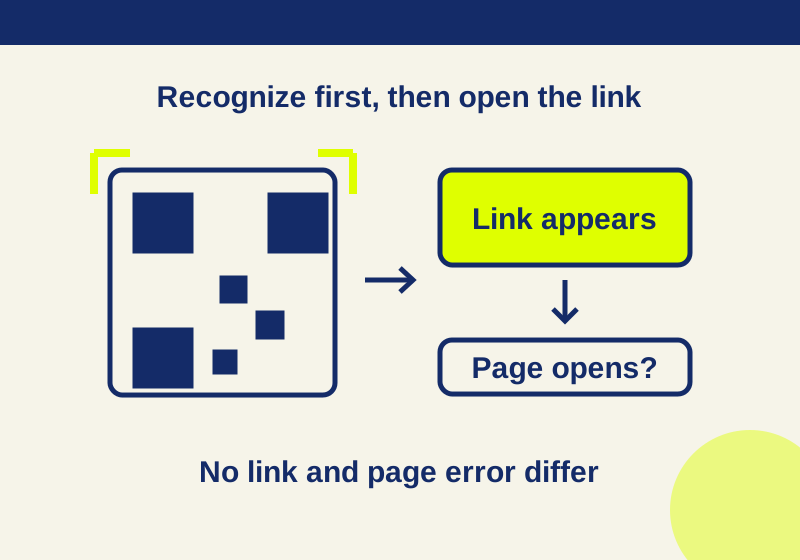
Open Camera, choose Photo mode, and point your iPhone at the QR code. Tap the link that appears at the bottom of the screen. Scan Code in Control Center is another built-in option, with a flashlight button for dimly lit paper codes.
A restaurant menu, a notice, or a code on someone else’s screen can use the same scanning steps. The useful distinction when something goes wrong is whether your phone has shown a link yet. A missing link calls for checking the scan. A link followed by a page error calls for checking the destination.
Start with Camera
You can open Camera from the Home Screen, Lock Screen, or Control Center. Choose Photo mode and position the phone so the whole QR code appears inside the frame. Wait for the link at the bottom, then tap it. Taking a photo is not part of Apple’s scanning procedure.
For a menu card on a table, start here if Camera is already familiar. You are looking for a tappable link, so repeatedly pressing the shutter will not complete the final step. After tapping, the content you reach belongs to the code’s destination. A website may show a menu; another destination may involve an app or ticket.
Apple also supports scanning through Camera Control on supported models. You can use the ordinary Camera and Control Center routes without needing that particular control.
Use Scan Code when you want its light
Open Control Center and tap Scan Code. Position the code inside the scanner’s view, then tap its link to open the content. If a paper code is difficult to see in a dark room, tap the scanner’s flashlight button to add light.
The Control Center gesture depends on your phone:
- On an iPhone X or later, swipe down from the top-right corner.
- On an iPhone SE, iPhone 8, or earlier, swipe up from the bottom edge.
If notifications appear when you swipe down, you may have started too close to the top center. Close that view and start from the top-right corner.
To add a missing Scan Code control, open Control Center, touch and hold its background, tap Add a Control, and select Scan Code in the gallery. Tap anywhere to return. These are the steps in Apple’s current QR support page; an older tutorial may show a different customization route.
Practice with a known destination
The square below is a usable QR code. The drawing at the top of this article is an illustration of scanning, so use this image for the exercise.
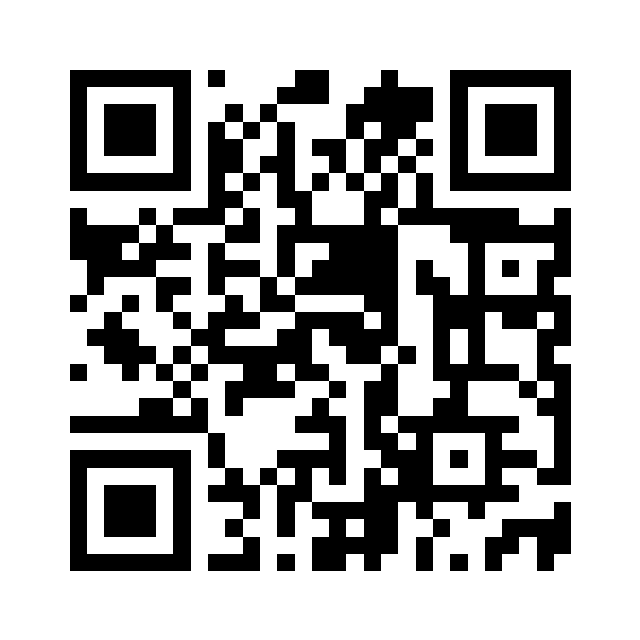
Open or save the practice image on a laptop, tablet, or second phone, or print it. For this Camera or Scan Code exercise, the iPhone needs to point at a code outside its own display.
Keep the whole black-and-white square and the white margin visible. If you enlarge the image on another screen, avoid enlarging it so far that its edges disappear. Position your iPhone until the complete code is inside the frame. There is no fixed distance to follow here.
Try Camera first. Notice whether it produces a link before you tap. This code contains the address https://support.apple.com/en-ie/102680, which leads to Apple’s QR scanning instructions. The encoded address is provided here so you know which destination to expect.
You can repeat with Scan Code to learn where that control is and how to reach its flashlight. The expected content is the same Apple page because both attempts use the same image. You do not need to install a scanner app to follow either route.
No link appears
Check Photo mode if you are using Camera, and bring the entire code into view. If you are scanning a code on another display, check that the image itself is complete. Then try the practice image above.
That comparison gives you a useful next question. If the practice image produces a link and a restaurant’s code does not, ask the restaurant for another copy or a normal menu link. The comparison does not establish why its code failed, but it gives you an alternative to repeatedly changing settings on the phone.
If neither code produces a link, try the other built-in route. Keep the observation specific: no link appeared in Camera, Scan Code, or both. A staff member or someone helping you can work with that description more easily than “the QR is broken.”
The camera view is black or generally blurry
Check an ordinary photo if the problem affects the camera view itself. Apple’s camera troubleshooting starts by removing a case, film, or accessory that may obstruct the camera or flash, then testing the camera. For blurry images, Apple recommends cleaning the lenses with a microfiber cloth.
If ordinary photos still fail, the same guidance covers restarting the device, updating iOS, and testing again. Persistent camera or flash problems may need service. These steps address general camera symptoms; a single unreadable menu code does not establish a camera fault.
A link appears, but the content will not open
Once a link appears, recognition has occurred. Reframing the square repeatedly will not tell you why the destination page is unavailable.
For this practice code, try the direct Apple link in the text. For a real menu, poster, or notice, use an ordinary address printed beside the code or ask its owner for one. This helps separate the scan from a question about the website or your connection.
Opening a destination also does not confirm that its ticket, coupon, or account action will be accepted. Those results depend on the destination. If a page opens and reports a problem with the item, show that message to the owner rather than returning to the camera.
Instructions follow Apple’s iOS 27 guide and linked support pages. Software decoding checked the practice PNG’s encoded URL, including its previously recorded browser-scaled versions. No physical iPhone scan was performed.
KEEP GOING
More to explore.
SOURCE-CHECKEDEveryday tech
iPhone camera Grid, Level and Timer: frame a better photo
Separate framing, camera tilt and capture delay with three everyday photo setups.
SOURCE-CHECKEDEveryday tech
iPhone Precise Location: change accuracy without changing when an app can use it
Precise Location and While Using the App control different parts of the same permission.