SOURCE-CHECKED · EVERYDAY TECH
iPhone camera Grid, Level and Timer: frame a better photo
Set up a straight shelf photo, a square-on postcard or a group portrait with iPhone Grid, Level and Timer, then inspect the saved shot.
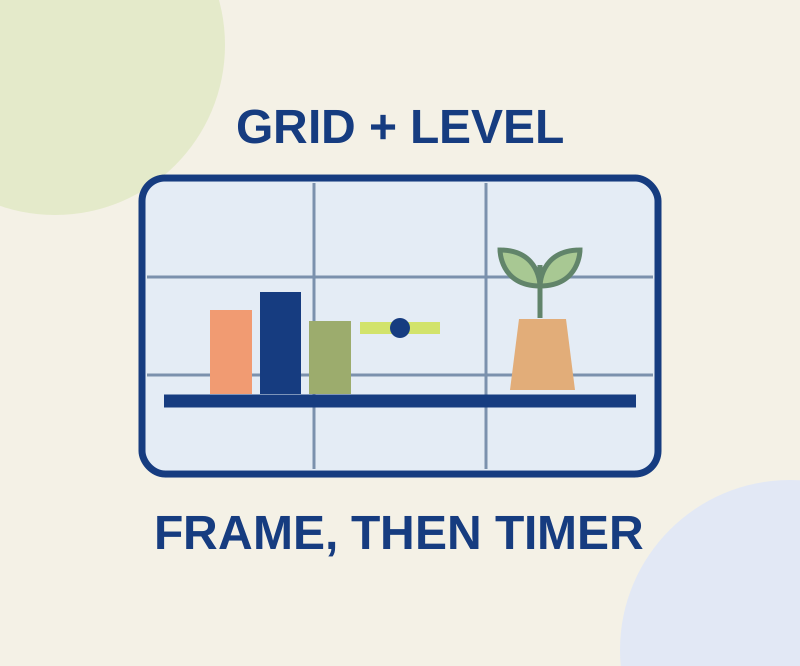
Turn on Grid and Level in Settings > Camera before you frame a shot. The grid gives you lines to compare with edges in the scene, while the level helps you straighten the camera. To set a delay, open Camera, use Camera Controls or swipe up from the bottom camera modes, tap Timer, and choose 3, 5, or 10 seconds. Tap the shutter to start the countdown. When you’re finished, return to Timer and tap its icon to turn it off. These steps come from Apple’s iPhone Camera guide.
Inspect a saved photo before dismantling the setup. The viewfinder can help you aim, but the finished image is where you can check the details you meant to include.
Keep a shelf straight
Choose one shelf edge as your reference and compare it with a horizontal grid line. Before pressing the shutter, also check that the objects at both ends fit inside the frame.
If the shelf looks crooked in the saved photo, re-aim and check the level for the next shot. If it looks straight but recedes toward one side, consider where you’re standing: camera tilt and aiming at a shelf from an oblique angle are different problems.
Frame a tabletop postcard
Put all four corners of the postcard in the frame. Position the lens so it faces the paper squarely, then compare the near and far edges in your photo. If one edge appears longer and the postcard looks like a trapezoid, leveling the camera alone will not make it look rectangular. Adjust your position and aim before trying again.
Leave yourself room in a group photo
Frame the group with an empty place for yourself and some room at the edges. Choose the timer delay based on the route you actually need to take into that place, then tap the shutter. Review the full saved photo before taking down the setup: check faces, feet, and anyone near an edge. If someone was cut off, widen or reframe the next shot.
A timer postpones capture; it does not guarantee that moving people will appear sharp. If a photo is blurry even though the camera was level, check the subject and focus rather than adjusting the level again. Before the next shot, you can tap the subject on the Camera screen to set focus, drag the exposure control to adjust brightness, or touch and hold until AE/AF Lock appears. Tap again to unlock it.
Source and scope: Apple’s iOS 27 iPhone Camera guide, checked October 10, 2026. These are source-based instructions and suggested checks; no physical iPhone test was performed. Camera controls may differ on older iOS versions.
KEEP GOING
More to explore.
SOURCE-CHECKEDEveryday tech
Copy iPhone photo edits to a batch without treating every shot alike
A window-lit sequence can share a starting edit; night, sunlight and stage shots need separate judgments.
SOURCE-CHECKEDEveryday tech
How to scan a QR code on iPhone without another app
Use either built-in scanner, try a QR code with a known destination, and find the next step when no link appears or the page will not load.