SOURCE-CHECKED · EVERYDAY TECH
Share iPhone photos without GPS data: check the received file
Turn off location for an iPhone Photos share and distinguish capture, library and received-file controls. A synthetic JPEG pair demonstrates what metadata removal means.
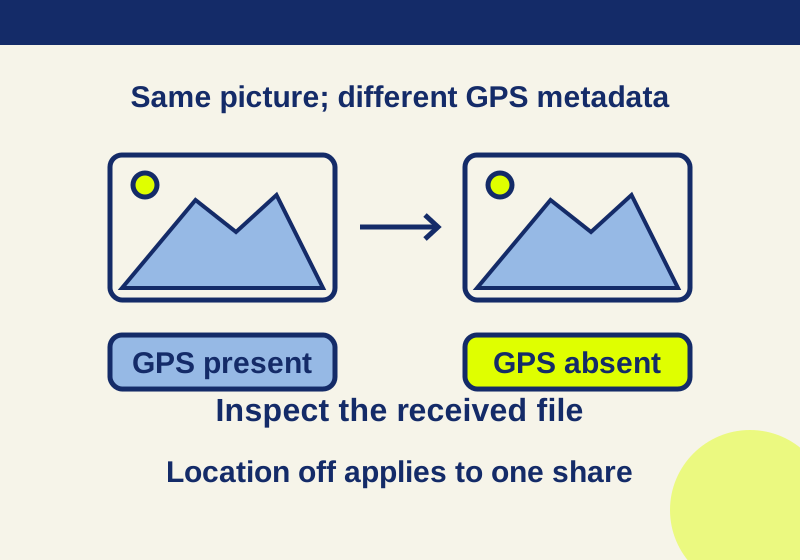
To leave a photo’s location out of one share, open the photo in Photos, tap Share, then Options. Turn Location off, tap Done, and choose where to send it. Apple’s Personal Safety guide says the share sheet can show Location Not Included after you switch it off. That confirms the setting for that share; it does not inspect the attachment your recipient receives. Apple Photos sharing guide · Apple Personal Safety guide
Use the control that fits the job
“Remove the location” can refer to four different things:
| What you want to affect | Control or check |
|---|---|
| Location collected for future photos | Set Camera’s Location Services permission to Never. |
| Location stored with a photo in your library | Open the photo, then More → Adjust Info → Adjust Location → No Location. |
| Location included in one outgoing share | In Share → Options, turn Location off before sending. |
| Location in the received attachment | Save the attachment at the destination and inspect that file. |
The stored-location sequence in the table follows Apple’s Personal Safety guide. These controls are not interchangeable. Changing Camera’s permission does not retroactively edit older photos. Removing a library photo’s location is a different action from turning Location off for one share, and Apple says library location edits may be reverted. Reading the original photo’s Info view tells you about the original, not the copy delivered through a sharing channel. Apple location guide · Apple Photos sharing guide
Turn off Location for one share
- In Photos, select the photo and tap Share.
- Tap Options, turn Location off, and tap Done.
- Check for Location Not Included, then choose your sharing channel and send. Apple Photos sharing guide · Apple Personal Safety guide
Keep the scope of that switch precise: it is a location option for the share you are making. The same Options screen has format choices, Automatic, Current, and Most Compatible, that are separate from Location. Apple’s iOS 26 guide also describes All Photos Data for sharing the original, edit history, and metadata through AirDrop or an iCloud link. Do not treat “Location off” as a promise that every other metadata field is removed, or assume different channels deliver identical files. Apple Photos sharing guide
Read the GPS fields in two otherwise matching pictures
A local demonstration used two labeled synthetic JPEGs, before GPS removal and after GPS removal. This was not an iPhone or Apple Photos export test. The first file contains GPS entries with deliberate zero north and zero east placeholder coordinates; those entries are absent from the second. Both files are 720 × 480 pixels, and their decoded RGB pixels have the same SHA-256 hash. Their whole-file hashes differ. The Make value, “Practice Camera,” and description, “Synthetic metadata practice image,” remain in both files. The experiment record provides the metadata readback.
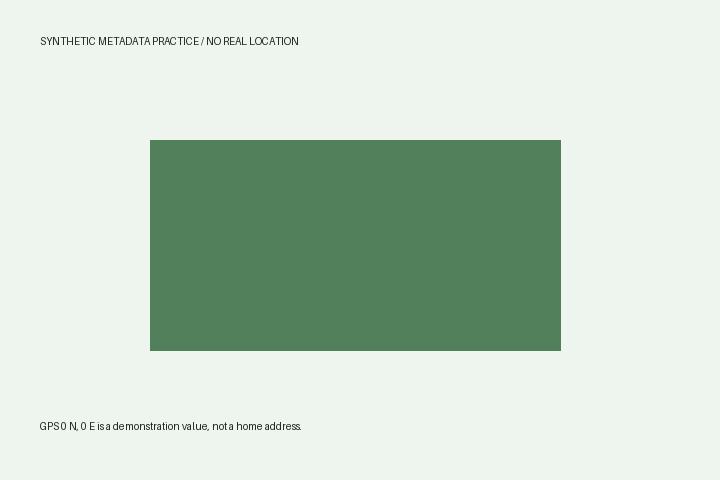
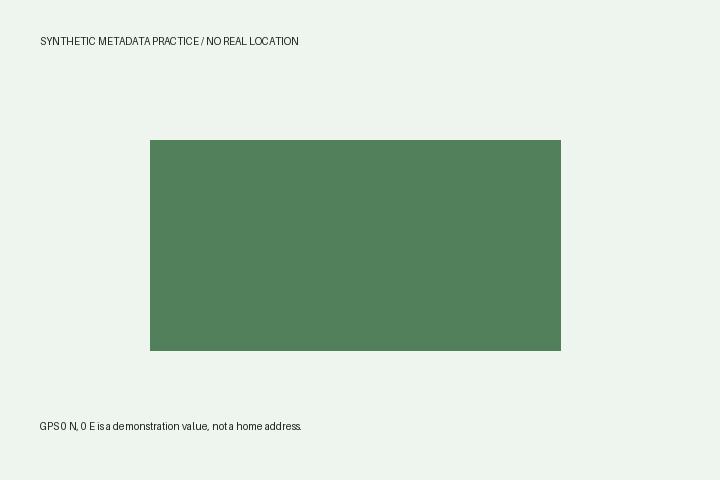
The pair demonstrates why the picture alone is a poor GPS check: identical decoded pixels can accompany different metadata. It also shows why zero coordinates and missing GPS entries mean different things. Removing GPS entries did not remove the other EXIF fields in this demonstration. The pair says nothing about what Apple Photos or a particular sharing channel will deliver.
For readers who already use Python, this short local check requires the Pillow image library. Save it as check-jpeg-gps.py and pass the filenames you want to inspect:
from PIL import Image
import sys
for name in sys.argv[1:]:
    with Image.open(name) as image:
        exif = image.getexif()
        gps = exif.get_ifd(34853) if 34853 in exif else {}
        print(image.format, image.size, "GPS entries:", len(gps))
Running python check-jpeg-gps.py synthetic-gps-before.jpg synthetic-gps-removed.jpg on the downloadable pair returned JPEG (720, 480) GPS entries: 4 followed by JPEG (720, 480) GPS entries: 0. The four entries in the first file contain latitude, longitude and their north/east references. A zero count here describes this EXIF GPS directory; it does not inspect arbitrary metadata formats, sidecar files or the content of a picture. The code was executed against these two JPEGs only. Use an inspector appropriate to your received format for HEIC or video.
Check the copy at the destination
For a photo whose location matters, make an end-to-end check through the same channel you intend to use:
- Choose a harmless photo and turn Location off in Share → Options.
- Send it to a recipient or account you control through that channel.
- At the destination, save the received attachment file.
- Inspect that saved file with a local, offline EXIF inspection tool. Check whether GPS fields are absent, rather than merely showing zero coordinates. You can also look at other fields, such as camera make or capture time, if you need to know whether they remain.
Inspect the received file, not the photo still in your library. If the destination gives you only a displayed image and no attachment file you can save, that view does not complete a file metadata check. Avoid uploading a private photo to an online metadata checker just to run this inspection.
A missing GPS field addresses embedded GPS metadata in the file you inspected. It does not hide an address, landmark, or other location clue visible in the image, or location details you add in a message alongside it.
Stop adding location to future photos
If you want Camera to stop collecting location for new photos, go to Settings → Privacy & Security → Location Services → Camera and choose Never. This affects future capture; review older photos separately if you plan to share them. For a particular photo already in your library, Apple’s Personal Safety guide documents More → Adjust Info → Adjust Location → No Location. Apple Personal Safety guide
Source and test scope: The iPhone steps above come from Apple’s linked guides. The independently checked result is the local synthetic JPEG pair and its metadata readback. No Apple Photos GUI share, received iPhone attachment, HEIC, video, AirDrop, or iCloud link behavior was tested.
KEEP GOING
More to explore.
SOURCE-CHECKEDEveryday tech
Copy iPhone photo edits to a batch without treating every shot alike
A window-lit sequence can share a starting edit; night, sunlight and stage shots need separate judgments.
SOURCE-CHECKEDEveryday tech
How to scan a QR code on iPhone without another app
Use either built-in scanner, try a QR code with a known destination, and find the next step when no link appears or the page will not load.