SOURCE-CHECKED · EVERYDAY TECH
Android links open in the wrong app? Check the browser and the Google app
Separate Android browser defaults, remembered app choices and Google app web pages, then compare the same full link before resetting anything.
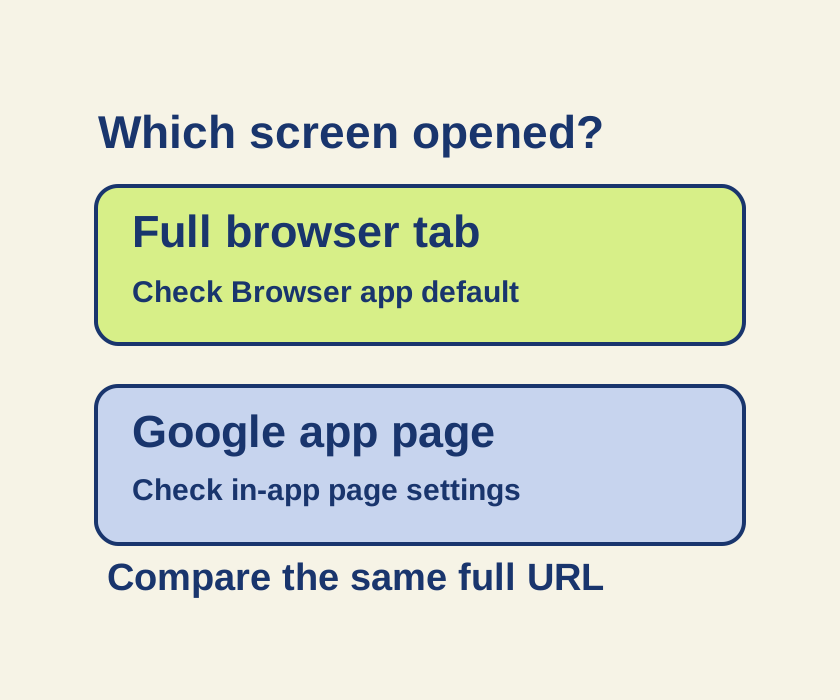
If an Android link opens somewhere unexpected, first check where you opened it. Your default browser, a remembered app choice, and the Google app’s web page setting are separate controls.
Check the default browser
For ordinary web pages opening in the wrong browser, go to Settings > Apps > Default apps (or Choose Default Apps) > Browser app. Select your preferred installed browser. Menu names can vary by phone manufacturer.
You can try the change with this Android help page. Copy its full URL, open it directly in your preferred browser, and note the browser’s name. Then open the same help result from the Google app and compare where it appears. Opening the URL directly checks that the page loads in that browser. Compare a normal tapped link separately to check which app Android chooses.
Clear a remembered app choice
If you previously chose Always for a particular compatible action, Pixel’s instructions say to go to Settings > Apps > the app currently opening the link > Open by default > Clear default preferences. Tap See all apps if needed to find the app. If a chooser appears when you try the action again, choose Just once for a trial. The Pixel instructions document this path and the Always and Just once choices for some Android 14 or later Pixel phones; other phones may use different labels.
Clearing a default does not mean every HTTPS link will show a chooser. Android’s app links guidance describes links by supported domains. On Android 12 and later, an unverified web link generally opens in a browser, while a link for an approved app domain may open in that app. An app cannot claim every URL simply because a link was pasted.
Check the Google app
If the difference happens when you open a result inside the Google app, go to Profile > Settings > General and turn off Open web pages in the app to prefer opening pages externally. For a page already open there, use More > Open in browser (or Open in Chrome). These are Google app controls, separate from Android’s default browser choice.
Also look at the link itself. Google’s share.google and search.app short links are designed to redirect through the Google app. To share the original full URL instead, turn off Profile > Settings > General > Shorten links to web pages. Copying a full URL removes that short-link wrapper, but it does not guarantee that Android will bypass an approved app link for the destination domain.
Keep a short record while comparing the same full link:
Starting app: [Google app or browser]
Page opened in: [actual app name]
Changed setting: [one setting]
Result after tapping the same full URL: [actual result]
If only results inside the Google app behave differently, start with its in-app page setting. If ordinary web links consistently open another browser, inspect Browser app. Change one control and repeat the same action before clearing another app’s default.
Source note: Based on the linked Android, Pixel, Google app, and Android developer instructions checked October 9, 2026 KST. The phone steps and example link have not been independently tested.
KEEP GOING
More to explore.
SOURCE-CHECKEDEveryday tech
How to change the default PDF app in Windows 11
Set the .pdf default and use a downloadable form to check opening, search, and saved entries separately.
SOURCE-CHECKEDSharing workflows
Google Drive Restricted vs Anyone with the link: who can open your file?
Restricted can still include folder and group members. Trace who can open your file before you send its link.