SOURCE-CHECKED · EVERYDAY TECH
How to find dismissed Android notifications, and what empty history means
Find dismissed notifications on Pixel or Galaxy, understand when history can recover an alert and locate the original message when recording was disabled.
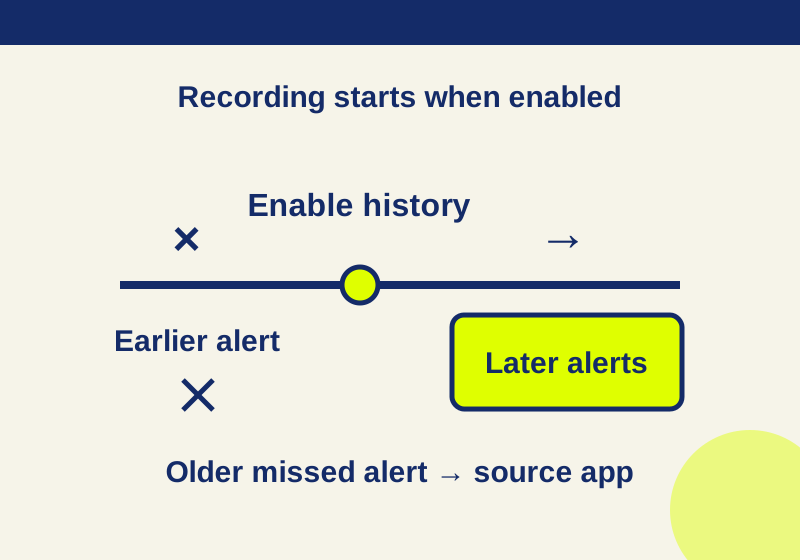
If you dismissed an alert on a Pixel, check Settings > Notifications > Notification history. When Use notification history was already on, you can find dismissed notifications from the last 24 hours there. You can also open History at the bottom of the notification shade. If history was off when the alert arrived, turning it on now will record future notifications, but it will not bring that alert back.
First decide whether you saw and dismissed the notification or it never appeared. History helps with the first problem. If the alert never reached your phone, check the app’s notification settings and the app itself.
Find a recent alert on a Pixel
Open Settings > Notifications > Notification history. If Use notification history is on, look for the dismissed alert and note its app, time, and visible text before tapping it. Those details can help you find the original item if the app opens somewhere other than the message or update you expected. Google says tapping a history entry opens the originating app; it does not guarantee a link to the exact item.
If you are enabling history for the first time, leave it on for future alerts. On Pixel, the documented window for dismissed notifications is 24 hours, so an older alert falls outside it even if history was enabled when it arrived.
Check notification history on a Galaxy phone
On a supported Galaxy phone, open Settings > Notifications > Advanced settings > Notification history and turn on the toggle. Samsung says recording starts from that point. An empty page immediately after enabling it is expected; check again after a new notification arrives.
Samsung also documents separate Quick settings and Notifications panels in One UI 7 and later: swiping down from the top-right opens Quick settings, while swiping from another part of the top opens Notifications. If you are looking for a still-visible alert, make sure you opened the Notifications panel. Samsung says menus and behavior can vary by model, software version, and carrier.
Read the entry before tapping it
Use the app name to establish which service sent the alert, then read whatever sender, subject or item name the entry actually shows. The time helps narrow a search in that app. Do not assume a familiar icon identifies the account or conversation you were using; inspect the content that remains visible.
If the entry contains enough information to find the item, open the source app and search there. If the text is incomplete, record only the clues you can see rather than filling in the missing message. A historic alert can identify where to look without containing the full content you wanted.
What an empty history means
| What happened | What to check next |
|---|---|
| You enabled history after dismissing the alert | Look in the source app. History starts recording after it is enabled. |
| You dismissed an alert on Pixel more than 24 hours ago | Look in the source app. It is outside Pixel’s documented history window. |
| You expected an alert but never saw it | Check the app and its notification settings; there may be no received alert for history to show. |
| You cannot find a history menu | Follow your device maker’s instructions. Google says some Android devices do not have notification history. |
An empty list alone cannot tell you whether an expected alert was blocked, never sent, or arrived before recording began. Start with what you know: Did you see it in the shade? Was history on at the time? On Pixel, was it within 24 hours?
A silent notification can still appear in the shade without making a sound or vibrating. Silence by itself does not mean the alert was absent. A snoozed notification is also different from one you dismissed; check its current state rather than assuming it belongs in dismissed history.
Find the underlying message or update
Notification history is a route back to an app, not an all-time archive or a backup of everything the app once displayed. Use the clues in the alert to search the source that holds the content:
- For a delivery alert, check the delivery or shopping app’s order and tracking records.
- For an email alert, use the sender, subject, and approximate time to search your mail app.
- For a messaging alert, open the relevant conversation.
These steps can help locate an existing record. They do not mean notification history can restore a deleted message or an earlier version of an order page. For a security alert, open the official app you already know directly and check there, instead of following a link from an unexpected message.
Check the history setting on your own phone
Notification history can retain information you dismissed from the shade. Before leaving it enabled, look at what a harmless entry reveals on your phone and decide whether keeping that recent log suits your use. This is a useful check when you share a device or show its Settings screen to someone else; it is not a claim that a particular lock-screen setting protects the history.
Use the built-in history setting to prepare for future alerts. There is no need to install another notification-recording app to follow this guide.
If the alert never arrived
Open Settings > Notifications > App notifications and review the switches for the app and its relevant notification categories. Menu paths vary by device, and settings inside the app can also affect its alerts. If an app or category is turned off, notification history is not a substitute for fixing delivery.
You can check the distinction with a harmless notification from an app you already use: enable history, arrange an alert you expect, confirm that it appears, dismiss it intentionally, then look for its app and time in history. This is a check you can perform on your own phone, not a device test conducted for this article. If it never appears, investigate the app’s notification settings. If it appears but does not enter history after dismissal, revisit the history toggle and your device’s instructions.
Source note (October 7, 2026): This article uses Google’s Pixel notification history instructions, Google’s Android notification guidance, and Samsung’s Galaxy notification guidance. No physical Android notification test was recorded.
KEEP GOING
More to explore.
SOURCE-CHECKEDEveryday tech
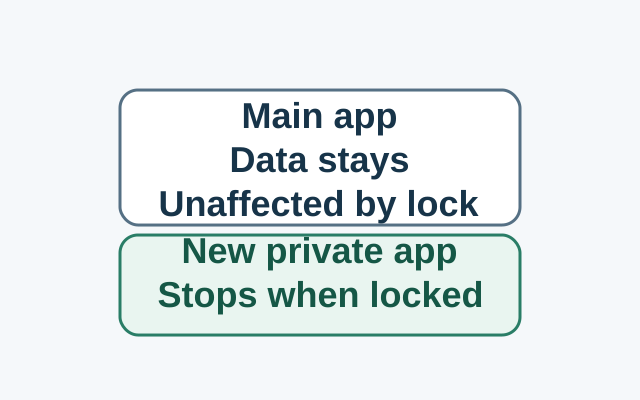
Android Private Space installs a second app, not a hidden copy
Installing in Private Space creates a separate app instance. The original app and its data stay in the main space; locking stops the private instance, while the original is unaffected.
SOURCE-CHECKEDEveryday tech
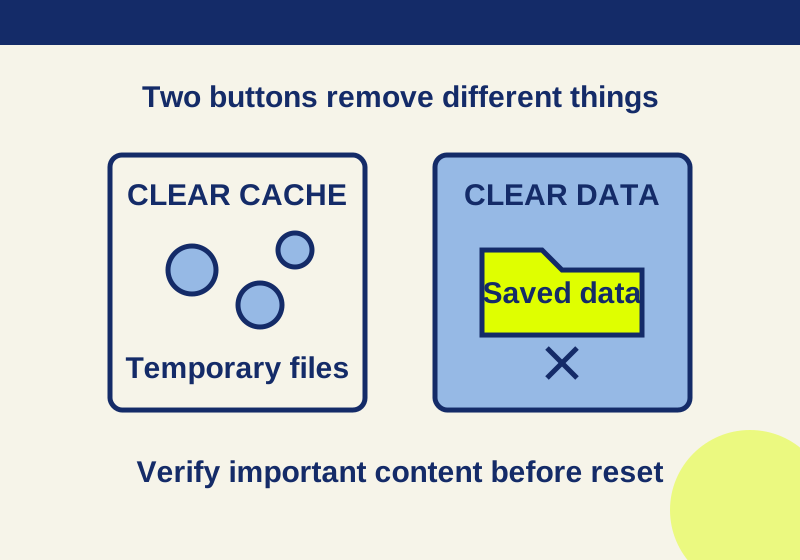
Clear cache vs. clear storage on Android: what gets deleted
Read the app storage breakdown and verify saved content before choosing a deletion button.