TESTED · PDF WORKFLOWS
How to rotate PDF pages so they stay upright after reopening
Save sideways PDF pages upright, choose the right turn for each page, and compare a real three-page practice file before and after reopening.
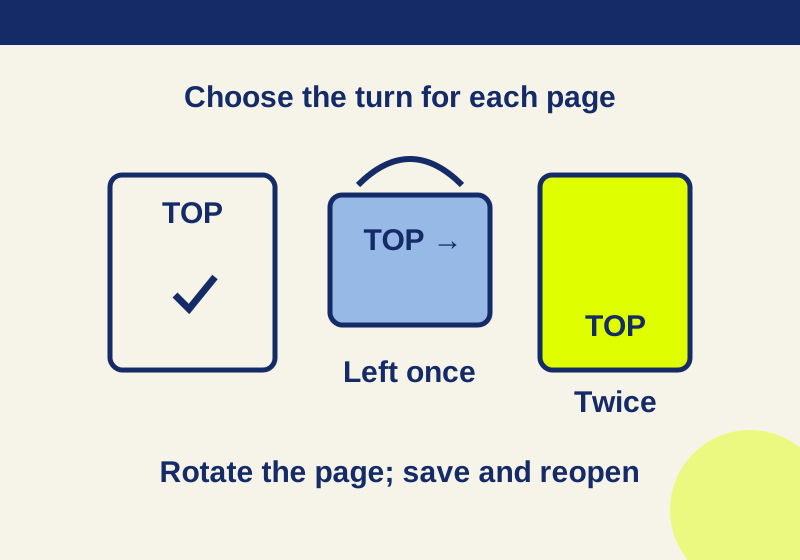
To make a page stay upright, rotate the page itself, save the PDF, then close and reopen the saved file. A rotated view can make the page easier to read for the moment, but it does not change the page’s saved orientation.
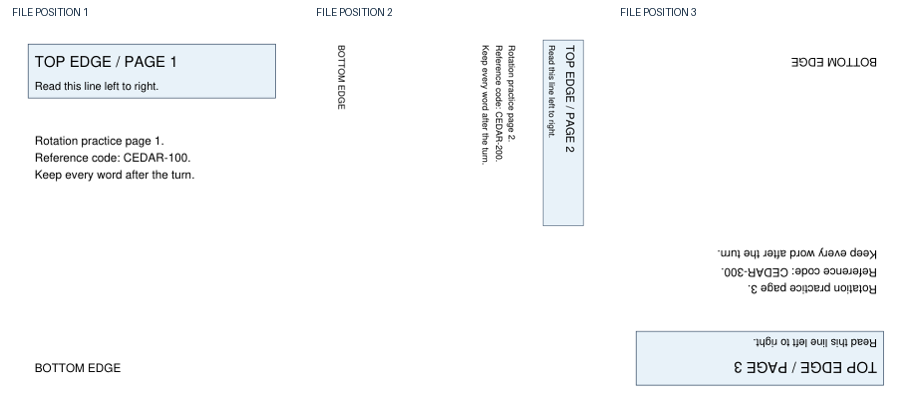
You can compare a three-page practice PDF before and after a saved correction: download the mixed-orientation PDF and download the upright-saved PDF. The first page starts upright, the second is sideways, and the third is upside down. The corrected file keeps the same page order and text while making all three pages upright.
Rotate the page, then save
In Acrobat, open All tools > Organize pages. Select the page or pages you want to correct, then use the left rotation control for a 90-degree counterclockwise turn or the right control for a 90-degree clockwise turn. Adobe’s instructions also describe selecting pages by page number, or using choices such as Even, Odd, and All. Close the pane and save the document when the pages face the right way. Adobe’s page rotation instructions describe this saved-page workflow.
Choose the direction by finding the page’s TOP EDGE label or headline. If the top of a sideways page points right, one left turn brings it upright. An upside-down page needs two quarter turns in either direction. Leave an already upright page out of the selection.
The practice packet shows why page selection matters:
| Page | Starting orientation | Correction | Saved result |
|---|---|---|---|
| 1, CEDAR-100 | Upright | No turn | Upright |
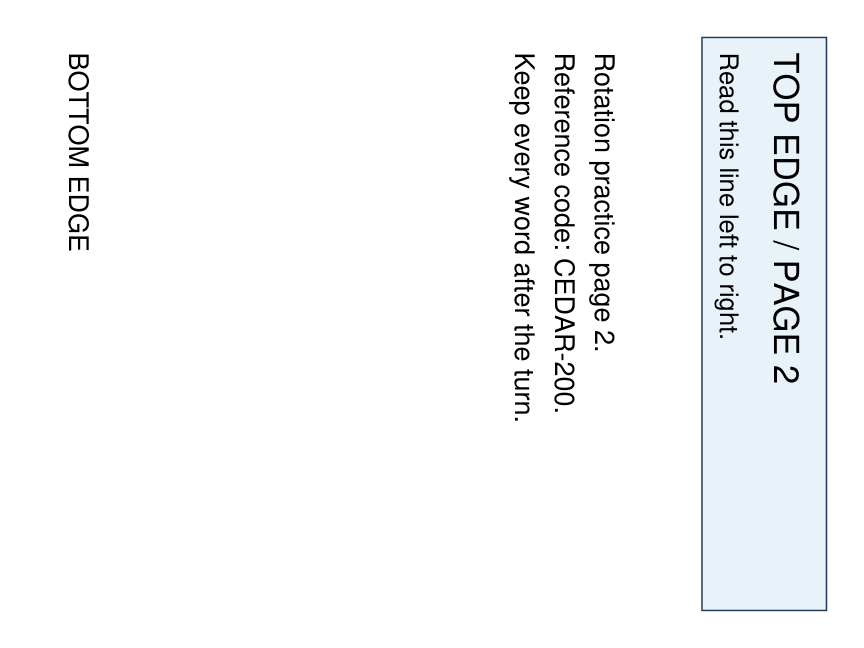
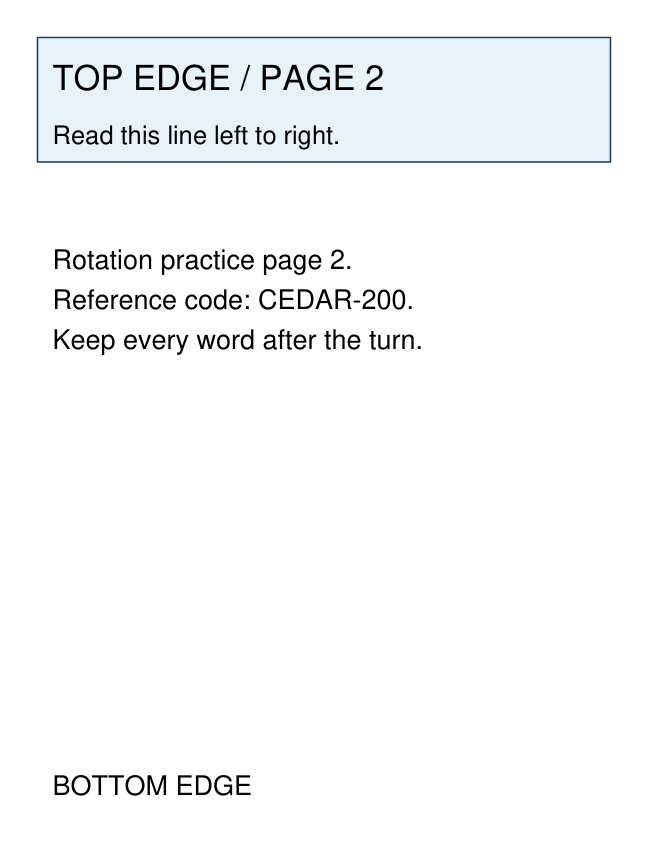
| 2, CEDAR-200 | Top edge points right | One left turn | Upright |
| 3, CEDAR-300 | Upside down | Two left or two right turns | Upright |
On the original second page, TOP EDGE points toward the right:
After correction and reopening, the same page reads upright:
The whole-packet before preview and after preview also show the upright control page and the upside-down third page.
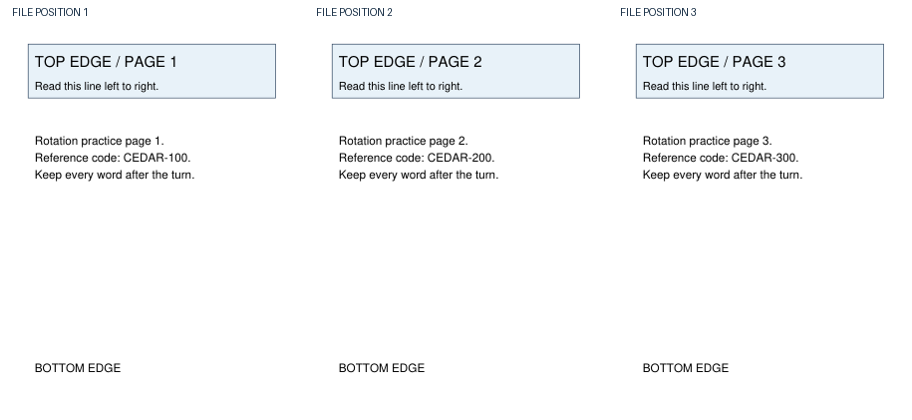
Try the three-page correction
Open the mixed-orientation PDF and identify each page before rotating anything. Page 1 is your control: its heading and body already read normally. On page 2, the top edge is at the right, so select only page 2 and turn it left once. On page 3, the top edge is at the bottom, so select only page 3 and turn it twice in one direction.
Before saving, scan all three pages. The headline and the line “Read this line left to right” should face the same way on each page, including the untouched first page. Save under a new name so you can tell the corrected copy from the starting file. Close it, open that new file, and check the three pages again.
These pages need different corrections. Turning all three left once would leave page 1 sideways and page 3 sideways in the other direction, even though it would fix page 2. That result follows from the starting angles; it is not a separate tested output. Selecting only the pages that need each turn avoids it.
A rotated view is temporary
Acrobat’s View > Rotate view command changes how the document appears while you are looking at it. Adobe says the original orientation returns when the document is reopened. Use the page rotation controls in Organize pages when the saved PDF must open upright for someone else.
The close-and-reopen check also catches a simpler mix-up: reopening the original file when you saved a corrected copy under another name. Check the filename as well as the orientation. If the page looks right before closing but wrong afterward, confirm which file you reopened, whether you saved it, and whether you used a page rotation rather than Rotate view.
Check the content as well as the angle
Check the text before turning a wide page. In the practice file, page 2’s visible rectangle was 576 × 432 points before correction and 432 × 576 points afterward; its original page box was 432 × 576 points. A genuinely landscape page may also be wide and already read correctly. Use the headline, top edge, and body text to decide whether it needs a turn.
After saving, compare a corrected page with one that was already good. If the good page has turned too, revisit your page selection. If an upside-down page is still sideways, it has received only one of the two quarter turns it needs. A rotation also cannot straighten a page that is merely tilted by a small scan skew; that is a different problem from a 90- or 180-degree orientation error.
The practice file contains selectable digital text. Its CEDAR-100, CEDAR-200, and CEDAR-300 references, along with the full extracted text on each page, matched before and after the saved correction. Rotation did not create OCR or establish that a scanned, image-only PDF would become searchable. The saved file has different PDF bytes. To compare the words, read the original extracted text and corrected extracted text; the three page bodies match.
In your saved copy, reopen the corrected filename, read the full body of every rotated page, and verify that a page you meant to leave alone is still upright. If the PDF has forms, annotations, or other interactive features you use, check those features in the saved copy too.
Source note: Adobe’s linked instructions supply the Acrobat steps and the distinction between page rotation and Rotate view. The three-page example is an original synthetic PDF rotated with PyMuPDF 1.26.7, saved as a separate file, and reopened on October 7, 2026. Its orientation and extracted text were checked after reopening. Acrobat’s interface, forms, annotations, OCR, and printing were not tested.
KEEP GOING
More to explore.
SOURCE-CHECKEDPDF workflows
Delete PDF pages without removing the wrong ones
Select unwanted pages together in Acrobat Organize pages, confirm the content, and save a copy. Removing one page shifts every later position; matching page counts can hide a wrong deletion.
TESTEDPDF workflows
How to reorder PDF pages without accidentally copying them
Use Organize pages to move a PDF page or Cut and Paste it. Reopen the saved copy and check both the order and page count; Copy and Paste leaves the original behind.