TESTED · PDF WORKFLOWS
Restrict PDF editing and printing: what the permission settings actually do
Compare three downloadable PDFs to see opening passwords, permission flags and actual text extraction, then check restrictions in your recipient app.
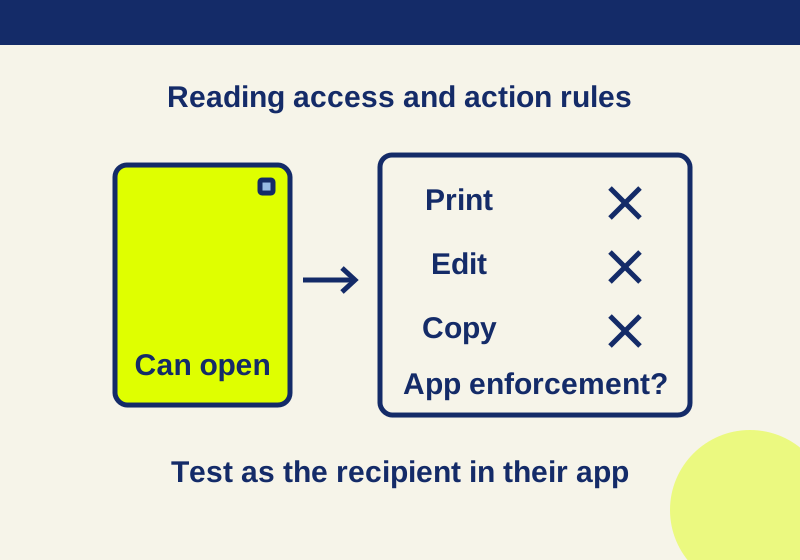
If recipients need to read a PDF but should not edit, print, or copy it, you can set those permissions in Acrobat. You can also choose narrower rules, such as allowing form filling while blocking other changes. A permissions password controls those settings; it does not, by itself, require a password to open the file. That requires a separate document-open password. Adobe explains the two password types.
A PDF that opens without a prompt may still have printing, editing, and copying marked as restricted. And a restriction shown in the file is not a guarantee that every application will honor it.
Set the permissions in Acrobat
Adobe’s desktop instructions for restricting a PDF give this path: All tools > Protect a PDF > Encrypt with Password > Yes. Under Permissions, select Restrict editing and printing, then enter a Change Permissions Password.
Choose a printing setting: None, Low Resolution (150 dpi), or High Resolution. For changes, Adobe lists choices ranging from None to selected actions such as inserting, deleting, or rotating pages; filling and signing; and commenting, filling, and signing. It also offers Any changes except extracting pages. Set the copying and screen-reader access options as needed, then select OK, confirm the password, and save.
Match the change setting to the recipient’s job. If someone must complete a form, None is a poor choice for that task; use the applicable filling and signing option. Likewise, Low Resolution (150 dpi) is a specific printing limit, not a measured prediction of how your particular document will look on paper.
Keep the permissions password for whoever manages the settings. When checking what recipients can do, reopen the saved file without entering that password.
Compare three versions of one page
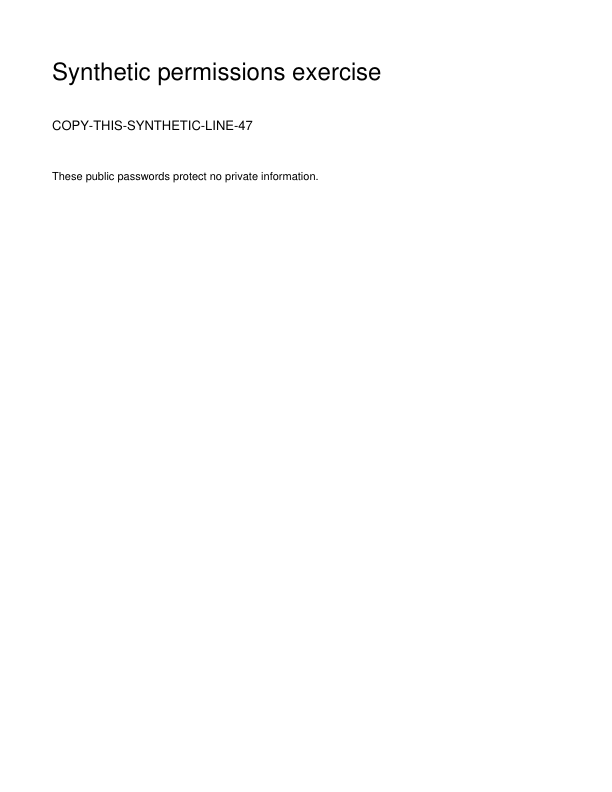
These practice files contain the same one-page synthetic line, COPY-THIS-SYNTHETIC-LINE-47. They make the difference between an opening password and action restrictions easier to see:
| Practice file | Password needed to open | Recorded print, edit, and copy flags |
|---|---|---|
| Original PDF | No | Allowed |
| Permissions-only PDF | No | Restricted |
| Opening-and-permissions PDF | Yes | Restricted after opening |
The two restricted files were made with AES-256 encryption. The permissions-only file nevertheless opened in the recorded native test without an opening password. The empty opening password in this file allows viewing even though the file is encrypted and its action flags are restrictive.
For the combined file, the public practice document-open password is PracticeOpen-47!. The public practice permissions password is PracticeOwner-47!. The permissions-only file uses the same permissions password. Both public passwords belong only to these synthetic files; do not use them for a real document. You can also view the rendered permissions-only page, which shows the page content but cannot tell you whether an application enforces its permissions.
The opening-and-permissions file was reopened separately for each password attempt. An empty password failed, and the incorrect password failed. PracticeOpen-47! succeeded with user authentication; PracticeOwner-47! succeeded with owner authentication. Those are the native reader’s actual results, not observations of an Acrobat password dialog.
Opening as the owner and opening as the recipient are different tests. A successful owner attempt does not answer whether the recipient’s intended password works. When you try the supplied combined file, use the opening password first and check that the page contains COPY-THIS-SYNTHETIC-LINE-47.
Why a restricted file can still yield text
The native test reported copying as disallowed for both restricted PDFs. Yet it extracted the practice line from the permissions-only file without an opening password, and from the combined file after its opening password was supplied. An incorrect opening password did not unlock the combined file.
That result is consistent with PyMuPDF’s documentation for Document.authenticate(), which says PyMuPDF ignores permission flags. It demonstrates a limit of relying on PDF action restrictions to keep readable content from being copied by every tool. Acrobat, browser print dialogs and other reader controls were outside this native test.
If the material must not be present in the PDF at all, remove it through a proper redaction process before sharing. If you need to control who can continue accessing a shared document, use the relevant sharing access controls. Editing and printing permissions address neither of those jobs.
Keep accessibility separate from copying
Both restricted practice files request screen-reader access while disabling the print, modify and ordinary-copy permission bits. Reopening the PDFs confirmed those bit values. A screen reader was not run, so that result does not certify accessible reading or a usable reading order.
In your own document, review the screen-reader option separately from copying. If accessible reading is part of the recipient’s task, test that task with their required application. Inspecting an enabled permission alone leaves the actual experience untested.
Check your own PDF as a recipient
- Save the PDF with your chosen settings, close it and reopen that saved copy without the permissions password. If you require an opening password, use the recipient’s opening password.
- Inspect the document’s Security summary in the application you expect recipients to use, if that summary is available.
- Try the particular actions relevant to the recipient’s job: printing, editing, copying or filling a form. Record the allowed actions and the denied actions separately.
For example, if you intend to allow reading and forbid printing, write down whether the file opens and whether the intended application permits printing after it opens. A denied edit operation does not answer the printing question. The practice results record the separate permission bits and native password attempts for comparison.
Use the practice pair first if the password roles are unfamiliar. Open the permissions-only file without a password and inspect its restrictions. Then open the combined file using PracticeOpen-47! and inspect the same restrictions. Entering PracticeOwner-47! while testing recipient behavior would change the role you are testing.
If your own file opens without a prompt, check whether you set only a permissions password. Add a separate document-open password if a prompt to view the PDF is required; the related opening-password guide covers that distinct task. If a recipient cannot fill a form, revisit the allowed-change choice. If an application allows an action that the PDF marks as restricted, treat that as a limit of the result in that application, not proof that the PDF file is damaged.
The Acrobat steps and password roles are based on Adobe’s linked instructions. The synthetic PDFs were created, reopened, inspected and used for text extraction with PyMuPDF 1.26.7 on October 7, 2026. Printing, interactive editing, form filling and Acrobat’s interface behavior were not tested.
KEEP GOING
More to explore.
TESTEDPDF workflows
Crop PDF margins and understand what stays hidden
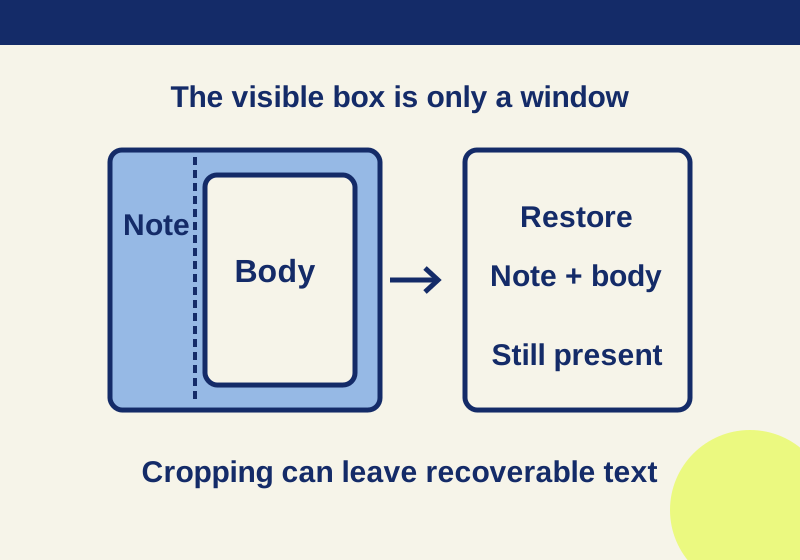
The margin note vanishes from the cropped view but returns when its page box is restored. The actual files make the difference visible.
TESTEDPDF workflows
How to redact a PDF so the hidden text is actually removed
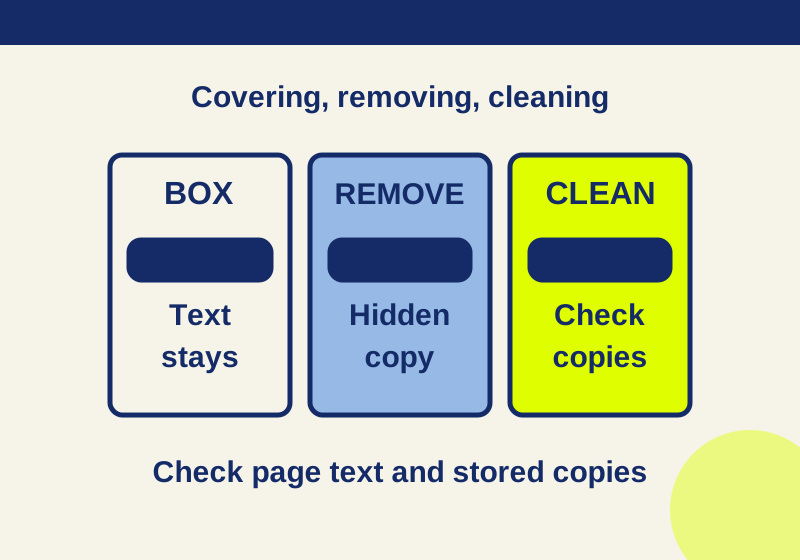
Apply real redactions, sanitize hidden content, then reopen the saved PDF and check the text, comments, metadata and attachments.