TESTED · PDF WORKFLOWS
Print a PDF as a booklet without scrambling the pages
Print a PDF booklet in Acrobat with real 8-page and 12-page examples, exact sheet maps, blank-page counts, and fixes for missing or upside-down sides.
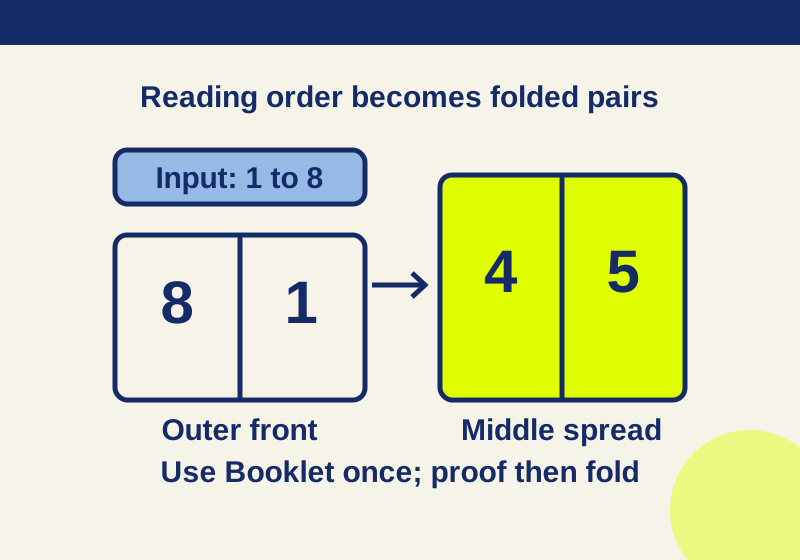
Start with a PDF whose pages are in ordinary reading order: 1, 2, 3, and so on. Open it in Acrobat, choose Print, then select Booklet under Page Sizing & Handling. Inspect the preview before printing one proof copy. An eight-page booklet occupies four sheet sides on two physical sheets.
If you want to follow along, use the eight-page reading-order PDF. Its eight numbered pages are the input for Booklet. The separate eight-page sheet-side PDF shows the intended pairs as a reference. Do not feed that sheet-side PDF through Booklet: its pages have already been arranged two at a time, so Booklet would rearrange and shrink that material again.
Print from the reading-order PDF
Open the reading-order PDF and select File > Print or the print control in Acrobat’s global bar. Choose your printer. Under Pages to Print, select All for the complete sample. Under Page Sizing & Handling, select Booklet. Acrobat offers Both sides for duplex printing, plus Front side only and Back side only for manual duplex. Choose the appropriate binding orientation and inspect the preview pages before printing.
Use a single proof copy to check that the page numbers are present, upright, and in order after folding. Duplex controls can depend on the printer driver; if you do not see them in the main print dialog, check the printer’s Properties or Preferences. For manual duplex, follow your printer’s instructions for reinserting the paper. There is no one feed direction or flip-edge setting that applies to every printer.
The Multiple print option also places more than one PDF page on a sheet, but it does not provide Booklet’s fold-aware arrangement. Select Booklet when the finished sheets will be folded into a booklet.
Practice with eight pages
- Eight-page reading-order PDF: eight individual pages numbered 1 through 8. Use this file as the Booklet input.
- Eight-page sheet-side PDF: four landscape pages, each showing one physical sheet side with two numbered panels. Open it to inspect the arrangement directly.
- Eight-page sheet map image: all four arranged sides in sheet order.
One sheet printed on both sides provides four booklet page faces. Eight pages therefore need two physical sheets and four printed sheet sides. For the left-bound sample, the pairs are:
| Physical sheet | Side viewed directly | Left page | Right page |
|---|---|---|---|
| 1, outer | Front | 8 | 1 |
| 1, outer | Back | 2 | 7 |
| 2, inner | Front | 6 | 3 |
| 2, inner | Back | 4 | 5 |
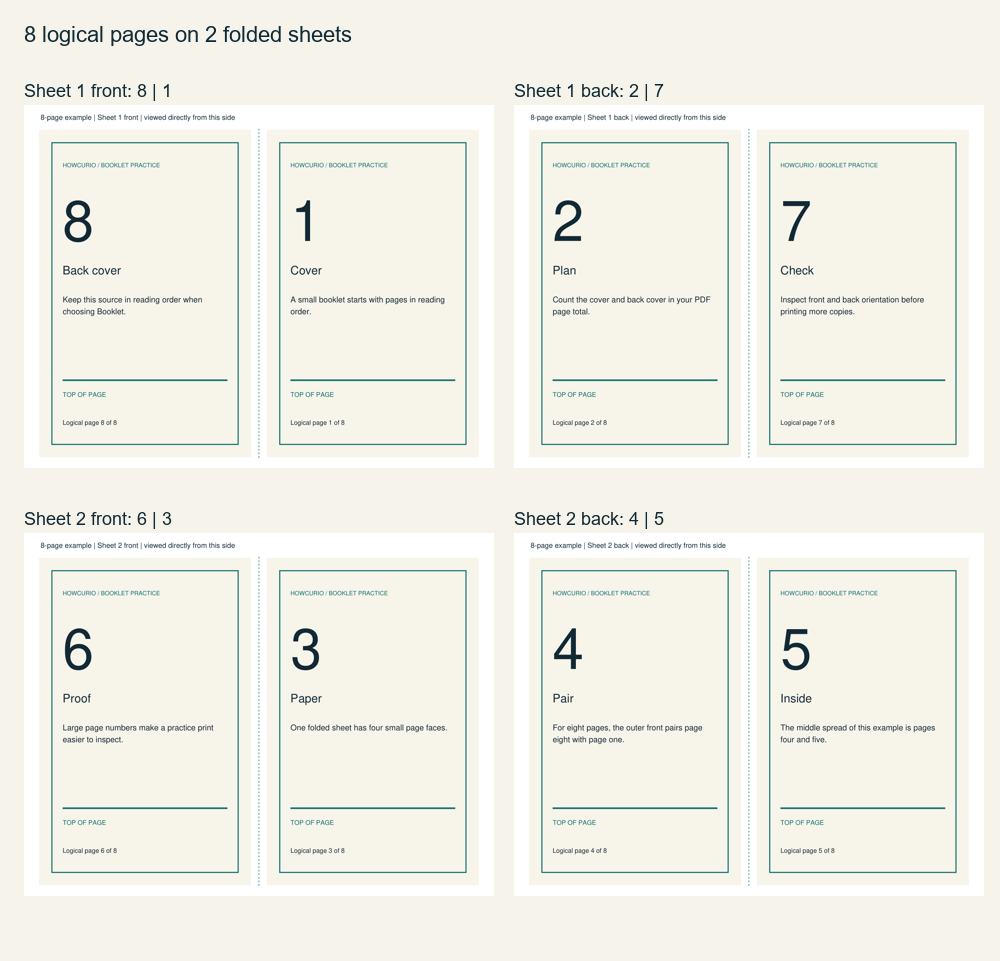
Page 1 is the front cover, page 8 is the back cover, and pages 4 and 5 form the middle spread. The back-side pairs in the table describe each side as you look directly at it. They are not a view through the paper. Open the PDFs and count the numbered panels: each number from 1 to 8 appears once.
The original file’s thumbnails should still run from 1 through 8. You do not need to edit it into an order such as 8, 1, 2, 7. Use the reading-order file for that print job.
See the same pattern with twelve pages
The twelve-page reading-order PDF contains individual pages 1 through 12. Use it as the Booklet input. The twelve-page sheet-side PDF and sheet map image show the six sides of the intended three-sheet arrangement.
| Physical sheet | Side viewed directly | Left page | Right page |
|---|---|---|---|
| 1, outer | Front | 12 | 1 |
| 1, outer | Back | 2 | 11 |
| 2 | Front | 10 | 3 |
| 2 | Back | 4 | 9 |
| 3, inner | Front | 8 | 5 |
| 3, inner | Back | 6 | 7 |
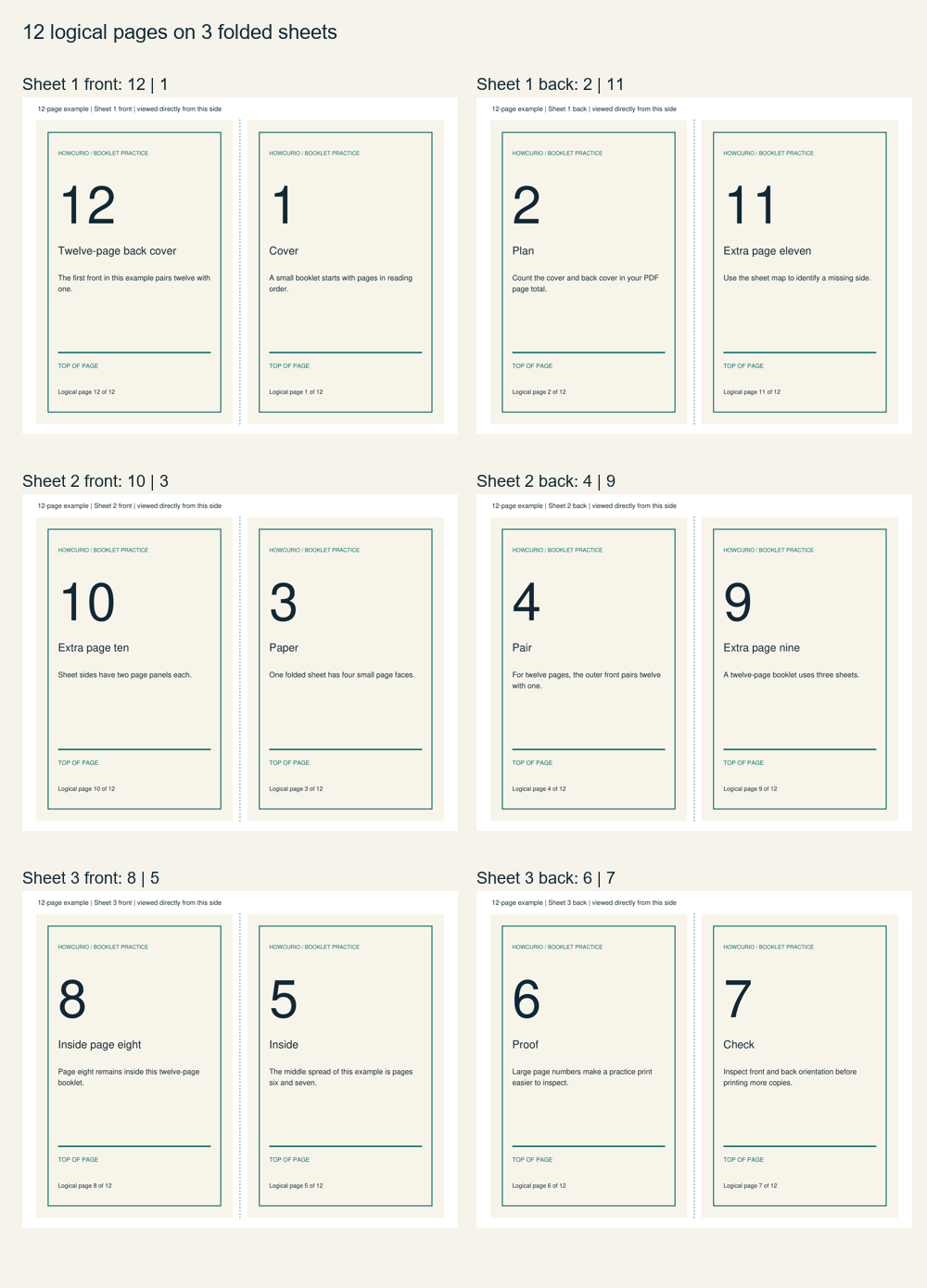
Here page 1 is the front cover, page 12 is the back cover, and pages 6 and 7 meet at the center. On every listed side, the two page numbers add up to 13. In the eight-page example, each pair adds up to 9. A pair whose numbers do not add up to the expected total deserves a closer look.
A CSV sheet map provides the same left and right page numbers for both examples.
Count pages before you print
A booklet sheet printed on both sides has room for four page faces. Count the PDF’s individual pages, including any front or back cover already in the file. Eight pages fit on two sheets with no blank faces; twelve fit on three sheets with none.
A count that is not divisible by four needs spare faces to fill the last sheet. Nine, ten, and eleven logical pages each occupy space for twelve: that leaves three, two, and one blank faces respectively. The number of spare faces is predictable; their automatic placement in Acrobat was not tested.
For a longer document, divide its page count by four and round up to a whole sheet. Multiply that sheet count by four to find its available faces, then subtract the original page count. A 13-page program needs four sheets, with 16 faces and three blanks. If the back cover must remain the last face, place the intended blank pages before that cover in the reading-order source PDF, then inspect the Booklet preview. Also check what each PDF thumbnail represents. The supplied reading-order samples use one PDF page for one booklet face. A different PDF might contain two facing page designs within a single PDF page, so its PDF page count would mean something different.
Fix an upside-down or missing side
If a proof copy has an upside-down back, compare its visible page numbers and TOP OF PAGE labels with the sheet-side reference. Check the chosen binding orientation, Auto-rotate pages within each sheet, and the printer’s duplex settings. For manual duplex, check the printer’s reinsertion instructions before trying the second pass again. The maps show page placement, not a universal paper feed order.
If pages are absent, identify the missing side before reprinting the entire file. In the eight-page example, missing pages 6 and 3 point to the inner sheet’s front; 2 and 7 point to the outer sheet’s back; 8 and 1 point to the outer sheet’s front. Then check the selected Pages to Print range and any Sheets from range in the Booklet settings. A page range selects document pages, while a sheet range refers to physical booklet sheets.
These maps use left binding. For another binding orientation, choose it in the print dialog and inspect that preview.
Source note: The sample PDFs were digitally arranged, reopened, text-checked, and rendered to the maps shown here. The print controls follow Adobe’s booklet instructions and PDF print guidance. No physical printing, folding, printer-driver output, or manual paper feeding was tested.
KEEP GOING
More to explore.
SOURCE-CHECKEDPDF workflows
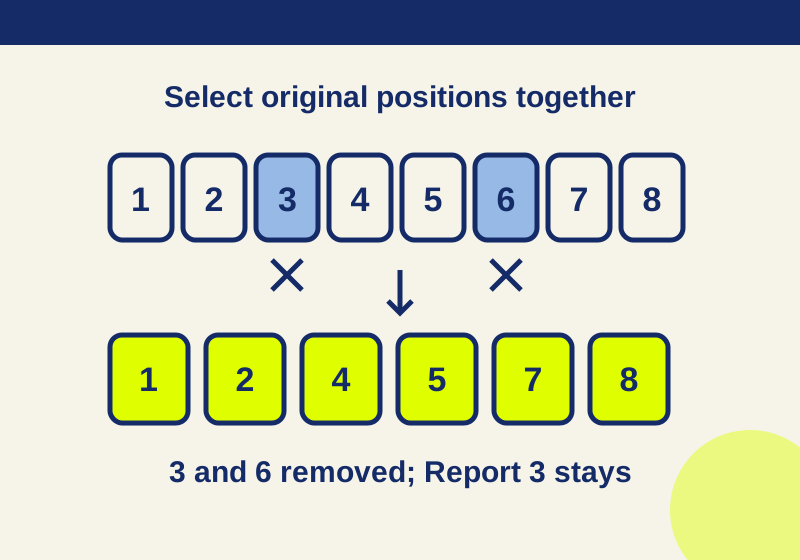
Delete PDF pages without removing the wrong ones
Select unwanted pages together in Acrobat Organize pages, confirm the content, and save a copy. Removing one page shifts every later position; matching page counts can hide a wrong deletion.
TESTEDPDF workflows
How to reorder PDF pages without accidentally copying them
Use Organize pages to move a PDF page or Cut and Paste it. Reopen the saved copy and check both the order and page count; Copy and Paste leaves the original behind.