TESTED · PDF WORKFLOWS
Sign a PDF with a certificate and check whether it is valid
Add a certificate signature in Acrobat, interpret trust warnings, and inspect real signed and altered PDF examples before accepting a document.
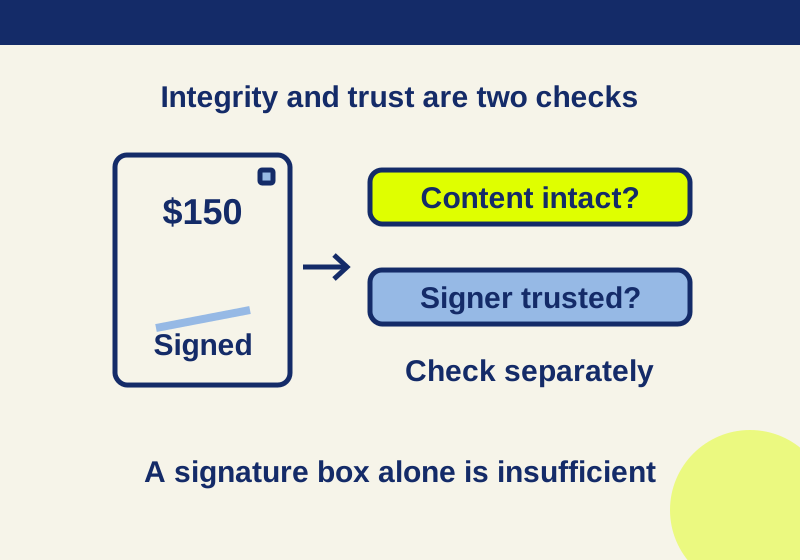
In Adobe Acrobat, select All tools > Use a certificate > Digitally sign, choose your Digital ID, and save the signed PDF. Open that saved file and validate its signature before sending it. Check whether the signed content is intact and whether the recipient trusts its certificate.
A signature box can remain on a changed document. The practice invoice below still shows its digital signature after an amount changes from $150.00 to $950.00. Its integrity check fails. Another copy keeps the original amount and passes that check, while its temporary certificate is untrusted. Those results need different responses.
Check the recipient’s certificate requirement first
A typed name, drawn mark or signature image is page content. Placing one on a PDF does not itself create a certificate signature. The unsigned practice PDF contains the typed name “Alex Example” and displays $150.00. Its native signature inspection found zero embedded cryptographic signatures.
If the recipient specifically requests a certificate-based digital signature, ask which Digital ID or certificate they accept. Adobe’s certificate-signature overview describes certificate authorities that provide independent identity validation. A self-signed certificate can demonstrate signing without meeting the recipient’s identity requirements. The name written inside that certificate needs verification too.
Review the PDF’s contents before signing, including amounts and any redactions. A corrected invoice needs approval of the corrected amount. Keep your Digital ID’s private key and password private, and send the recipient the signed PDF.
Add the certificate signature in Acrobat
Adobe’s signing instructions give this sequence:
- Open All tools > Use a certificate and select Digitally sign.
- Accept the instructions, then drag a rectangle where the signature should appear.
- Choose the intended Digital ID and Continue. If no ID is configured, select Configure New Digital ID before proceeding.
- Review the signature details and enter the Digital ID password.
- Decide whether to use Lock document after signing. Adobe describes this as preventing further changes. Check the recipient’s workflow before selecting it if the document still needs another person’s action.
- Select Sign, choose the save location and save the PDF.
Reopen the output you intend to send. Drawing the rectangle is an intermediate step; you still need to select the ID and complete signing and saving.
Validate the saved document
Open Acrobat’s Signatures panel, then Options > Validate Signatures. Read Signature Validation Status. Open Signature Properties > Show Signer’s certificate for the certificate details. These are Adobe’s documented validation controls; other validators may use different status labels.
Inspect the content-integrity result separately from certificate trust. If the signed content no longer matches, ask the known sender for the original signed PDF or a corrected version that has been approved and signed again. Changing trust settings cannot recover the amount or other content that was signed.
An intact document with an untrusted certificate needs an identity and certificate-policy check. It does not, from that warning alone, establish that the document was altered. The requesting organization or an authorized administrator can explain its accepted certificate chain and verification process.
An intact $150 invoice with an untrusted signer
Download the signed example PDF. Its visible invoice amount is $150.00, and it contains one embedded digital signature.
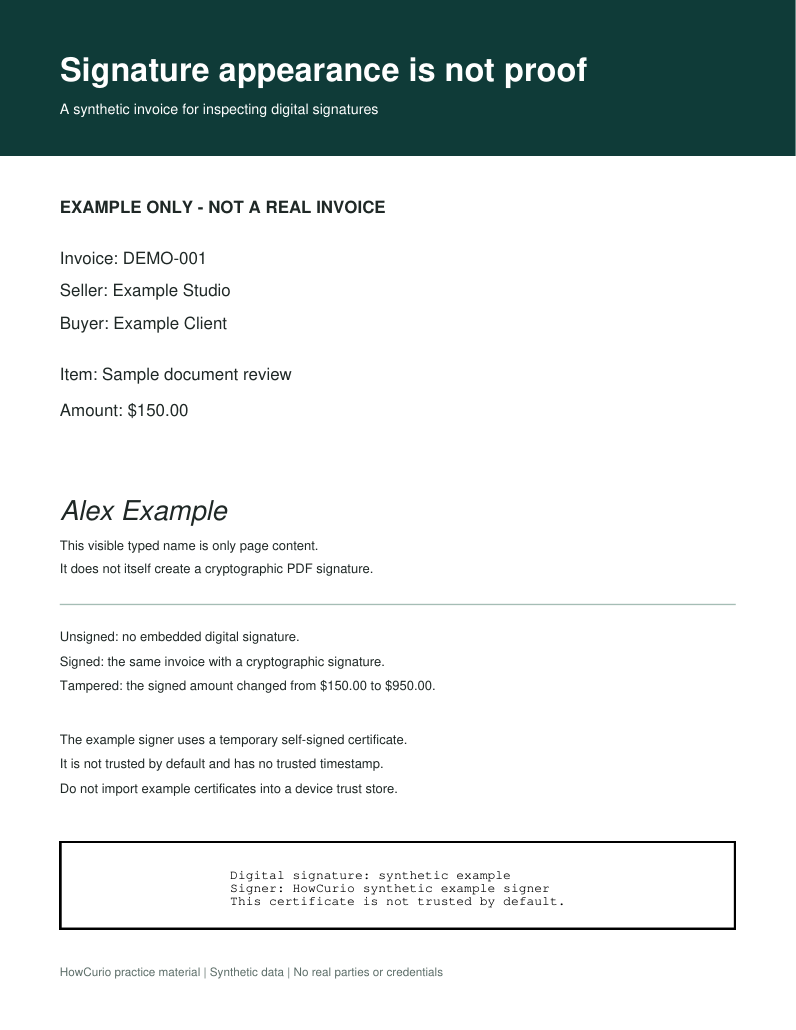
In the local pyHanko validation, the signed PDF passed the document-integrity check and the cryptographic signature calculation. The validator’s trust context contained no trusted certificate, so the temporary self-signed certificate was untrusted. The overall result was INTACT:UNTRUSTED,UNTOUCHED.
The file’s signed bytes matched. The validator still lacked an established reason to trust this example signer. For a real document with that combination, investigate the certificate and sender through the recipient’s normal process.
The same signed file was checked again with its exact example certificate supplied as a trust root inside one isolated validation call. It then returned INTACT:TRUSTED,UNTOUCHED. Only the validation input changed; the PDF did not. Nothing was installed in the computer’s global certificate store. Supplying that certificate also provided no independent proof of the fictional signer’s identity.
Change the amount and the signature box stays
The tampered example PDF is a copy of the signed invoice with one byte changed in its signed page content. $150.00 became $950.00. Both files are 10,273 bytes, and the altered version retains its embedded signature and visible signature box.
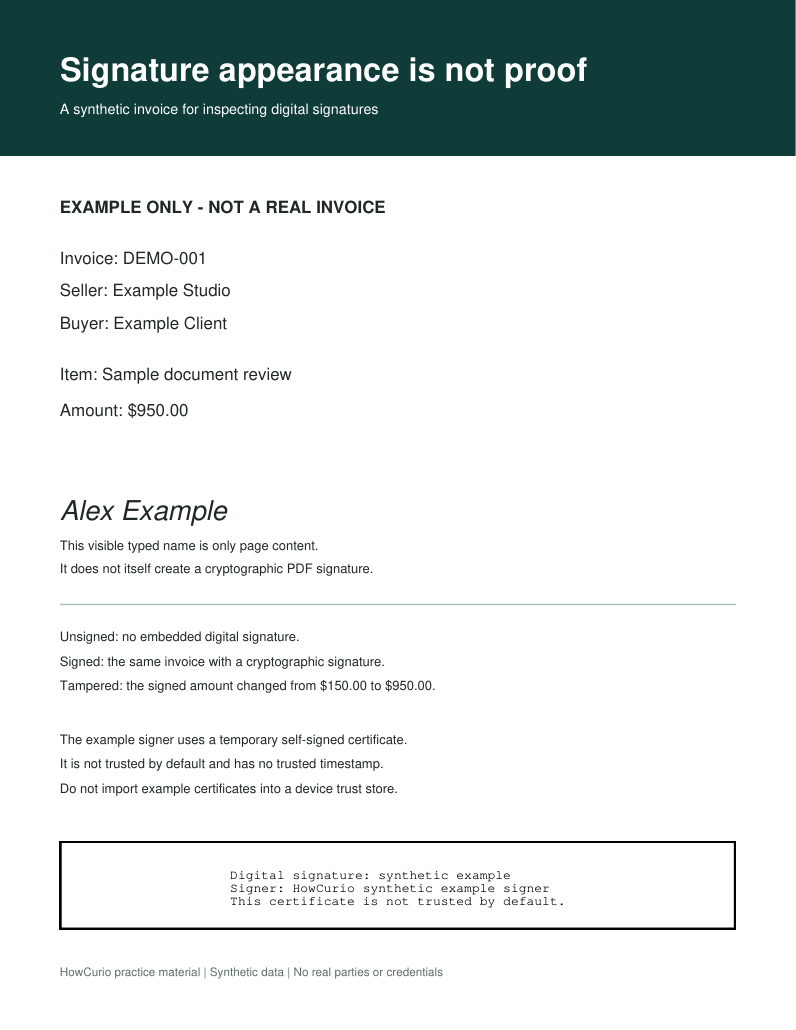
The changed PDF failed the document digest comparison: the covered content no longer matched what had been signed. Its overall result was INVALID, including when the isolated validation call explicitly supplied the certificate as a trust root.
| File or validation context | Amount | Actual result |
|---|---|---|
| Unsigned PDF | $150.00 | No embedded cryptographic signature |
| Signed PDF, empty trust context | $150.00 | Intact; certificate untrusted |
| Same signed PDF, isolated explicit trust | $150.00 | Intact; trusted in that call |
| Altered signed PDF | $950.00 | Integrity failed; overall invalid |
You can inspect the computed validation results without installing a signing certificate. Each file has a recorded size, SHA-256 and signature count. The two validation objects distinguish the empty trust context from the isolated explicit-trust call.
One field in the altered file’s report is easy to misread: cryptographicSignatureValid remains true. That checks the CMS signature calculation over its signed attributes. The separate intact field is false because the document digest does not match. The overall signature result is invalid; the true sub-check does not approve the changed invoice.
ModificationLevel.NONE also appears in that report. The experiment changed bytes inside the signed content, without appending a new revision. That field cannot establish that this PDF was untouched. Use the failed integrity result. The invalid file’s false trust field likewise does not supply a separate completed diagnosis of its certificate chain.
This example changes covered page content. It does not establish what every later comment, form entry or additional signature does in every signing workflow.
Handle a trust warning without granting extra permissions
For an unfamiliar certificate, ask the known sender or authorized administrator how it should be verified. Adobe’s certificate trust settings distinguish signed documents or data from privileged JavaScript and system-operation permissions. Enabling those broader permissions simply to remove a signature warning can grant capabilities unrelated to the signature check.
Do not install the practice certificate as a generally trusted root. The sample’s isolated trust comparison does not verify identity.
Check the signing time separately
A displayed signing time may come from the signer’s computer clock. Adobe’s validation guide distinguishes it from a timestamp supplied by a timestamp server; that timestamp needs its own trust relationship and verification. A printed date beside a signature does not independently prove when signing happened.
The practice files use entirely synthetic invoice data. They were cryptographically inspected with pyHanko 0.37.0, parsed and rendered locally. The Acrobat steps above are documentation-based. No Acrobat interface, real signer identity, online revocation check, trusted timestamp or legal validity was tested.
Keep the original signed PDF you receive and forward that file unchanged when the recipient requests it.
KEEP GOING
More to explore.
TESTEDPDF workflows
Add PDF page numbers without numbering the cover
Six physical pages can have a four-page body. Use the right range, starting number and total while leaving cover and contents unnumbered.
SOURCE-CHECKEDBusiness documents
Dropbox Sign says Signed: is the whole request actually complete?
Understand Dropbox Sign Sent, Viewed, Signed and Completed states, find the exact request, and choose a reminder or correction that fits.