TESTED · PDF WORKFLOWS
How to add a PDF watermark that people can still read
Add a PDF watermark and keep tables readable. Compare four actual mixed-layout sample PDFs, download them, and inspect their saved text.
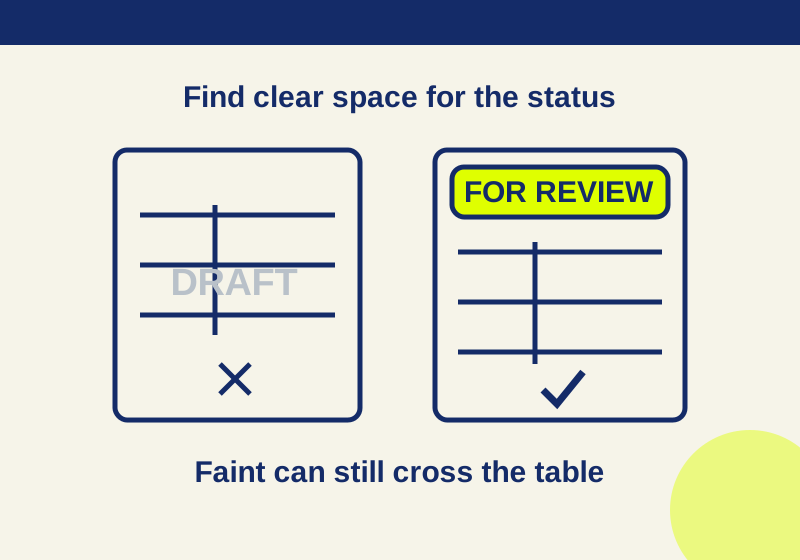
Put a short status label in space your PDF already has, then check the saved copy page by page. A centered “DRAFT” can cross text, tables, or charts even when it looks faint. For a document with a clear top margin, “DRAFT | FOR REVIEW” near the header can make the status obvious while leaving the main content clear.
Add a text watermark in Acrobat
In Acrobat, open the PDF and choose Edit > Watermark > Add. Select Text, enter the label, and adjust its size, rotation, opacity, and horizontal and vertical position. Use the preview to see where it falls. If the watermark belongs on only some pages, set the page range before confirming it. These are Adobe’s documented controls.
Start with the message you need the recipient to understand. “DRAFT | FOR REVIEW” says more than “COPY,” which could mean several things. Keep the text short enough to fit its intended space, especially on pages that change orientation.
See what placement changes
These synthetic two-page practice PDFs contain a workshop schedule and a capacity chart. Page 1 is US Letter portrait; page 2 is landscape. The schedule includes a 9:00 opening, a 10:15 photo walk, a noon lunch, a 1:30 map workshop, and a 3:45 wrap-up. The chart lists Room A at 24, Room B at 18, and Cafe at 30.
Four versions use the same underlying content:
| Practice PDF | Watermark placement |
|---|---|
| Unmarked PDF | Original comparison copy |
| Heavy center PDF | Centered “DRAFT,” 80-point type at 80% opacity |
| Light center PDF | Centered “DRAFT,” 50-point type at 25% opacity |
| Header label PDF | “DRAFT |
Use those numbers to reproduce the practice files. Placement still depends on your own page layout. In the rendered pages, the heavy centered label covers the lower part of the portrait table and crosses the landscape chart bars. The lighter centered label is fainter, but it still overlaps a lower row and a bar. The header label stays separate from the body content on both practice pages because those pages reserve room for it.
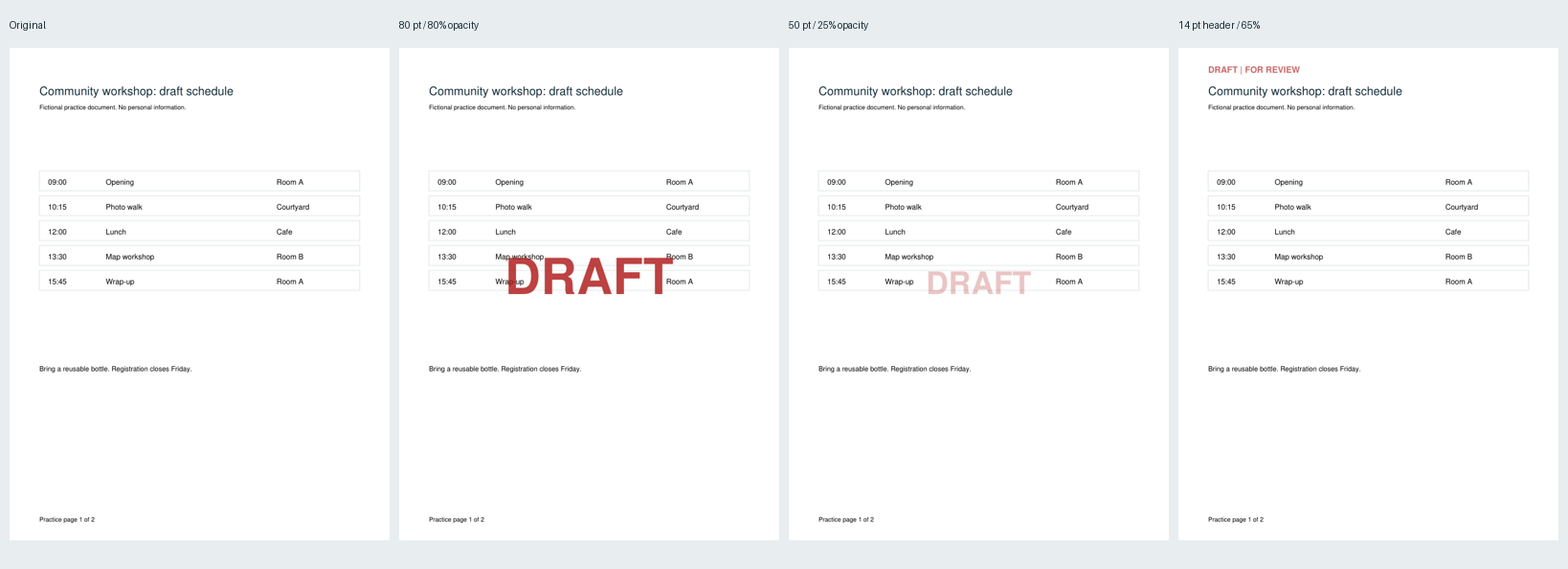
Open the full-size portrait comparison to inspect the table.
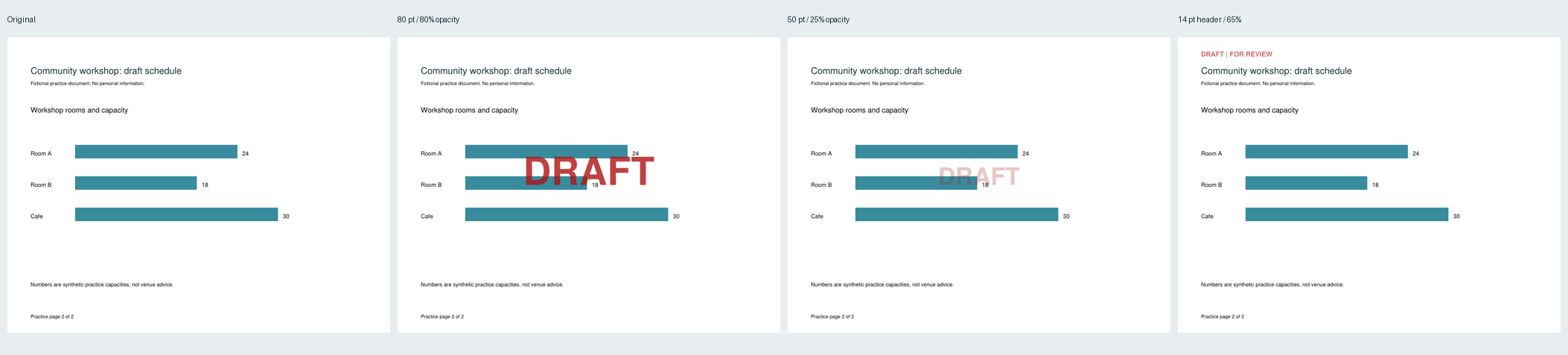
Open the full-size landscape comparison to inspect the bars.
Place the label around the information
Find the most important information on each page before choosing a position. On a schedule, that may be a time and its matching activity. On a chart, it may be the value attached to a bar. A mark that separates “Room B” from “18,” or makes the number hard to distinguish, needs another position even if the rest of the page looks fine.
Compare a critical item in the unmarked PDF with the same item in the marked copy. In the practice chart, check whether 24, 18, and 30 remain easy to match with Room A, Room B, and Cafe. On the schedule, check a lower row as well as the title; the centered practice marks affected content farther down the page.
A top label works only when the actual document has room there. Check every layout change, including landscape pages and pages with different margins. Moving a centered mark by the same percentage on every page can still put it over different content. If there is no consistently clear position, adjust the placement or page range for the pages that need it.
Check the saved PDF
Open the saved file, rather than relying only on the editing preview. Look at the first page and every page where the layout, orientation, table, or chart changes. Read the content beneath and beside the watermark at normal viewing size, then zoom in on any close call. Viewers can render a PDF differently, so inspect the copy you intend to send in the viewer your recipient is likely to use when possible.
Also check that the label appears on the intended pages. Each watermarked practice PDF has one “DRAFT” occurrence per page. All four practice PDFs have two unencrypted pages, and native PDF text extraction retained the original schedule and capacity text in every version. For a direct comparison, see the extracted text from the heavy center copy and the header label copy. That result shows what happened in these files; it does not establish how another PDF will copy, print, or expose its text.
A watermark is a visible status cue. In these practice files it did not remove the underlying text or encrypt the PDF. If information must be removed before sharing, handle that through a separate, proper redaction workflow.
Change a watermark that is already there
To revise a watermark in Acrobat, use Edit > Watermark > Update. Adobe says you can change its text, font, size, color, rotation, opacity, or page range, then confirm and save. Check the resulting pages again after changing placement or range.
There is a specific pitfall with multiple watermarks: Adobe’s update instructions say that Update changes only the first watermark added and removes additional watermarks. Adobe also notes that updating may not work for secured PDFs or PDFs containing forms. If an expected mark disappears or Update fails, check those conditions before treating the saved file as ready to send.
Source note: Acrobat steps and update behavior come from the linked Adobe instructions. The placement comparison is an original two-page synthetic practice trial made with PyMuPDF 1.28.2 on October 7, 2026; it did not test Acrobat’s controls, printing, or behavior in other PDFs.
KEEP GOING
More to explore.
TESTEDPDF workflows
How to add PDF bookmarks and fix ones that open the wrong page
To fix a PDF bookmark in Acrobat, select it, open the intended page and view, then choose Options > Set Bookmark Destination. Use the downloadable wrong and corrected PDFs to see why renaming the entry leaves its destination unchanged.
TESTEDPDF workflows
Add PDF page numbers without numbering the cover
Six physical pages can have a four-page body. Use the right range, starting number and total while leaving cover and contents unnumbered.