SOURCE-CHECKED · PDF WORKFLOWS
Export an accessible PDF from Word: check the tags and reading order
Prepare headings, tables, links and image descriptions in Word, export with accessibility tags, and inspect a real tagged versus untagged PDF pair.
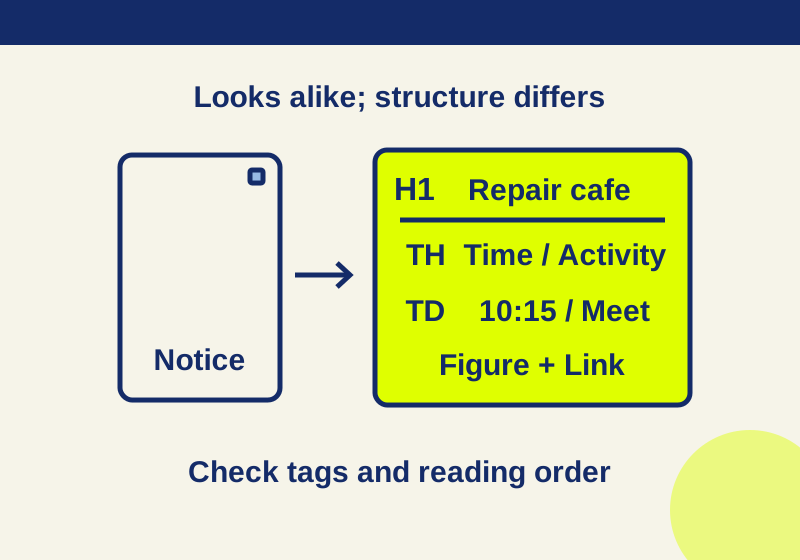
Use meaningful heading styles, table headers and image descriptions in Word, run its Accessibility Checker, then export with document structure tags. After saving, inspect the PDF’s reading order and the relationships its tags describe. Selecting text or seeing a tidy page won’t tell you whether a reader can navigate its headings or understand its table.
Two identical pages with different information underneath
Download the untagged practice PDF and programmatically tagged practice PDF. Both contain a fictional repair-cafe notice: a title, a short schedule, a diagram and a website link. The times are invented practice content, not opening hours for an event.
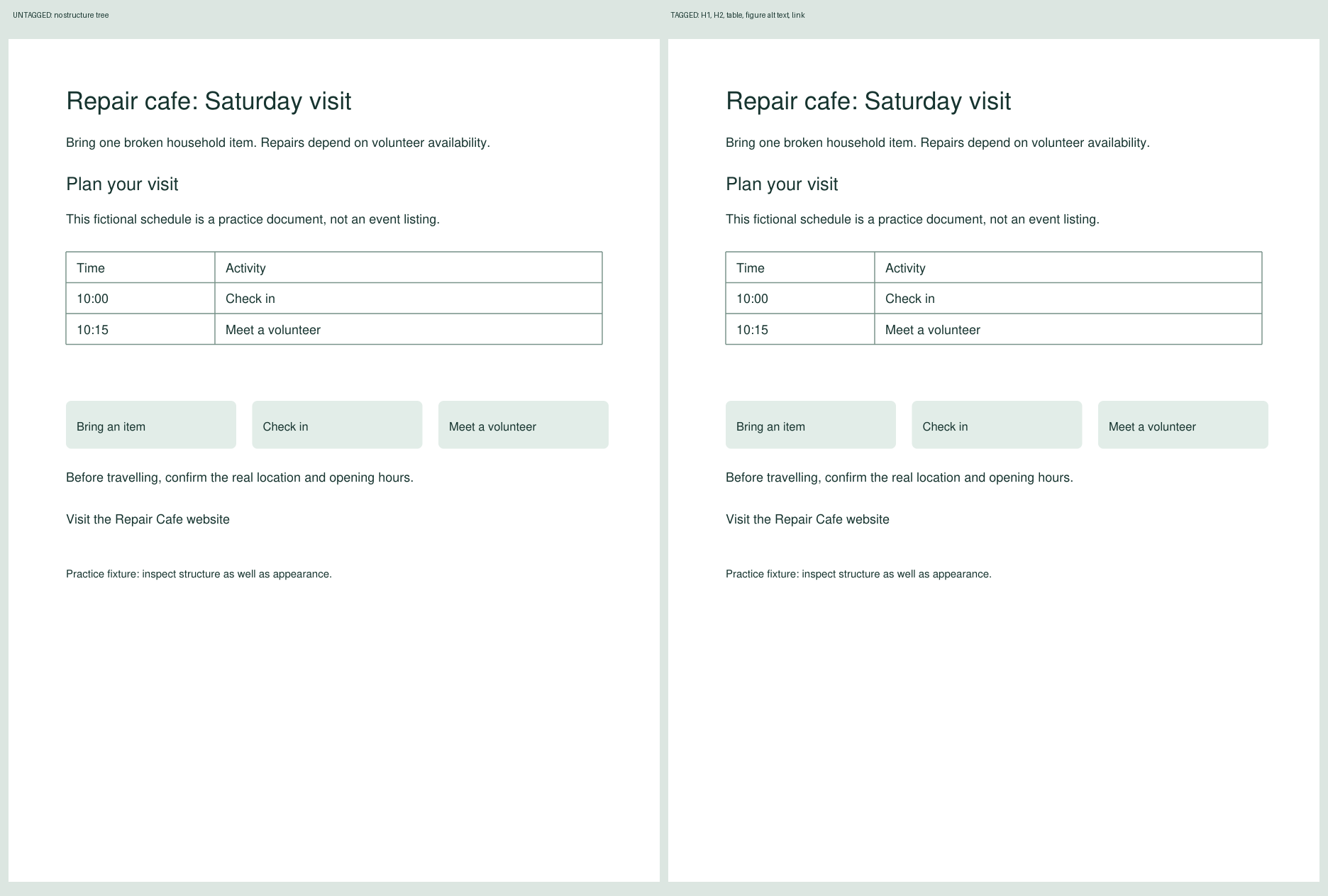
Every rendered pixel matched in the comparison. The files also have the same extractable text and link destination. Their structure differs:
| What the document contains | Untagged PDF | Tagged PDF |
|---|---|---|
| Title and section heading | Visible words | H1 and H2 heading roles |
| Schedule | Visible cell contents | Table, row, header and data-cell roles |
| Three-step diagram | Visible labels | Figure with a descriptive text alternative |
| Website link | Clickable annotation | Annotation connected to a Link element |
| Document language and title | Missing | English (United States) and a descriptive title |
The tagged file identifies Time and Activity as column headers. It pairs 10:15 with Meet a volunteer inside one table row. In the untagged file, those same words have positions on a page but no logical table structure.
These comparison PDFs were built separately from the Word document. Their structure and rendering were inspected; no Word export, screen-reader trial or Acrobat/PAC validation was performed. The tagged sample uses unembedded standard PDF fonts and is not presented as PDF/UA compliant. Use it to examine structure, then inspect your own export.
Prepare the Word source using a small notice
Open the editable practice DOCX. Its actual document structure includes Heading 1 for “Repair cafe: Saturday visit” and Heading 2 for “Plan your visit.” The schedule has a header row. The diagram has alternative text, and the website link has a descriptive label.
For your own document, assign heading styles to the sections you want readers to find. Keep the levels in a sensible sequence. A large, bold line of ordinary text can resemble a heading while lacking its structural role. Microsoft’s Word accessibility guidance recommends built-in styles and logical heading order.
The sample’s table contains just two columns:
| Time | Activity |
|---|---|
| 10:00 | Check in |
| 10:15 | Meet a volunteer |
That relationship is easy to express without merged cells or blank spacer rows. If you only need to announce “Check in at 10:00, then meet a volunteer at 10:15,” an ordinary paragraph may be sufficient. When the data needs a table, specify headers and keep its structure simple.
The diagram’s description is “Three steps: bring a broken item, check in, then meet a volunteer.” Compare that with “three green boxes.” The latter leaves out what someone should do. Write the description around the image’s purpose. The sample supplies the sequence once as the figure’s alternative text.
Its link label, “Visit the Repair Cafe website,” names the destination even outside the paragraph. The destination is the real Repair Cafe website; the fictional schedule does not describe one of its events. For a real notice, replace that link with the correct organization or registration destination.
Keep essential information in the document body, including anything a reader needs to act on. Avoid conveying a distinction through color alone. Run Word’s Accessibility Checker and address the findings before exporting. These source-preparation practices are documented by Microsoft; the practice file’s structure does not establish that your revised document passes every accessibility requirement.
Select the accessible export option
On Windows, choose File > Save As or Save a Copy and select PDF. Use More options or Browse to reach the Save As dialog if needed. In Options, select “Document structure tags for accessibility,” confirm with OK, and save. Microsoft documents the export sequence.
On macOS, choose PDF, select “Best for electronic distribution and accessibility (uses Microsoft online service),” and export. This conversion sends the document to a Microsoft service. Microsoft also says that Word files with Information Rights Management or a password required to open them are saved with that protection removed under this option. Check whether those conditions are acceptable before using it for a protected document.
Keep the editable DOCX. If a heading or table needs correction later, you can repair the source and create another PDF without repeating the same manual repair for each revision.
Follow the tag order through the sample
In the tagged PDF, the main sequence is:
- H1: Repair cafe: Saturday visit.
- Paragraph explaining what to bring.
- H2: Plan your visit, followed by the fictional-notice explanation.
- Schedule table.
- Figure describing the three-step sequence.
- Travel note, website link and final practice note.
Expand the table’s structure. Its rows contain TH header cells and TD data cells. Time and Activity have column scope. The 10:15 row must contain its corresponding activity, Meet a volunteer, under those headers. Finding all four words somewhere in a text export doesn’t show whether those relationships exist.
The Figure element has the description quoted above. Its text alternative describes the whole sequence, while ordinary text extraction finds the diagram’s visible labels in both PDFs. A parser’s listing of tags is not a transcript of what a particular screen reader will announce.
The Link element has a reference to the clickable annotation. Both files send the click to the same website; only the tagged example places that annotation in its logical structure. Check the intended destination as well as the label when reviewing your own file.
Microsoft’s Word PDF documentation describes heading, paragraph, table, Figure and Link roles, including version-specific behavior. Your Word export may contain additional wrapper elements or a different tree. Judge whether the content and relationships are correct rather than trying to reproduce this sample’s exact object layout.
Review the PDF you actually saved
In Acrobat Pro, select All tools > View more > Prepare for accessibility > Check for accessibility, then Start Checking. Open the reported issues and inspect the relevant content. Adobe’s guidance distinguishes passed, failed, skipped and manual checks. A skipped check gives you no result for that requirement.
Review the document language and title. Then inspect the Tags panel in the order a reader should encounter the material. Adobe explicitly requires a manual check of logical reading order. In a longer document, examine where a sidebar, footnote or second column joins the main text. Correct tags can still be arranged in an order that makes the explanation difficult to follow.
If the PDF has a missing heading, incomplete table relationship or unhelpful image description, correct that part of the Word source and export again. Reopen the new PDF for review; checking the earlier copy won’t tell you what changed.
Give a reader a concrete task
For this notice, ask someone using the relevant assistive technology to find Plan your visit, identify the activity at 10:15, understand the diagram’s sequence and follow the website link. Those tasks cover navigation, a table relationship, an image alternative and an interactive element. They are proposed reader checks, not trials performed on these files.
Use the practice DOCX to try the same export in your own Word installation. Inspect the resulting heading roles, the Time and Activity headers, the diagram’s description and the website link. Keep that corrected source with the finished PDF for the next revision.
KEEP GOING
More to explore.
TESTEDPDF workflows
How to reorder PDF pages without accidentally copying them
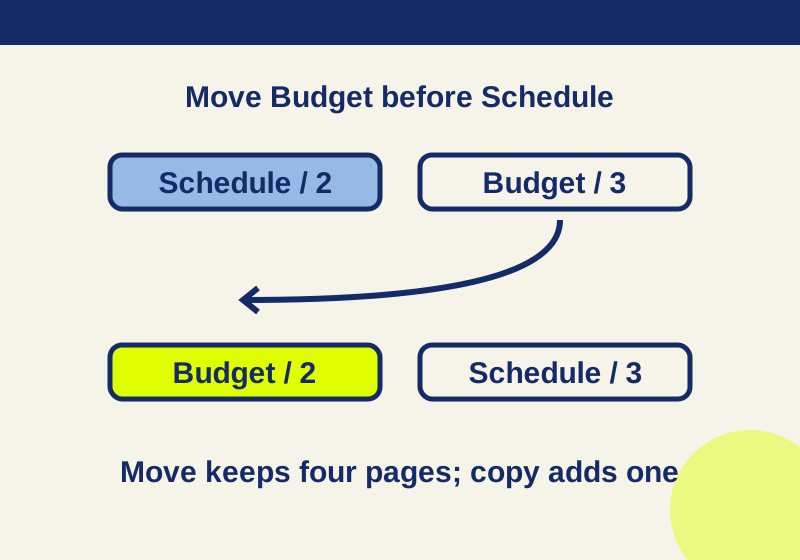
Use Organize pages to move a PDF page or Cut and Paste it. Reopen the saved copy and check both the order and page count; Copy and Paste leaves the original behind.
TESTEDPDF workflows
Convert PDF to Word with editable paragraphs and tables
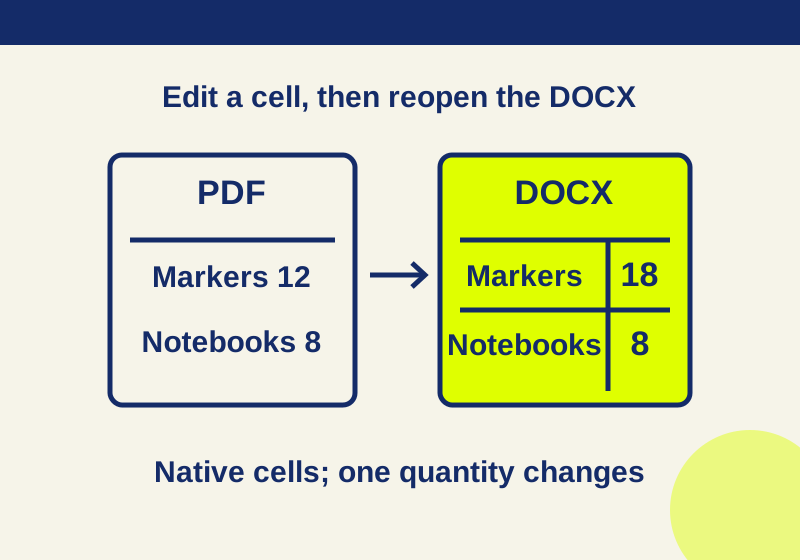
Open a PDF in Word or export it as DOCX in Acrobat, then check that the result has editable text and cells. Try the practice PDF and compare a real converted table with a saved one-cell edit.