SOURCE-CHECKED · EVERYDAY TECH
SumatraPDF reads EPUB books too: open one and find your place
Open an unencrypted EPUB in SumatraPDF, navigate its contents, find a phrase, and distinguish stable 3.6.1 controls from documentation marked version 3.7 or later.
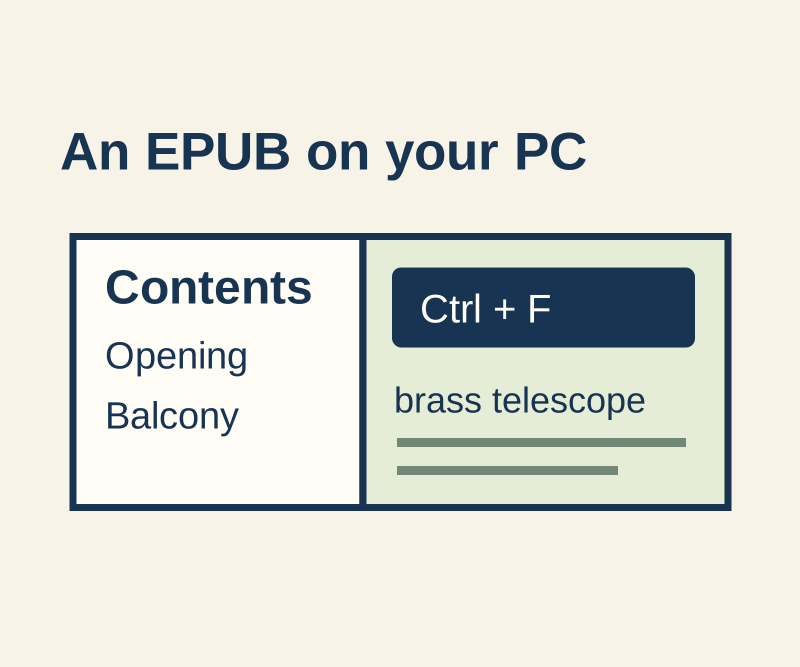
You can read an unencrypted EPUB on Windows with SumatraPDF and use its contents and search controls to find a passage. There’s no need to convert the book to PDF first. The official download page offers a Windows installer and portable ZIP for stable version 3.6.1.
Open an EPUB and jump to a section
In SumatraPDF, press Ctrl+O and choose your EPUB. To try the controls with a known example, save the original practice EPUB and open it the same way.
Press F12 to show the book’s contents or bookmarks. The practice book has three titled sections: “Opening,” “On the balcony,” and “Back indoors.” Choose On the balcony to find the brass telescope and a blue notebook. Alt+Left takes you back after following a contents link.
Find a phrase
Press Ctrl+F and search for brass telescope. The phrase appears twice in the practice book: once in “Opening” and once in “On the balcony.” Press F3 for the next match or Shift+F3 for the previous one. You can also press Ctrl+B to add the current page as a favorite; that favorite is separate from the book’s chapter contents.
SumatraPDF uses an EPUB reflow engine, so a chapter title and phrase make useful ways to describe your place without relying on a page number. Its documentation also describes a “Change eBook Settings” dialog and per-document settings, but labels those features version 3.7+. Don’t expect them in the stable 3.6.1 download.
SumatraPDF’s supported formats specify unencrypted EPUB. A .epub extension alone does not establish that a book is unencrypted; use the provider’s supported reading app for an encrypted library book.
Source note: The official keyboard shortcuts and eBook UI documentation describe the controls above. PyMuPDF 1.28.2 loaded and rendered the practice EPUB and confirmed its three contents entries and two phrase matches; SumatraPDF’s interface was not independently tested.
KEEP GOING
More to explore.
SOURCE-CHECKEDWeb research
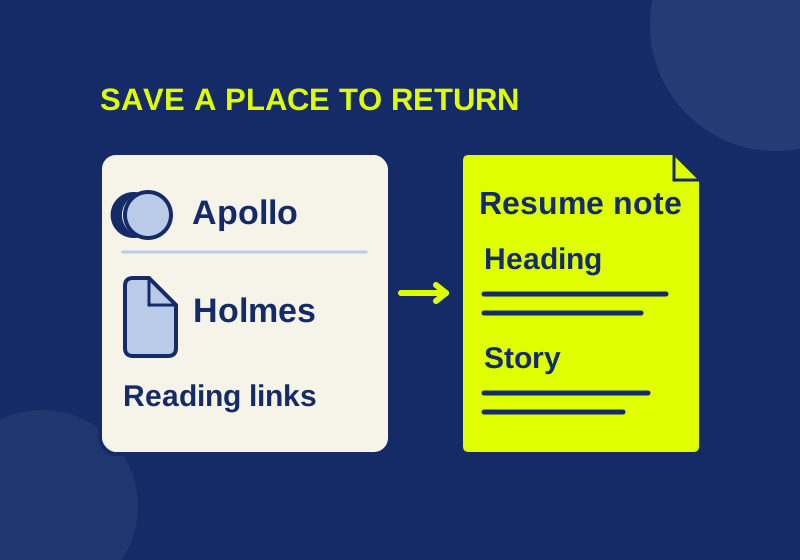
Chrome Reading list: save pages for later without losing your place
A four-link starter queue shows how to save a destination, keep your reason for reading, and avoid confusing a list entry with an offline copy.
SOURCE-CHECKEDEveryday tech
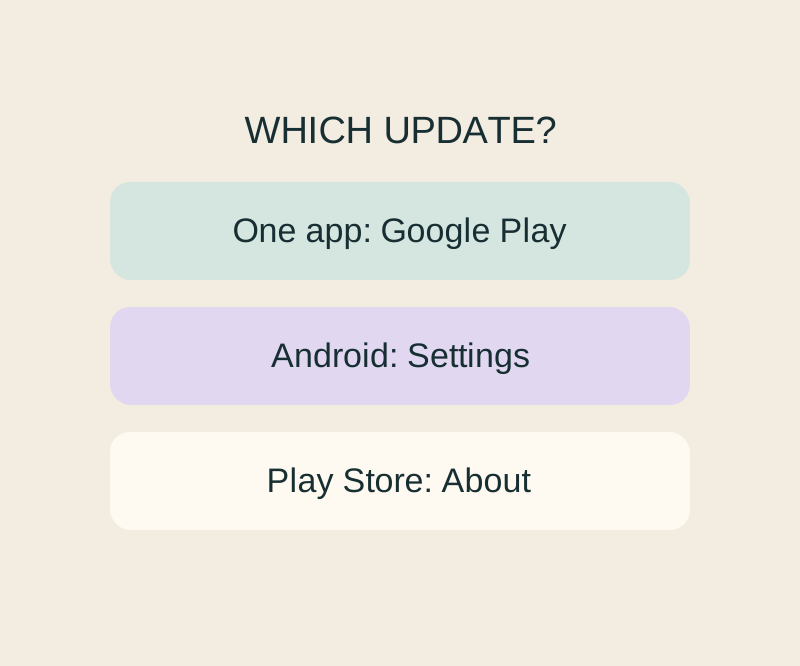
Android app updates and system updates: find the right screen when one says up to date
Update, Open and a stuck download lead to different next checks; an Android up-to-date message cannot settle all three.