SOURCE-CHECKED · EVERYDAY TECH
Find a lost mouse pointer: Windows' Ctrl ring or PowerToys spotlight
Compare Windows' built-in Ctrl pointer locator with PowerToys Find My Mouse. Choose a ring, a spotlight, or click feedback and check which trigger is configured.
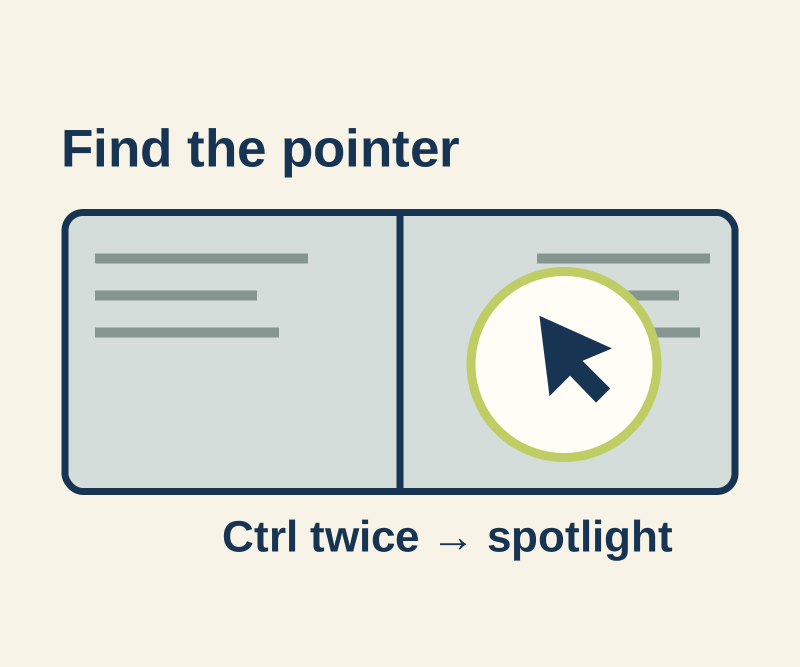
Windows includes a Ctrl-key locator that briefly circles the pointer. PowerToys adds a larger spotlight with a choice of triggers. Choose the effect you need, then check its own setting; the two tools respond to Ctrl differently.
Use the built-in Ctrl ring
For a quick way to find the pointer, turn on Show location of pointer when I press the CTRL key. In Windows 11, open Settings > Bluetooth & devices > Mouse > Additional mouse settings > Pointer Options. In Windows 10, go to Settings > Devices > Mouse > Additional mouse options, then find the same checkbox in Mouse Properties. No PowerToys installation is needed. When you press and release Ctrl, Windows briefly draws concentric circles around the pointer. Microsoft’s mouse settings guide and Windows API documentation describe the setting and trigger.
Choose a PowerToys effect
Find My Mouse puts a spotlight on the pointer without moving it. PowerToys lets you choose two presses of Left Ctrl, two presses of Right Ctrl, a mouse shake, or a custom shortcut. Check which trigger is configured on your PC. A click or any keyboard key dismisses the spotlight; if you move the mouse while it is active, it dismisses shortly after movement stops. You can adjust the spotlight radius and backdrop. See Microsoft’s Mouse Utilities guide.
For visible click feedback, use the separate Mouse Highlighter feature. Its default toggle is Win + Shift + H, and the shortcut can be changed. PowerToys is available for Windows 10 and 11 through the Microsoft Store or GitHub.
If the trigger seems wrong
The built-in ring responds to a Ctrl press and release; a PowerToys Ctrl spotlight trigger takes two presses. If both features are enabled, try one at a time to identify which effect responds.
If double Ctrl interrupts your editing, PowerToys can require you to hold the Windows key or use a deliberate custom shortcut. If no spotlight appears, check that PowerToys is running, Find My Mouse is enabled, and you are using its configured trigger. Also check its excluded apps and Game Mode suppression setting. PowerToys Mouse Utilities
Source note: A native read on one PC found the Windows Ctrl locator turned off. No key trigger or visual effect was tested; the activation and appearance described here come from the linked documentation.
KEEP GOING
More to explore.
TESTEDEveryday tech
Windows shortcuts vs file copies: send the document, not its .lnk pointer
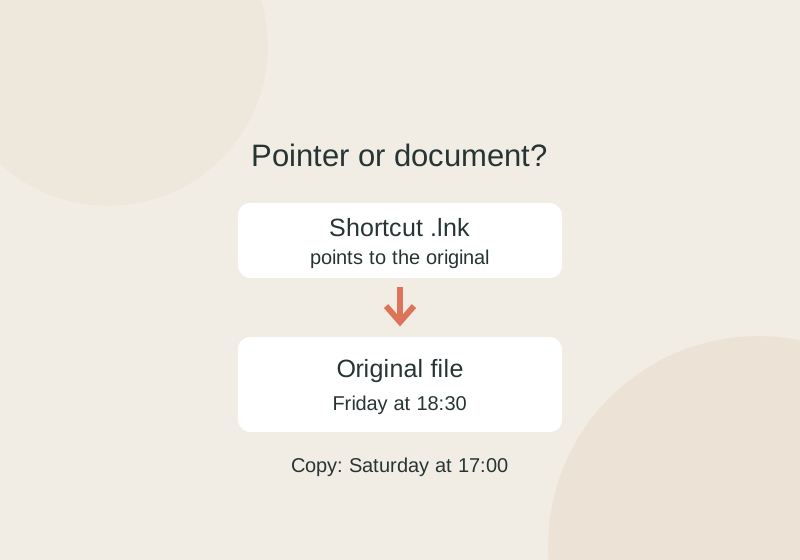
Copying a .lnk shortcut preserves its pointer to the original. A separate document copy can change without changing the original.
SOURCE-CHECKEDEveryday tech
Copy text from an image on Windows with PowerToys Text Extractor
Extract image text, then check the characters that change its meaning.