SOURCE-CHECKED · EVERYDAY TECH
Translate a screenshot on Android with Google Translate, then check the text it actually read
Open a saved image through Google Translate Camera and All Images, choose the languages, and check a Spanish practice sign against a supplied reference.
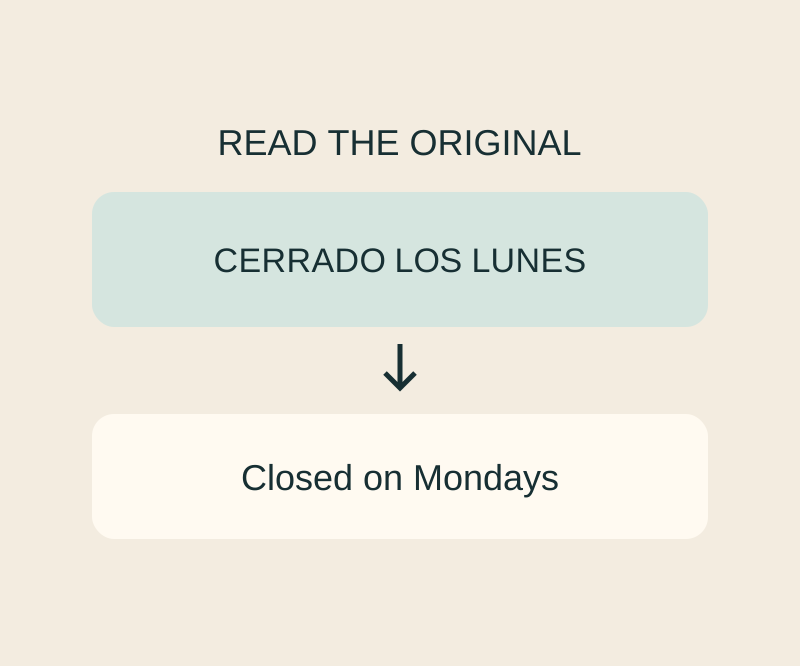
Google Translate can translate text in an image you’ve already captured. Compare the displayed original text with the image: a translation can be wrong because the app read a character or number incorrectly.
Translate a saved image
Open Google Translate on Android. Set From to the image’s language, or choose Detect language, and set To to English. Tap Camera, then All images, and select the screenshot or photo. These are the steps in Google’s Android Translate instructions.
Open the original practice sign and save the image to your phone, or take a screenshot of it. In Translate, set From to Spanish and To to English, then use Camera > All Images to choose that saved image. Its Spanish text reads:
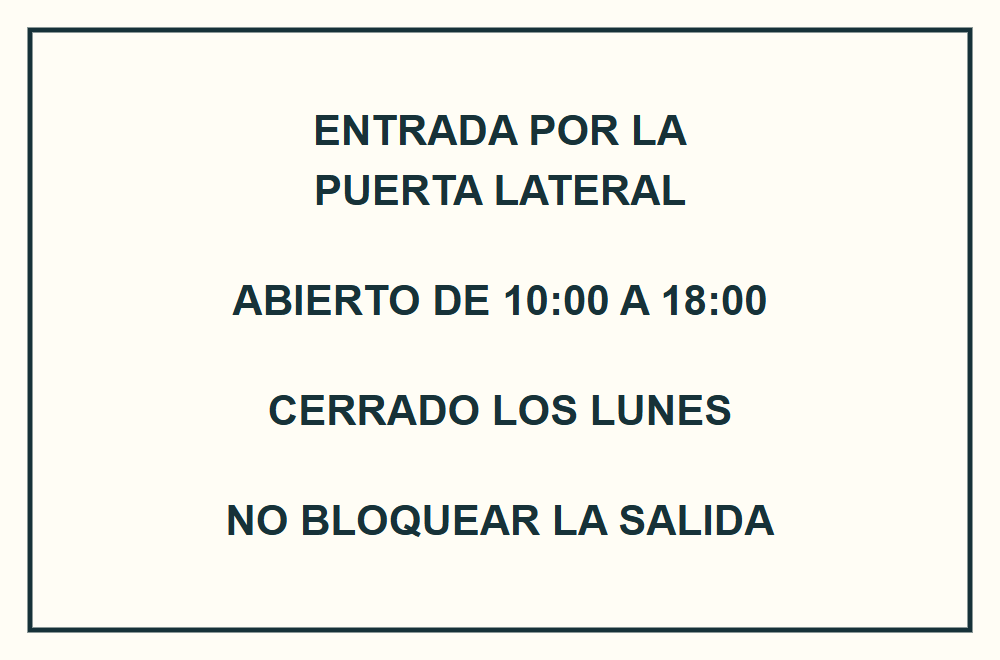
ENTRADA POR LA PUERTA LATERAL
ABIERTO DE 10:00 A 18:00
CERRADO LOS LUNES
NO BLOQUEAR LA SALIDA
The reference meanings are “Entrance through the side door,” “Open from 10:00 to 18:00,” “Closed on Mondays,” and “Do not block the exit.” Those are reference translations, not recorded Google Translate results.
Check the original text
Read the text Google displays as the original before relying on its translation. Google also documents a selection flow in the camera view: tap the shutter button, expand the translated text card, choose Show original text, then tap a word and drag the selection anchors to cover the phrase you want to inspect. The card offers options to copy text, listen to it, or send it to Translate Home. Google’s Android Translate help describes these controls.
On the practice sign, check that the hours still read 18:00 and that LOS LUNES was read as written. If the displayed original text says 13:00 instead of 18:00, the translated hours may be wrong because the text being translated is wrong. Try a clearer, larger view or crop to the readable area, then check again. Google notes that small, unclear, or stylized text can produce inaccurate translations.
Google Photos offers another route: open a photo, tap the top More menu, then Google Lens. Google Photos help says Lens can translate supported languages and copy selected words.
Source note: The steps come from the linked Google help pages. The sign and its English meanings are original reference material; no Android translation result was physically tested.
KEEP GOING
More to explore.
SOURCE-CHECKEDApps & the web
Prepare Google Translate languages before going offline
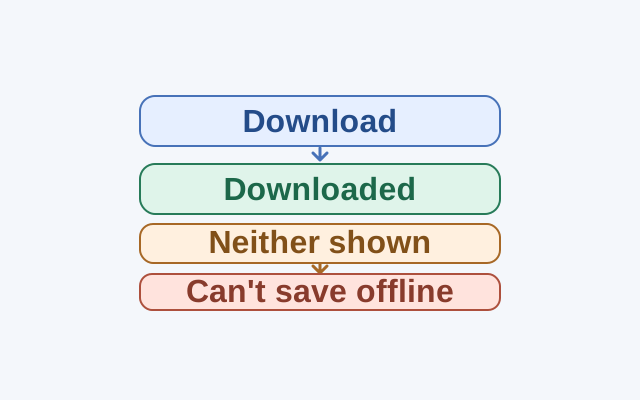
Check for Downloaded status before treating a missing Download button as a sign that a language cannot be saved.
SOURCE-CHECKEDEveryday tech
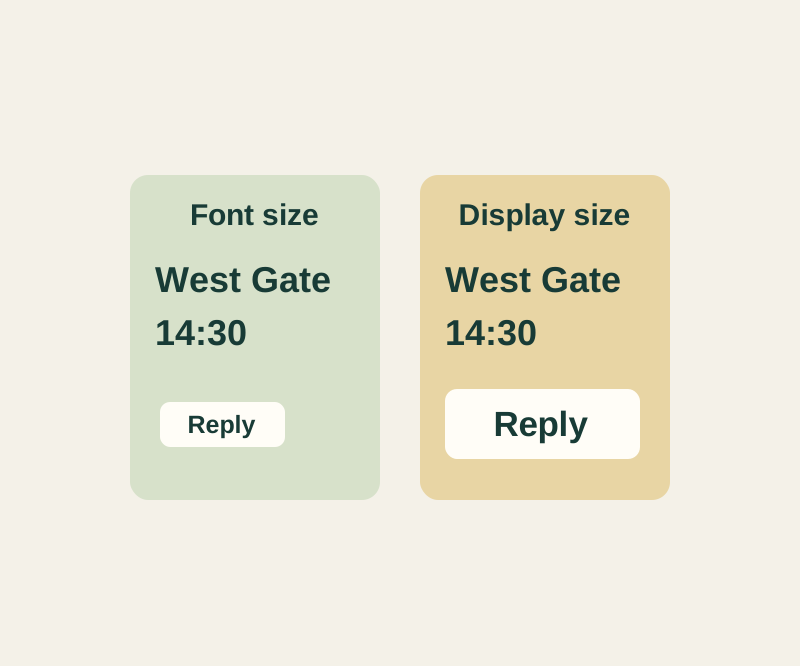
Android text too small? Choose Font size or Display size before magnifying everything
Make the letters easier to read without automatically making every control larger.