SOURCE-CHECKED · APPS & THE WEB
Prepare Google Translate languages before going offline
Check whether each Android Translate language is saved, available to download, or unavailable for offline download.
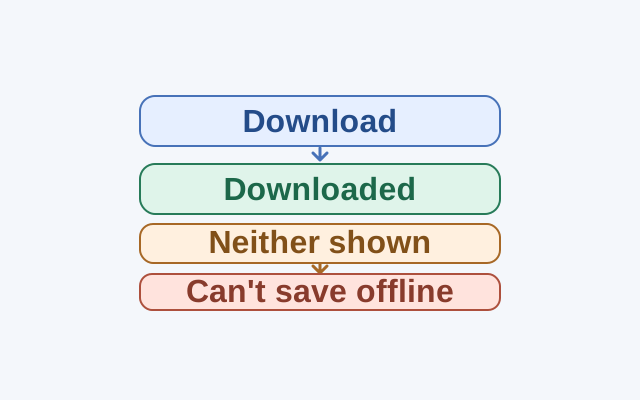
If you plan to translate text offline on Android, check each language in the Translate app while you have Wi-Fi. A language marked Downloaded is already saved. If it shows Download, you can save it. Check for Downloaded before deciding what a missing Download option means.
Select your first language at the bottom of the app. If Download appears, tap it and confirm if prompted. Then check that the language shows Downloaded. Repeat for the other language. If a language shows neither Downloaded nor Download, Google says it cannot be downloaded. Before going offline, check that both languages show Downloaded.
For example, if Language A is already Downloaded and Language B offers Download, save B and check its status. If B shows neither label, you cannot prepare it by downloading it.
To maintain a saved language later, connect to Wi-Fi and open Menu → Downloaded languages. Use Update to update a language on your device, or Upgrade when a higher-quality pack is available.
Source: Google’s Android Translate instructions.
KEEP GOING
More to explore.
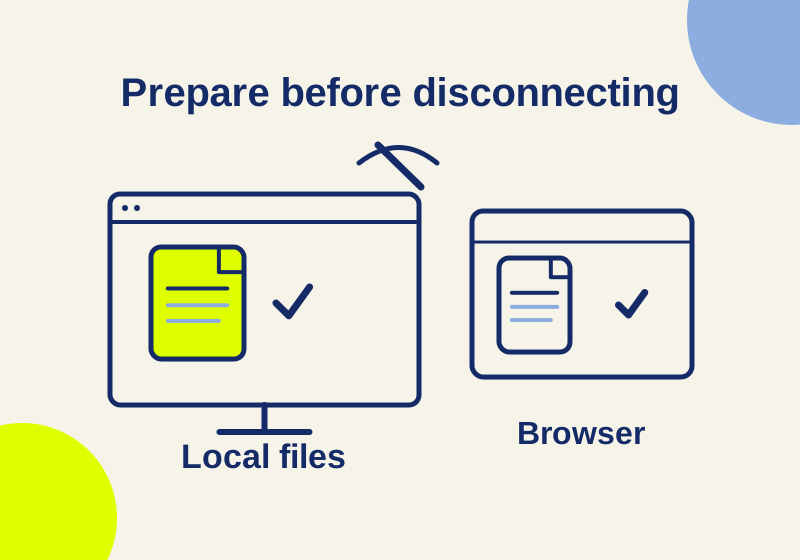
SOURCE-CHECKEDBusiness documents
OneDrive vs Google Drive offline: what to download before you disconnect
Set up offline laptop work with OneDrive status icons, Drive desktop streaming or mirroring, shared drives, and separate Google Docs browser access.
SOURCE-CHECKEDEveryday tech
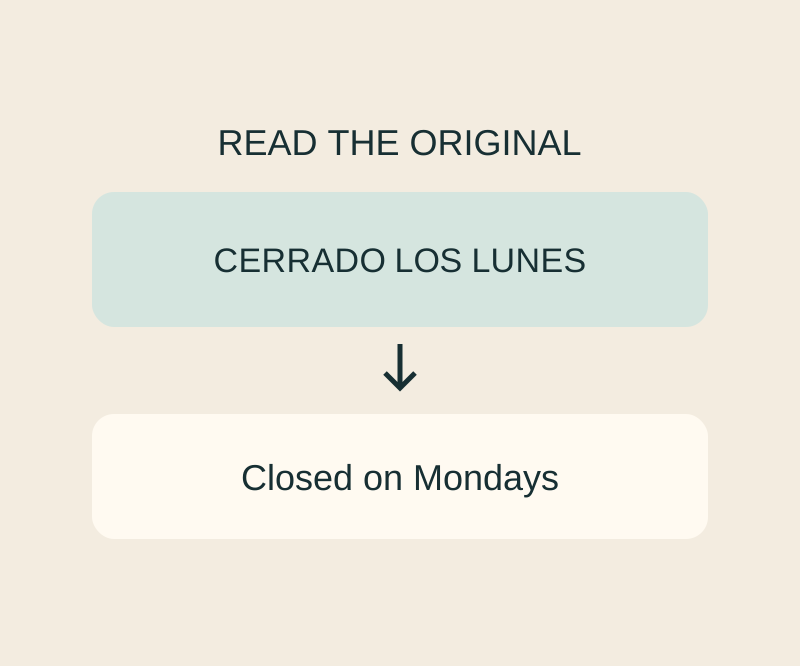
Translate a screenshot on Android with Google Translate, then check the text it actually read
A screenshot can go into Translate without another camera shot; check recognition before trusting the wording.