SOURCE-CHECKED · EVERYDAY TECH
Android text too small? Choose Font size or Display size before magnifying everything
Use Android Font size and Display size separately, compare a real message and its controls, and spot apps that ignore the system text setting.
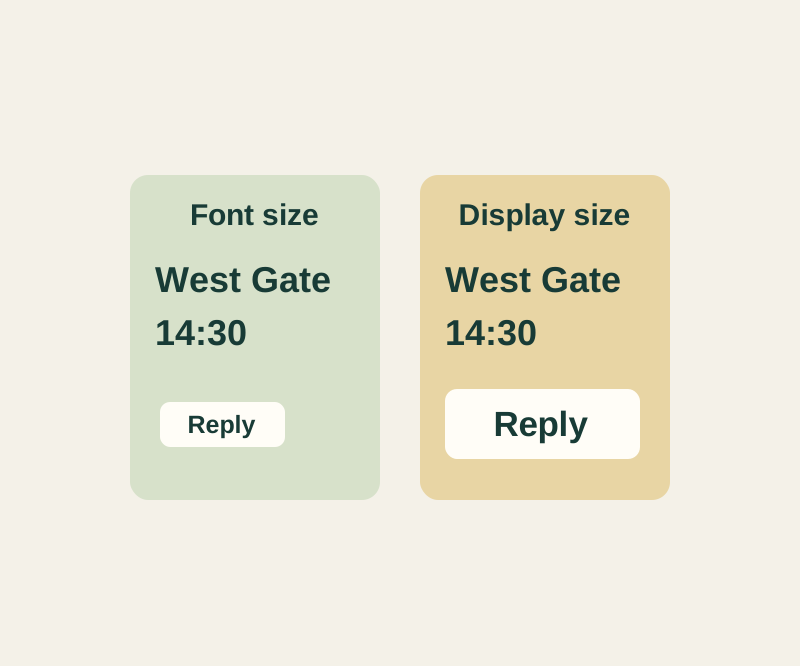
If message text is hard to read but buttons are comfortable to use, start with Font size. If the words are readable but labels, icons, and controls still look too small, try Display size. Change one setting at a time so you can tell which adjustment helps.
Start with the text
Open Settings, search for Font size, and move the slider. Google’s instructions show a preview as you adjust it. Then reopen something you actually need to read, such as a message or list. Google’s Font size and Display size instructions.
For example, consider: “Collection moved from East Gate to West Gate. Arrive 14:30.” With larger letters, check that you can read West Gate and 14:30, reach Reply, and see enough of the conversation while typing. If the text wraps, open the full message; a one-line preview may leave out the changed entrance or time.
Adjust the whole display if needed
If the text is now readable but controls remain difficult to use, search Settings for Display size and adjust its slider. Check the preview, then return to the same message and Reply button. Note the starting positions before making changes so you can restore them if the result is less useful. Google also describes a Font Size Quick Settings tile that you can add if it is absent. Google’s display and text settings guide.
A larger Font size may not affect every app. If one app’s text stays small, check whether that app offers its own reading controls. For occasional close inspection, Android magnification lets you inspect part of the screen without choosing a larger everyday layout. Google’s Reset settings option restores display and text preferences to the device’s original settings; it is not a factory reset. Google’s display and text settings guide.
Source note: Based on Google’s Android help pages checked October 14, 2026. Google says some steps apply to Android 13 and later. The example was not tested on a physical phone, so the layout in a particular app may differ.
KEEP GOING
More to explore.
SOURCE-CHECKEDEveryday tech
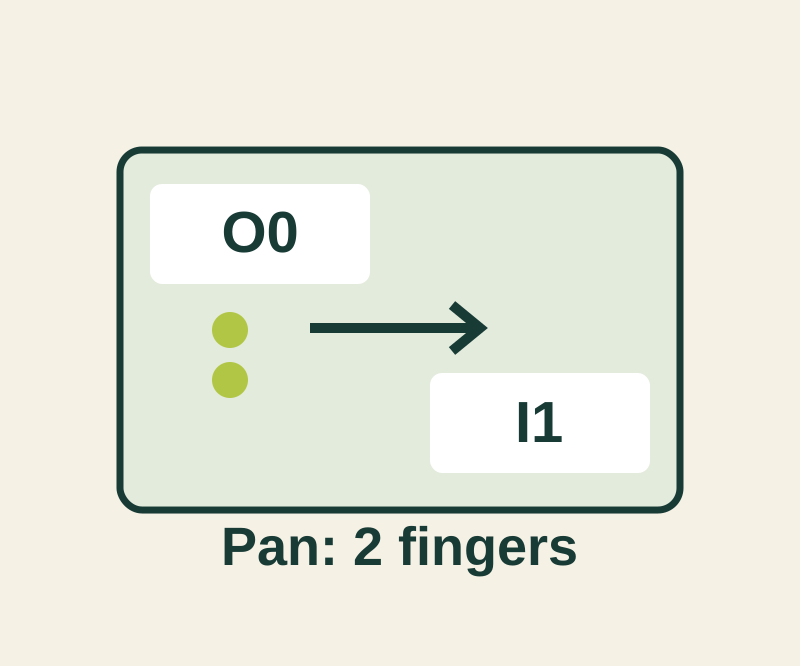
Android magnification: read small labels and move around the enlarged screen
Enlarge a label briefly or pan a bigger view, then exit with the shortcut you chose.
SOURCE-CHECKEDEveryday tech
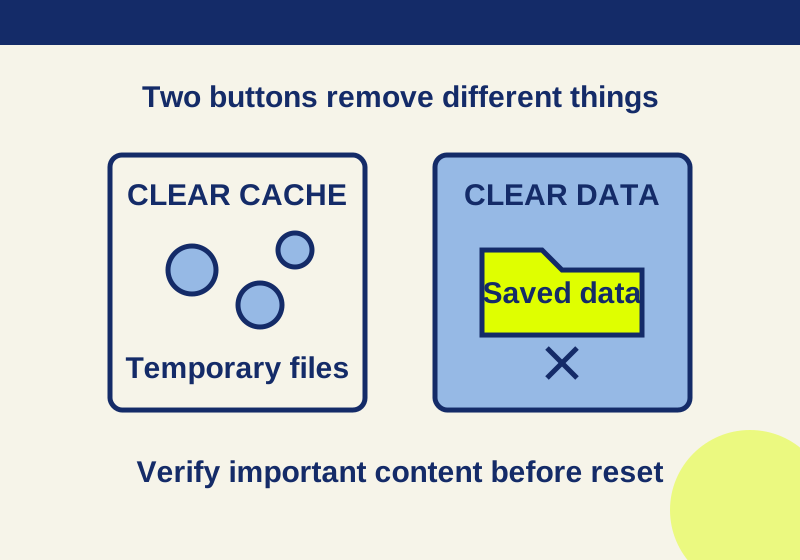
Clear cache vs. clear storage on Android: what gets deleted
Read the app storage breakdown and verify saved content before choosing a deletion button.