SOURCE-CHECKED · EVERYDAY TECH
Android magnification: read small labels and move around the enlarged screen
Use temporary, full-screen or partial Android magnification, learn the pan and exit gestures, and practice reading two labeled corners without losing context.
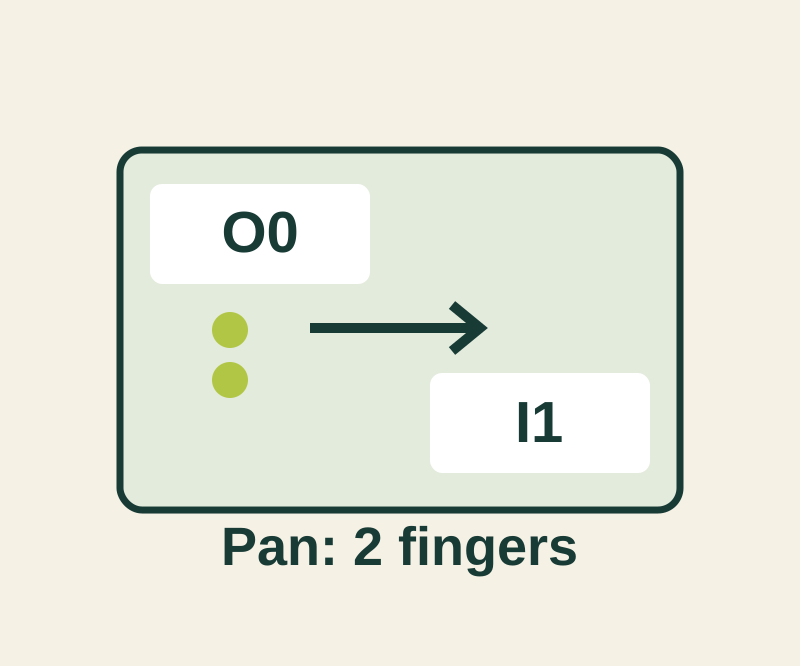
Android magnification lets you enlarge part of the screen, move to another label, and return to the full view. To set it up, open Settings > Accessibility > Magnification > Magnification shortcut. Choose the Accessibility button for the example below; its position varies with your navigation setup. Google also lists holding both volume keys and triple-tapping the screen as shortcuts, though triple-tap can delay single taps. Google’s magnification instructions
Read and move between labels
Open the small-label practice target. First, locate both labels in the full view. Activate your magnification shortcut, then tap the content outside the keyboard and navigation area. Use two fingers to pan from the top-left label toward the bottom-right one, and pinch with two fingers to adjust magnification. Use the shortcut again to exit. Google’s gesture instructions
Check the exact reading: the top-left label is Shelf A O0-18 (capital O, then zero); the bottom-right is Shelf B I1-81 (capital I, then one). After exiting magnification, check that each reading still belongs to the label you located in the full view. The page is a reading target, not an Android screenshot, and has no zoom controls.
Hold to magnify temporarily
For a quick look, activate the shortcut, touch and hold the content, and drag your held finger to move around. Releasing your finger ends temporary magnification. If you switch the magnification type to partial screen, the shortcut opens a magnification window: pan that window with two fingers, pinch with two fingers, and use the shortcut to exit. Google’s magnification instructions
Android 14 and later have a magnifier settings panel. For the keyboard, do not assume the same behavior across versions: Google identifies Magnify keyboard as an Android 16 and later option. Google’s magnifier settings
Magnification also serves a different purpose from the persistent Font size setting, which Google says does not apply to some apps. Google’s display and text guidance
Source and scope: Google’s instructions were verified October 11, 2026 KST; Google notes that some steps require Android 13 or later. The practice page was independently built. No physical Android phone test was recorded.
KEEP GOING
More to explore.
SOURCE-CHECKEDEveryday tech
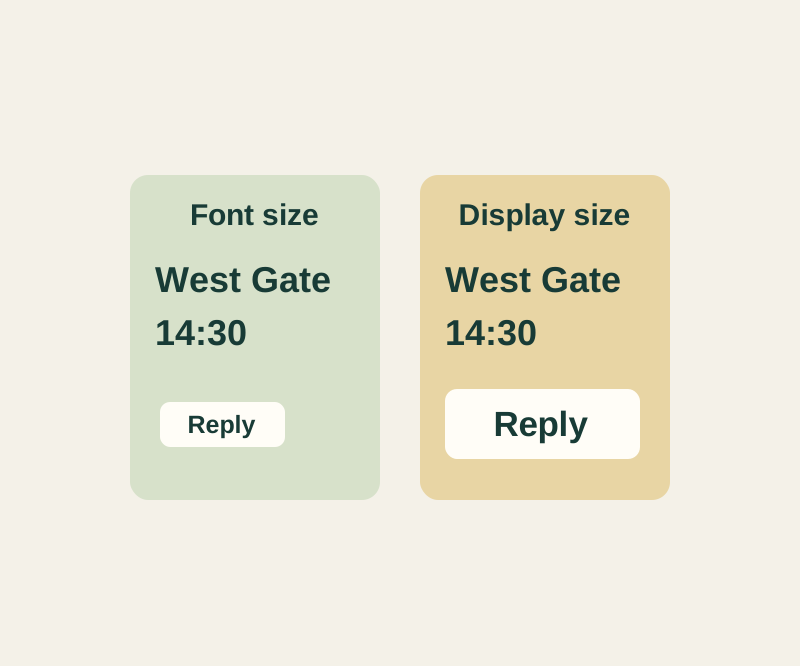
Android text too small? Choose Font size or Display size before magnifying everything
Make the letters easier to read without automatically making every control larger.
SOURCE-CHECKEDEveryday tech
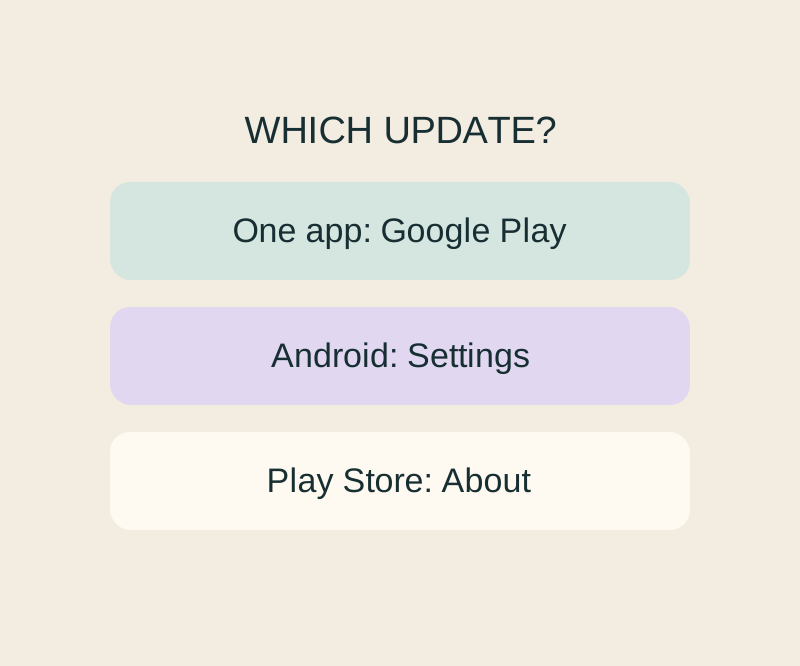
Android app updates and system updates: find the right screen when one says up to date
Update, Open and a stuck download lead to different next checks; an Android up-to-date message cannot settle all three.