SOURCE-CHECKED · EVERYDAY TECH
Where did that iPhone download go? Check Safari and the actual Files folder
Find a Safari download in Files, check whether your destination is iCloud Drive, On My iPhone or another folder, and verify a small sample before retrying.
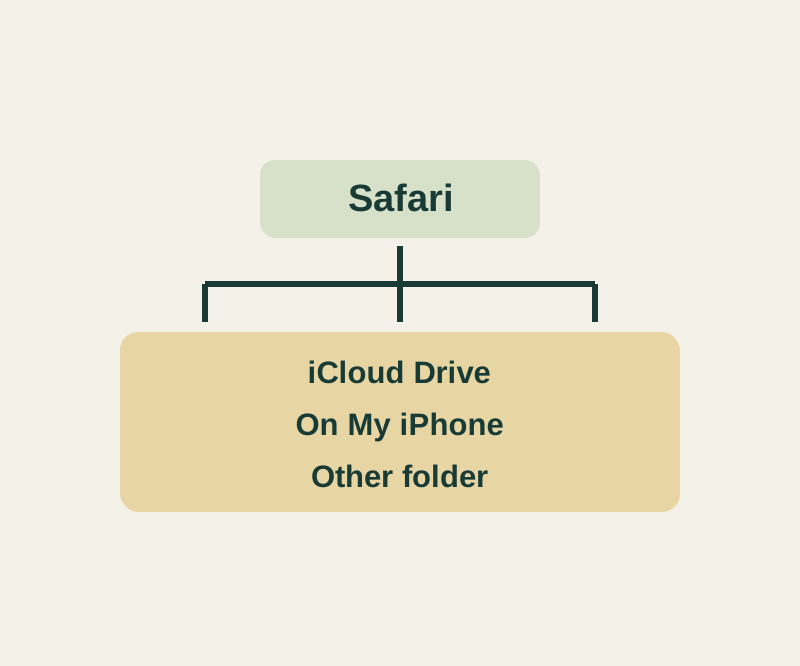
If you downloaded a file through Safari, tap Safari’s Download button to check its status or access it. To find the saved copy, open Files, tap Browse, and look for Downloads. If Downloads is not shown, tap iCloud Drive and check there. Apple’s file-finding guide and Safari settings guide describe these paths.
Check where Safari saves files
Open Settings > Apps > Safari > Downloads. The selected destination tells you where to look for a new Safari download:
- iCloud Drive: Check its Downloads folder in Files. Files there are accessible on other devices using the same Apple Account.
- On My iPhone: Check the local Downloads folder under On My iPhone.
- Other: Check the location you chose; it may be outside a Downloads folder.
These are Safari’s download location options. If you are looking for yesterday’s file, today’s setting may not tell you where that earlier download went. Check any previous location you remember choosing. A missing file could also mean the download did not finish; its history cannot be determined from the current setting alone.
Confirm with a file you can recognize
Before trying another download, note the destination currently selected in Safari’s settings. Then use the practice download page and tap “Download text file.” Check Safari’s Download button, go to the selected location in Files, and open the file you find. The practice file, howcurio-download-14.txt, contains the fictional pickup code CURIO-14-BLUE and the fictional collection detail “Friday 14:30 East door.” Read those details in Files to confirm which copy you opened. If a file with the same name already exists, follow the name shown in the current download list rather than guessing a renamed filename.
The page also has an “Open file” link. Seeing a file in a web preview does not establish where a downloaded copy was stored.
If the item you are looking for is a photo, check the Photos library as well; Apple describes Photos separately from files in iCloud Drive’s Downloads folder. Apple’s file-finding guidance explains that distinction.
Source note: Apple’s linked iOS27 guides were checked October 14, 2026 KST. The practice page’s file bytes and download link were checked in Chrome; the exercise has not been tried in native iOS Safari.
KEEP GOING
More to explore.

SOURCE-CHECKEDEveryday tech
Take a full-page iPhone screenshot and check what you actually saved
A normal screenshot can miss the entrance note or final contact. Check the saved file from top to bottom.
SOURCE-CHECKEDEveryday tech
Share one saved password through an iPhone Passwords group
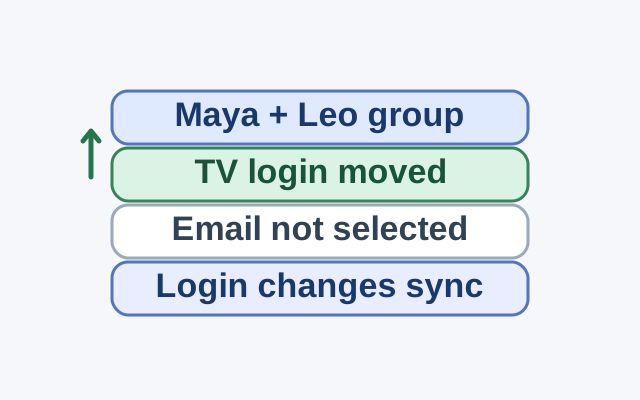
Group membership sets who shares access; selecting a credential and tapping Move sets what enters the group. Changes to a shared credential appear on everyone’s device.