SOURCE-CHECKED · EVERYDAY TECH
VLC subtitles out of sync: fix an offset and spot timing drift
Use G and H to shift VLC subtitles, then compare two spoken phrases with a timing worksheet to spot a constant offset or drift.
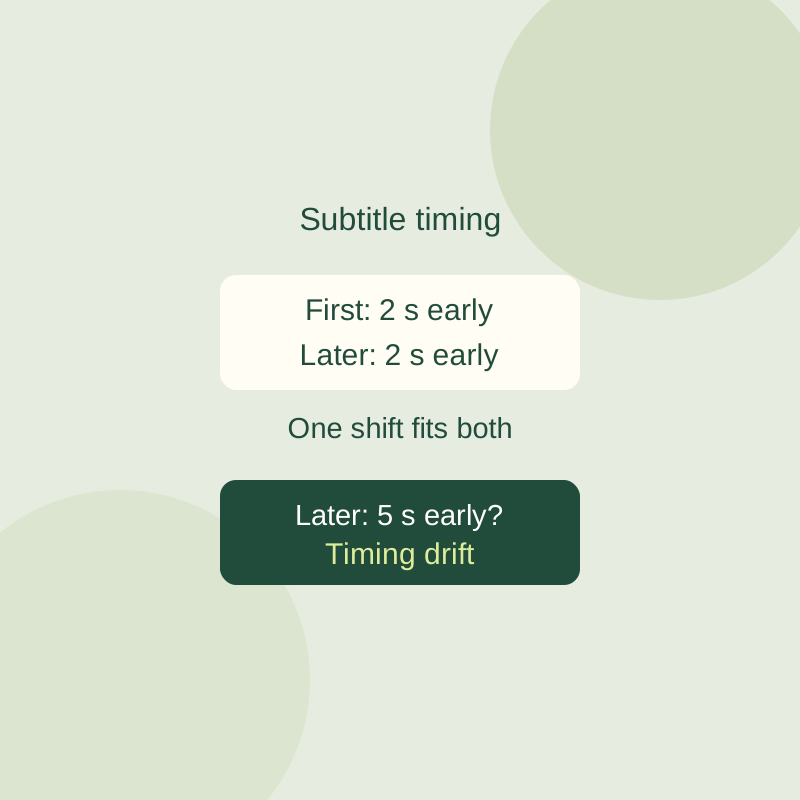
If subtitles appear the same amount early or late throughout a video, a playback timing adjustment may align them. Check a line near the start and another later in the video to see whether one adjustment fits both.
Shift the subtitles in VLC
On Windows, press H when the subtitle appears before the speech; H delays it. Press G when the subtitle appears after the speech. Watch VLC’s on-screen timing indicator, then replay the same clear spoken line to check the change. Avoid a line with background speech or noise.
For numeric control, open Tools > Track Synchronization > Synchronization. If G or H does something else, click the player and try again, or check your Hotkeys preferences. These controls change playback timing; they do not rewrite SRT timestamps.
Check for drift
At each chosen phrase, note when the speech starts and when its subtitle appears. Subtract subtitle time from audio time. A positive result means the text needs to move later; a negative result means earlier. This is a way to compare the timings, not an instruction for the sign of VLC’s numeric setting.
For example, speech at 12 seconds with text at 10 seconds needs the text 2 seconds later. If a later phrase has speech at 612 seconds and text at 610 seconds, it also needs 2 seconds. One offset fits both readings.
If that later subtitle instead appears at 607 seconds, it needs to move 5 seconds later. The two readings differ by 3 seconds, so one offset cannot align both. That difference does not establish the cause: the subtitle could be for a different edit, cuts, or edition. Look for a matching authorized subtitle, or retime your own file in an appropriate editor. Two matching readings still do not guarantee that every line aligns.
You can enter the two readings in the subtitle timing worksheet; Reset Examples starts it over.
Source note: VLC instructions come from the official desktop 3.0 guide. VLC itself was not tested here. The worksheet was checked in Chrome only, without a video or audio upload, save, or network transfer.
KEEP GOING
More to explore.
SOURCE-CHECKEDEveryday tech
Trim a video with LosslessCut: why the saved clip can start too early
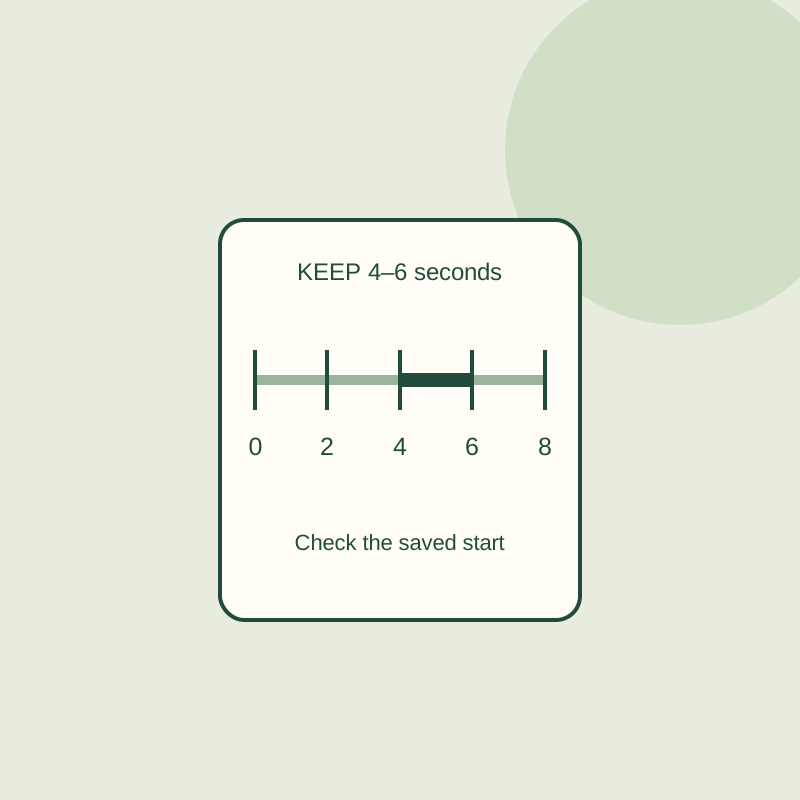
Keeping compressed video avoids another encode, but cut points can move. An eight-second practice clip shows the difference between a segment and its saved boundary.
SOURCE-CHECKEDApps & the web
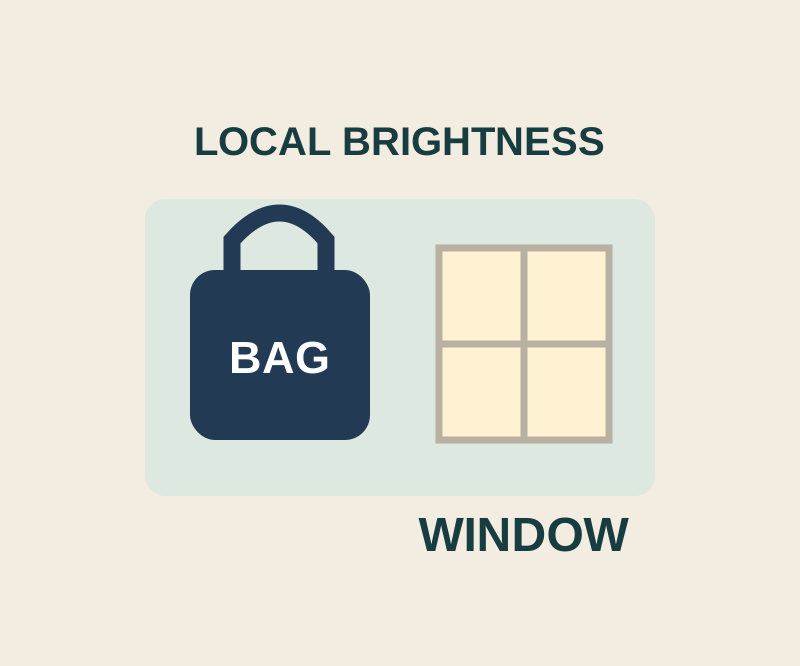
Brighten one part of a photo with Snapseed Selective, without washing out the background
Place the control point on the dark area, then shrink its affected region before raising brightness.