TESTED · EVERYDAY TECH
How to open .7z.001 files and find a missing archive part
Open .7z.001 with all numbered parts in one folder. Try a real three-part archive and see what a missing middle volume does.
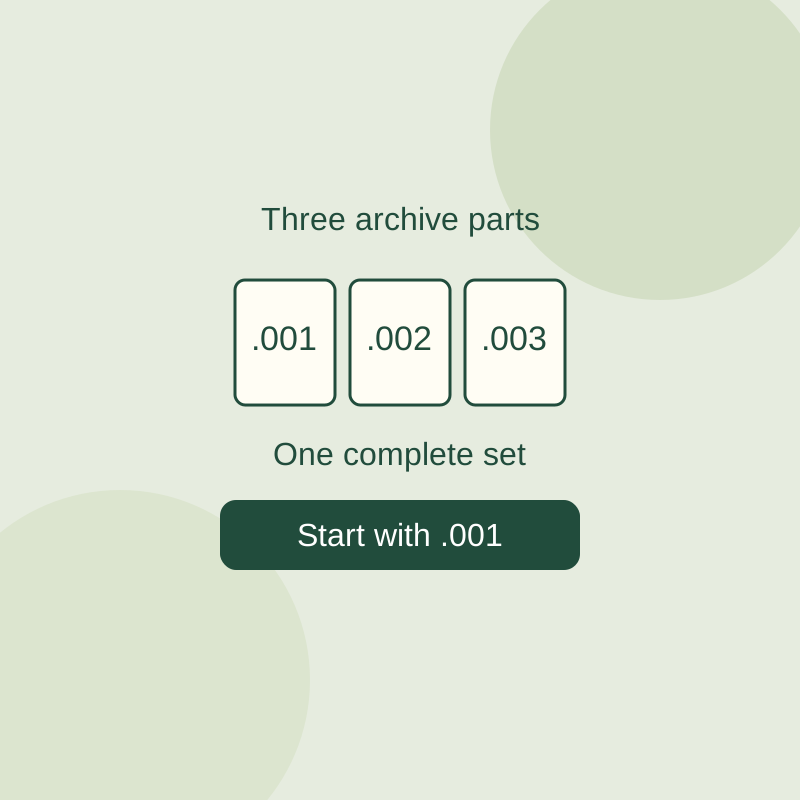
A .7z.001 file is the beginning of a split 7z archive. Put it and every numbered part in the same folder, keeping their exact filenames. In 7-Zip File Manager, select the .001 file and choose Extract. Don’t remove the number extensions or extract each part separately.
Before using the extracted files, run 7-Zip’s Test operation on the .001 file. Seeing filenames does not establish that the archive is complete.
If a part is missing
Check the sequence of filenames. If practice.7z.001 and practice.7z.003 are present but practice.7z.002 is absent, ask the sender for the correct .002 file. An archive error alone does not prove a part is missing; corruption is also possible. The same procedure should not be assumed for .zip/.z01 or .part1.rar archives.
Practice with a three-part archive
Download the readme, .001, .002, and .003 into one folder. Test the first part, then extract it. To see a missing-part error, work from a separate copy: temporarily move .002 to another folder, test .001 again, and return .002 afterward. Never alter your sole copy.
Source note: The official 7-Zip site, download page, and recovery page were checked October 13, 2026; the download listed version 26.04. In a native console trial, a 5,278-byte synthetic input produced parts of 2,048, 2,048, and 1,328 bytes. Testing and extraction of the complete archive each exited 0; original and extracted SHA-256 matched (c0c867a56136af72687f82cedc32f478bfb3c8117ed8f203b603ade38479d697). With the middle part removed from a separate copy, testing exited 2 with “Unexpected end of archive.” The File Manager route was documented in bundled help, not tested in the GUI; passwords, encryption, and ZIP delivery were not tested.
KEEP GOING
More to explore.
SOURCE-CHECKEDEveryday tech
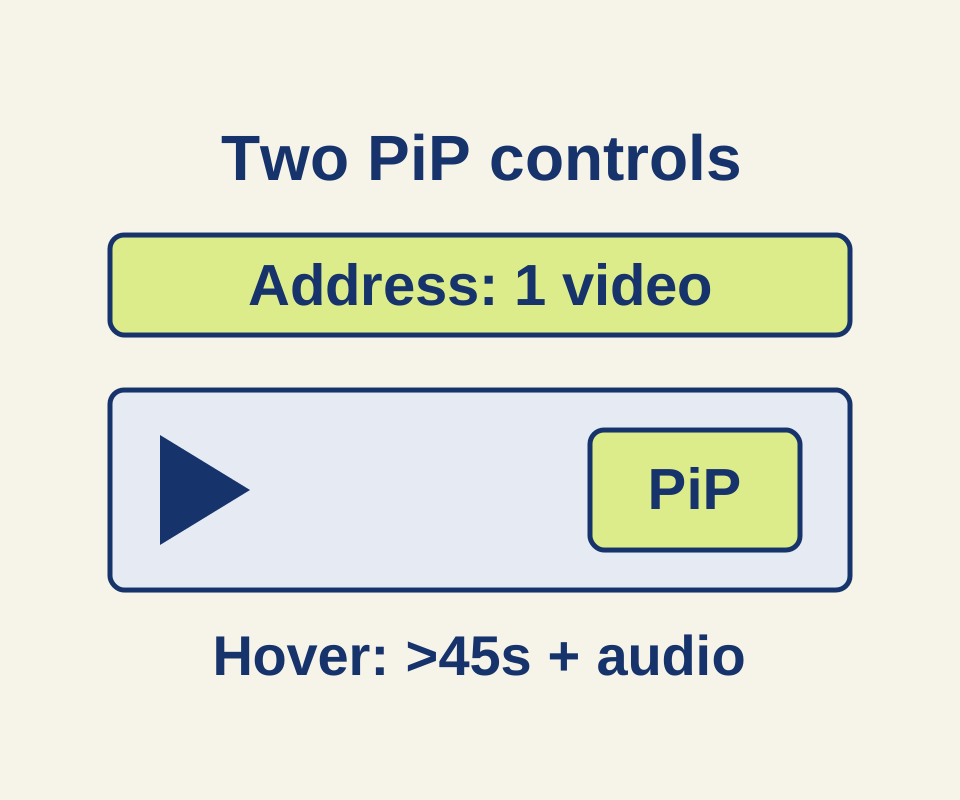
Firefox Picture-in-Picture: pop out a video and find missing controls
A manual helper explains why the hover toggle and address-bar icon can disappear for different reasons, with three worked video examples.
SOURCE-CHECKEDEveryday tech
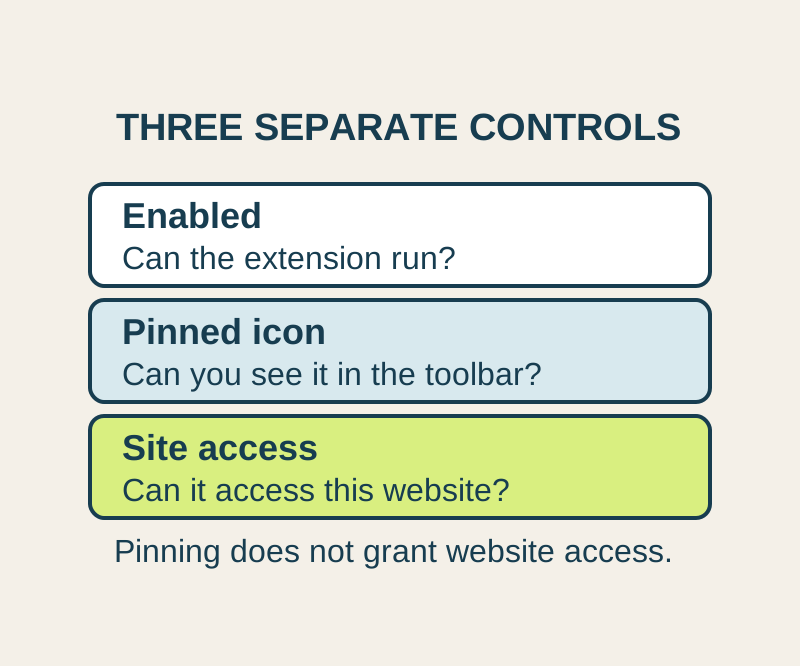
Chrome extension site access: allow one website and find a missing tool
A missing toolbar icon and missing website permission need different fixes. Allow the site you need, and understand what this setting cannot control.