SOURCE-CHECKED · EVERYDAY TECH
Use iPhone Early Reminder without moving the real deadline
Keep a reminder due at the correct time, add an earlier prompt for preparation, and calculate same-day or previous-day lead times with a simple worksheet.
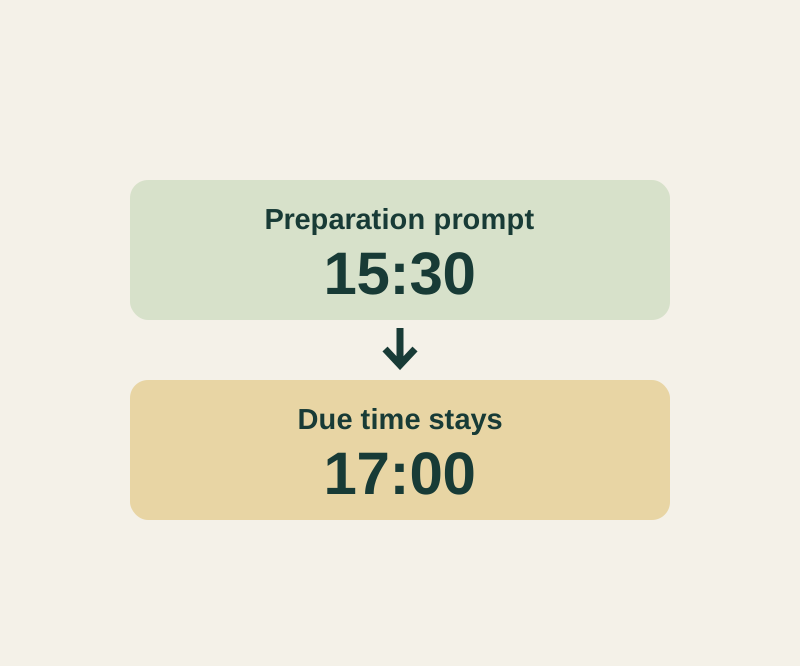
Set the task’s actual due date and time in Reminders, then add an Early Reminder for the advance prompt. This keeps the deadline attached to the task.
Apple describes these features for updated reminders in iCloud; some are unavailable with other accounts. Check the account holding the reminder if the control is missing.
Set the deadline first
In Reminders, tap the item and use the Date and Time button to choose when the task is due. Then open Edit Details, tap Early Reminder, choose an advance time, and tap Done. Apple’s guide shows choices including 5 minutes and 2 days before the due time, as well as another choice. It also describes adding a note for context. Apple’s iPhone Reminders guide
Suppose “Collect repaired jacket” is due at 17:00 and you want a prompt 90 minutes earlier, at 15:30. Keep 17:00 as the item’s due time. Choose a 90-minute Early Reminder if your phone offers that choice. Otherwise, make a separate preparation reminder for 15:30 and keep the original pickup item due at 17:00. A useful note on the pickup item is “Bring collection slip and arrive by 17:00.”
Entering 15:30 as the pickup item’s due time would change the deadline. If finding the slip is a task you need to mark complete separately, give it its own reminder, such as “Find collection slip.”
Check dates around midnight
A task due at 00:20 with a 45-minute lead has an advance time of 23:35 on the previous day. When setting a separate reminder for that time, choose the previous calendar date as well as 23:35.
The Early Reminder Planner can help with this arithmetic. Enter task text, a due time in HH:mm, and a whole-number lead from 0 to 10,080 minutes. It shows the earlier clock time and relative day; you can select the output and copy it yourself. It does not set a reminder on your phone or account for time zones or daylight saving time. A zero-minute lead gives the same clock time, while 10,080 minutes is seven days.
Source note: Apple’s guide was checked October 13, 2026 KST. The steps are source-based; no physical iPhone trial was recorded.
KEEP GOING
More to explore.
SOURCE-CHECKEDEveryday tech
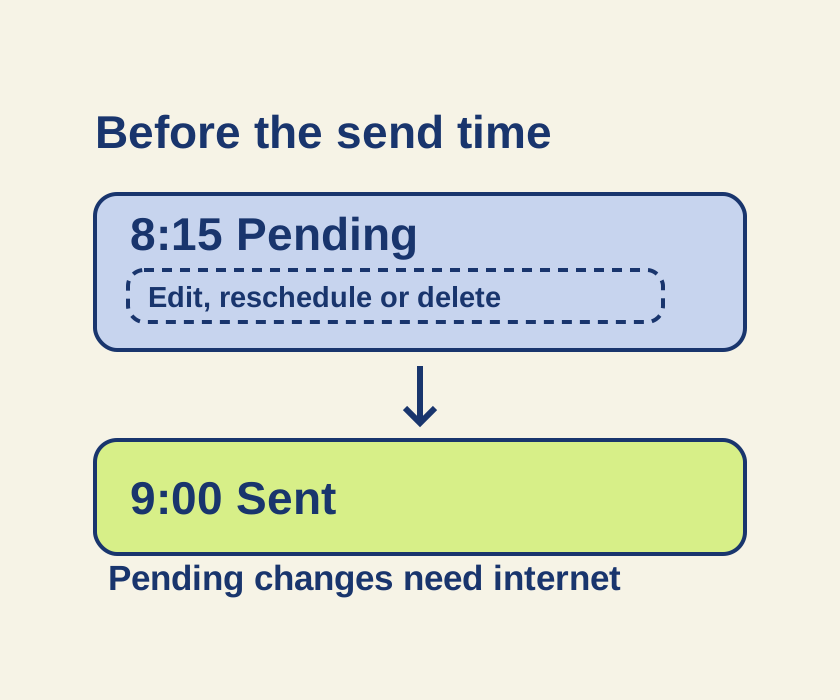
Schedule an iPhone text with Send Later, and change it before it sends
Turn an unsent late-night message into a scheduled iMessage, then use its pending controls if the plan changes.
SOURCE-CHECKEDEveryday tech
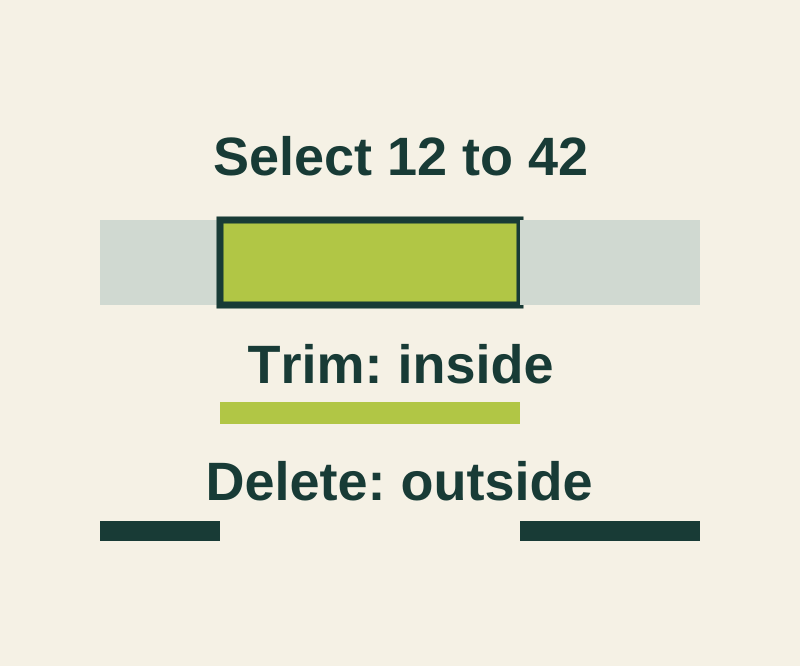
Trim an iPhone voice memo without deleting the part you meant to keep
Keep the selected passage or remove it, then preserve the original with Save as New Recording.