TESTED · EVERYDAY TECH
Why a webpage looks different in Chrome print preview
Compare an original webpage with its printed layout, spot deliberately hidden navigation, and separate missing background color from missing content.
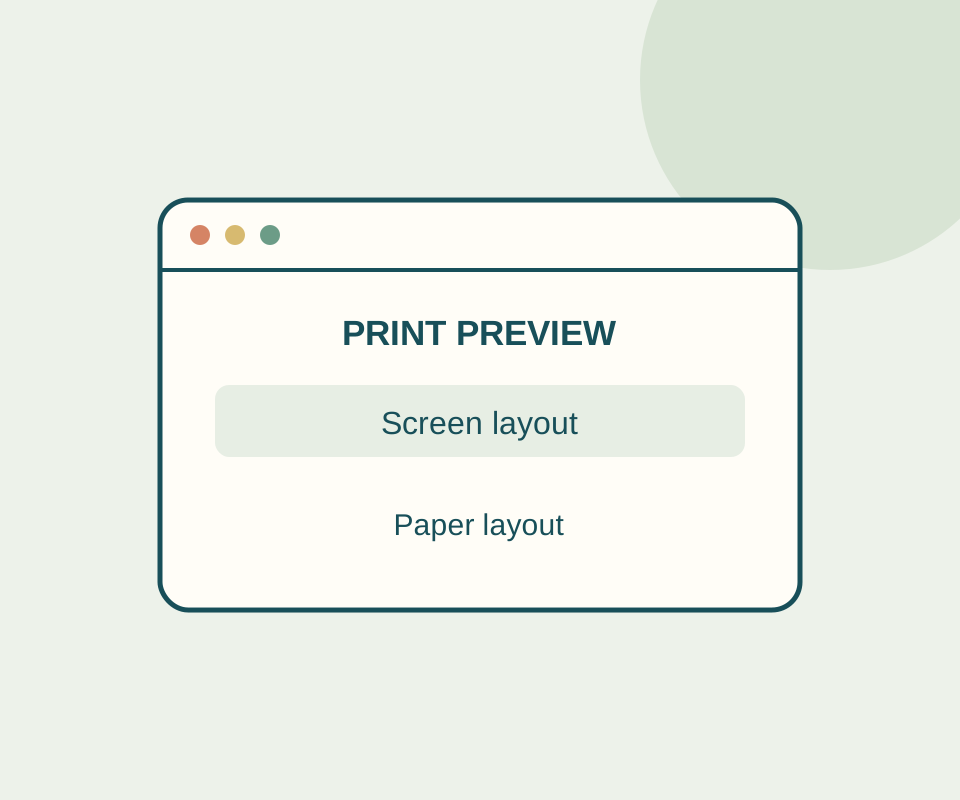
A webpage can look different in Chrome print preview because the page uses print styles. Those styles can hide navigation, change margins, or show content that is absent from the screen view. Check the preview and a saved PDF before blaming the printer.
Compare the page and its print layout
Open the Harbor picnic plan. On screen, it shows a navigation strip and a “SCREEN VERSION” label. Press Ctrl+P on Windows or Linux, or Command+P on Mac, and look for “PRINT VERSION” in the preview. The missing navigation is expected for this page: its print styles hide it.
Select Save as PDF, save the file, and open it. Check that the two table rows and “END MARKER: HARBOR 730” are still present. If the saved PDF is already missing part of the plan, a physical printer did not cause that PDF’s layout. The colored panel may also look different while its “BLUE PANEL” text remains readable.
What the recorded output showed
A recorded print-to-PDF run produced two one-page PDFs from the practice page. Both contained “PRINT VERSION,” both table rows, and the end marker; neither contained the screen version label or navigation. Compare the background-on PDF with the background-off PDF. One rendered the panel blue and the other white, with its words visible in both.
Source note: The print steps follow Google Chrome Help, and the print-style explanation follows MDN. The recorded outputs came from an isolated Windows Chrome 154 headless print engine run; the interactive print preview and a physical printer were not tested.
KEEP GOING
More to explore.
SOURCE-CHECKEDEveryday tech
Change one Android app’s language without changing the phone
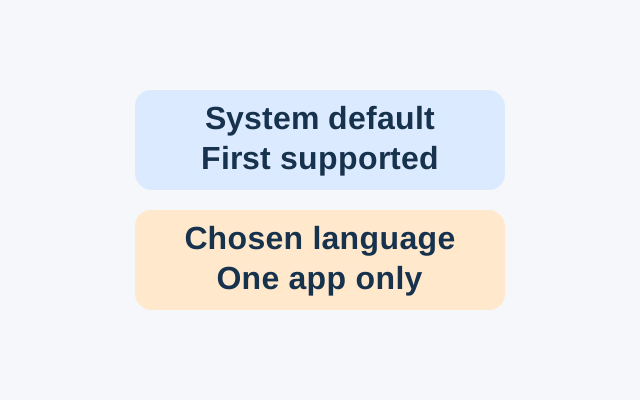
Android’s App Languages setting lets you choose a language for an individual app. An app following the system default instead uses the first language in the system list that it supports.
TESTEDEveryday tech
Chrome camera or microphone blocked? Check permission before the device
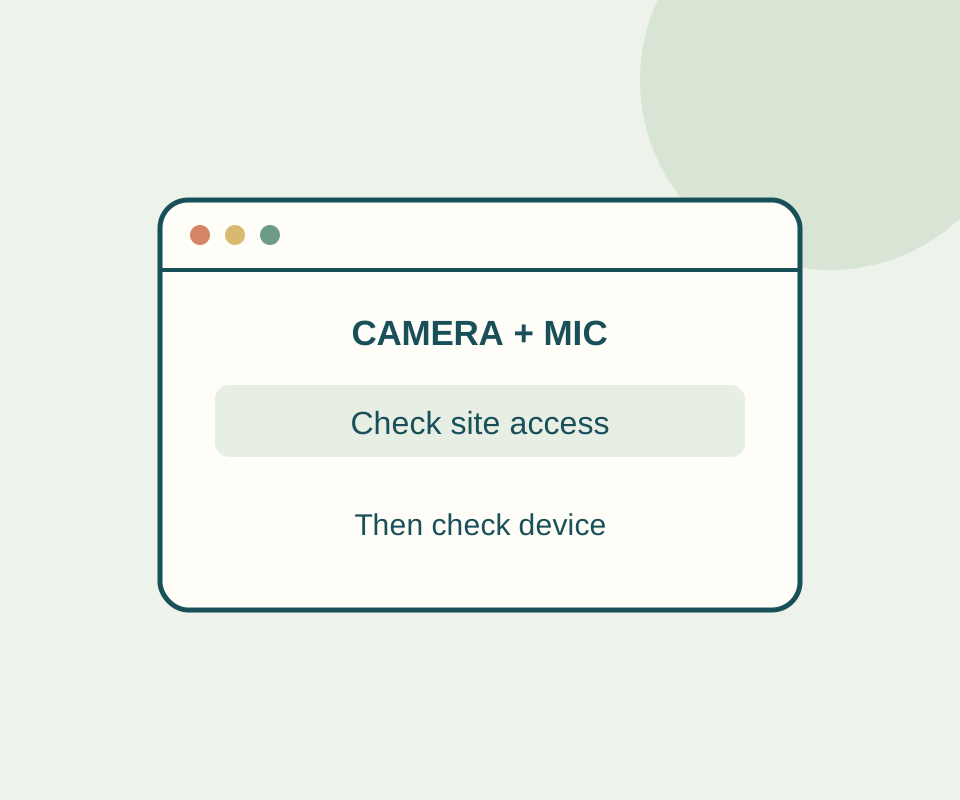
A permission preflight checks camera and microphone independently without opening a stream; a controlled Chrome setting change shows prompt, denied and granted.