TESTED · EVERYDAY TECH
Chrome caret browsing: select webpage text with your keyboard
Turn on Chrome caret browsing, select a word from ordinary webpage text, and turn it off when arrow keys stop scrolling the way you expect.
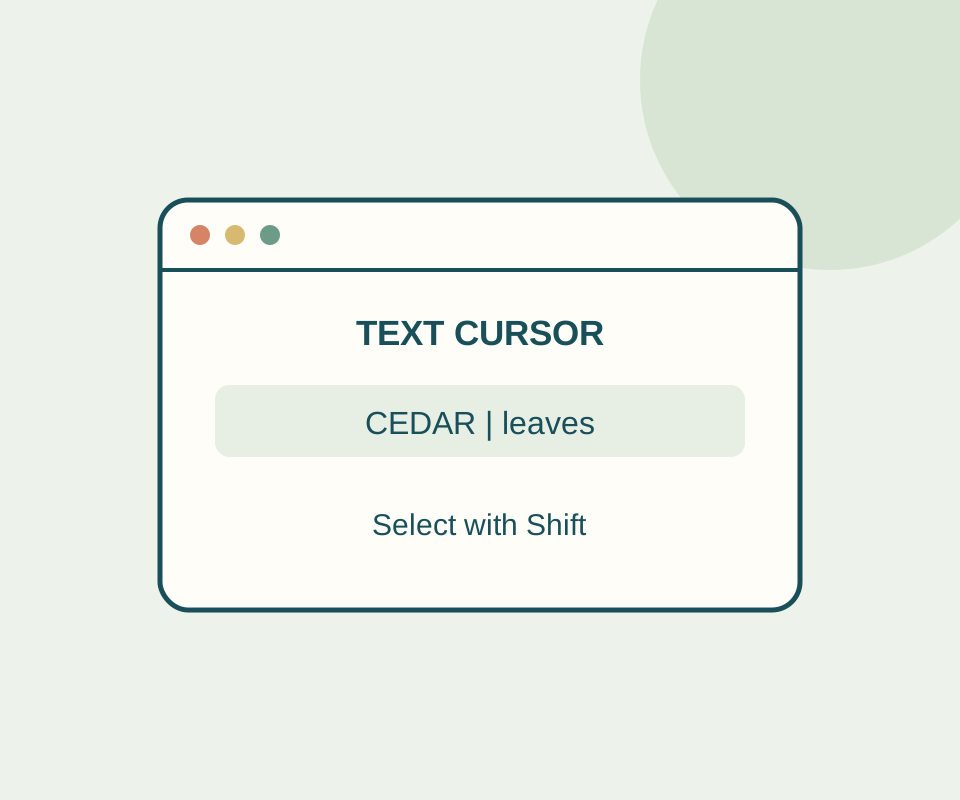
Chrome’s caret browsing lets you place a text cursor in ordinary webpage text and select a passage with the keyboard. On Windows desktop, turn it on in More > Settings > Accessibility > Navigate pages with a text cursor. F7 is another way to toggle the feature.
Select a passage
Click near the start of a paragraph, press Home to move to the start of the line, then hold Shift and press Right Arrow to extend the selection one character at a time. Press Ctrl+C to copy what you selected.
You can try this on the caret browsing practice page. Its paragraph begins “CEDAR leaves float downstream.” Starting at the beginning of that line, five Shift+Right Arrow presses should select “CEDAR.” The page has an optional text box where you can paste a copy to check it. Reloading clears the practice page.
When the keys do something else
Tab and Shift+Tab move among links and controls; use the caret and arrow keys to work within ordinary text. If you copy the wrong letters, reposition the caret and check the visible selection before copying again. On a narrow view, the paragraph may wrap, so place the caret at the start of the line you intend to use.
Selecting paragraph text does not make it an editable field. To return to normal navigation, turn Navigate pages with a text cursor off, then click the page body outside any input before using the arrow keys. To enter text, use an actual text field.
Source note: Google documents the caret browsing setting and Chrome keyboard shortcuts. In an isolated, signed-out Windows Chrome 154 test on October 13, the setting was enabled and five Shift+Right Arrow presses selected “CEDAR” in a noneditable paragraph; pressing “z” left the paragraph unchanged. F7, screen readers, and other platforms were not tested.
KEEP GOING
More to explore.
SOURCE-CHECKEDEveryday tech
How to translate a webpage or selected text in Chrome
Translate the page for context, then inspect an important passage with its heading and exception rows still in view.
SOURCE-CHECKEDEveryday tech
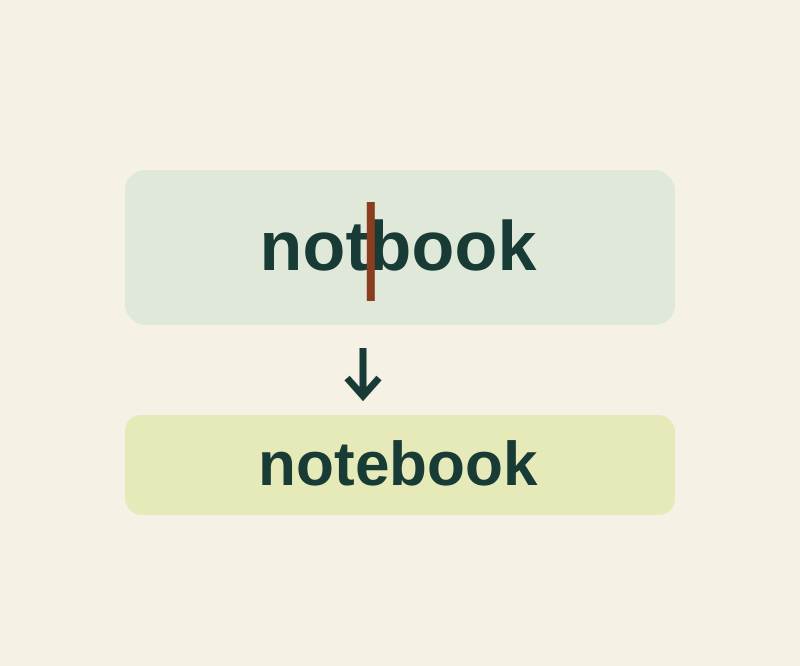
Use the iPhone keyboard as a trackpad to fix one character
Insert a missing letter, remove a repeated word or replace a color while keeping the surrounding text intact.