SOURCE-CHECKED · EVERYDAY TECH
Use multiple iPhone timers and start each task at the right moment
Name separate iPhone countdowns and calculate when to start each so they finish together. A local planner separates a task duration from its start delay.
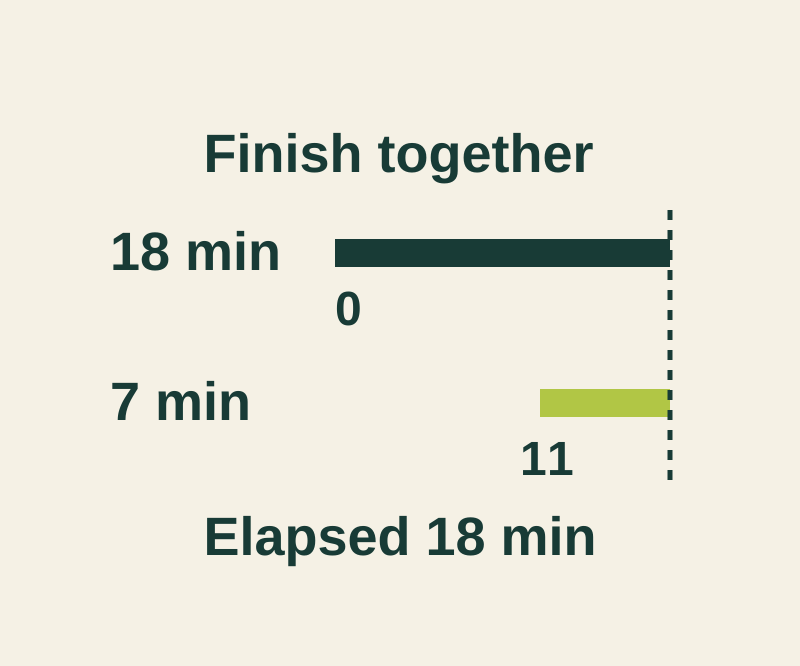
You can run more than one Clock timer on an iPhone, but each countdown starts when you tap Start. If two tasks need to finish together and take different amounts of time, start the shorter task later.
Start and label the timers
In Clock > Timers, set a duration, enter a Label, choose a sound under When Timer Ends, and tap Start. After the first custom timer starts, tap Add at the top right to add another custom, preset, or recent timer. You can tap a preset or recent timer to edit its label and sound. Choose an audible sound if you need a cue to begin the next task; Stop Playing stops media. These steps come from Apple’s iPhone Clock guide.
Start the shorter task later
Suppose one task takes 18 minutes and another takes 7 minutes. Start the timer labeled Long task at minute 0. Start Short task at minute 11, so both countdowns end at minute 18. Starting both together would make the short timer end at minute 7, leaving an 11-minute gap.
To cue the second start, add an 11-minute timer labeled Start short task while the 18-minute timer runs. When that cue ends, start a separate 7-minute timer for the short task. The 11-minute timer marks when to start; it is not the short task’s duration.
The two-task timer start planner calculates each start offset as the longest duration minus that task’s duration. It accepts labels and whole-minute durations from 1 to 1,440. It does not start phone timers, and refreshing it clears the entries.
If you pause a task or your timing changes, recalculate using the tasks’ current remaining durations. Clock’s Pause temporarily stops a countdown, Resume continues it, and swiping left to Trash removes a timer. A running timer continues when you open another app or the phone sleeps.
Source and scope: Apple’s iOS 27 Clock guide, checked October 11, 2026 KST. The planner is independently built; no physical iPhone test was performed.
KEEP GOING
More to explore.
SOURCE-CHECKEDEveryday tech
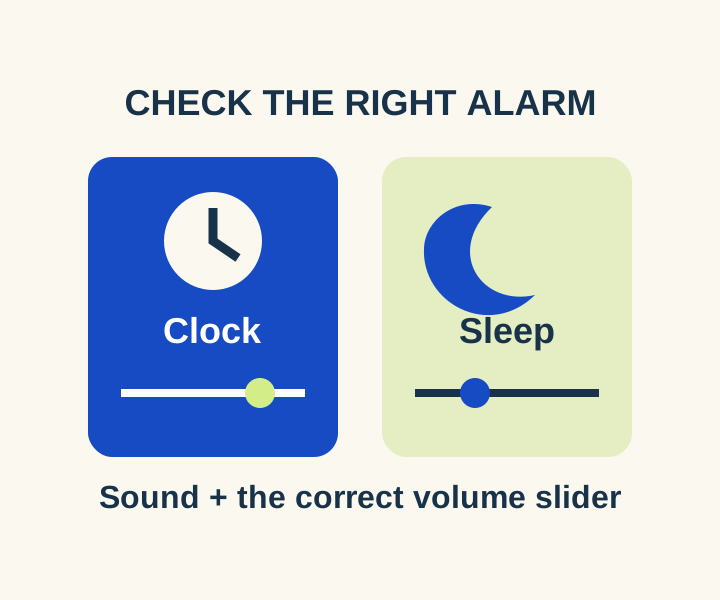
iPhone alarm too quiet? Check the right volume control, including iOS 27
Separate regular Clock volume from Sleep wake-up volume, then compare an audible preview with a timed daytime alarm.
SOURCE-CHECKEDEveryday tech
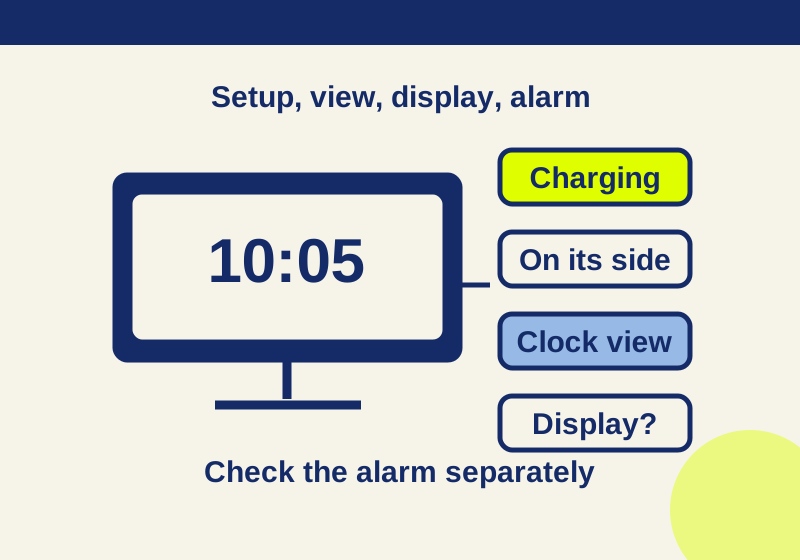
iPhone StandBy clock not staying on? Check setup and display settings
A missing clock, a dark screen and a silent alarm need different checks. Start with the symptom your iPhone actually shows.