SOURCE-CHECKED · EVERYDAY TECH
iPhone Back Tap: set a screenshot gesture and stop the wrong action
Assign iPhone Double Tap and Triple Tap separately, check a screenshot against a changing practice card, and remove a gesture you no longer want.
Back Tap lets you assign different actions to a quick double tap and triple tap on the back of an iPhone. Apple documents the feature for iPhone 8 or later with iOS 14 or later and recommends keeping the software current. Available actions include Screenshot, Control Center, and accessibility actions. Apple’s Back Tap instructions
Assign a screenshot gesture
Open Settings > Accessibility > Touch > Back Tap. Check what is currently assigned to both Double Tap and Triple Tap before changing either one. Select Double Tap, then Screenshot. For a simple way to isolate the gestures, select Triple Tap, then None. You can change either assignment again later. Apple’s setup instructions and iPhone user guide
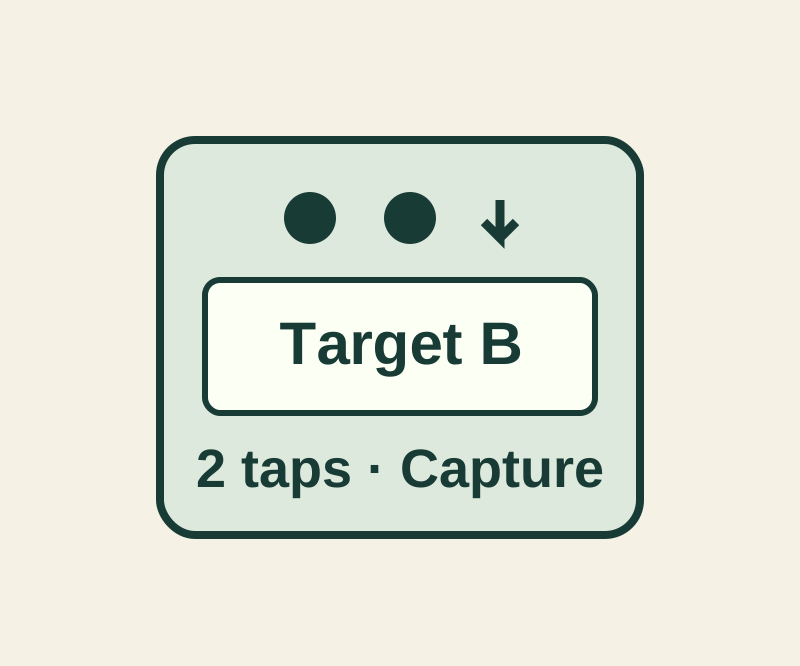
To check which capture is fresh, open the practice capture target and show card A (MAP-042, Blue notebook, 4 pages). Double tap and inspect the resulting capture. Then show card B (MAP-057, Green notebook, 7 pages), double tap again, and inspect that capture. The card code and color give you something specific to compare with any older screenshot. Inspect the actual captures; the practice page itself does not trigger a phone capture.
If a different action runs
Check the assignment for the gesture you used: Double Tap and Triple Tap have separate rows. If you assigned an existing shortcut, find it by selecting the gesture and scrolling to the Shortcuts area; tap Back Tap to apply the selection. If direct Screenshot works but that shortcut does not, examine the shortcut separately. To stop an unwanted action, select its gesture and choose None. Apple’s Shortcuts guide and iPhone user guide
Source and scope: Apple’s instructions were checked October 11, 2026 KST. No physical phone test or native capture was performed.
KEEP GOING
More to explore.

SOURCE-CHECKEDEveryday tech
Fix duplicate iPhone contacts without joining the wrong people
Apple’s Contacts guide describes two actions: merge reviewed cards with the same first and last name, or link cards for one person across accounts. Linked cards appear as one unified contact but remain separate source cards.
SOURCE-CHECKEDEveryday tech
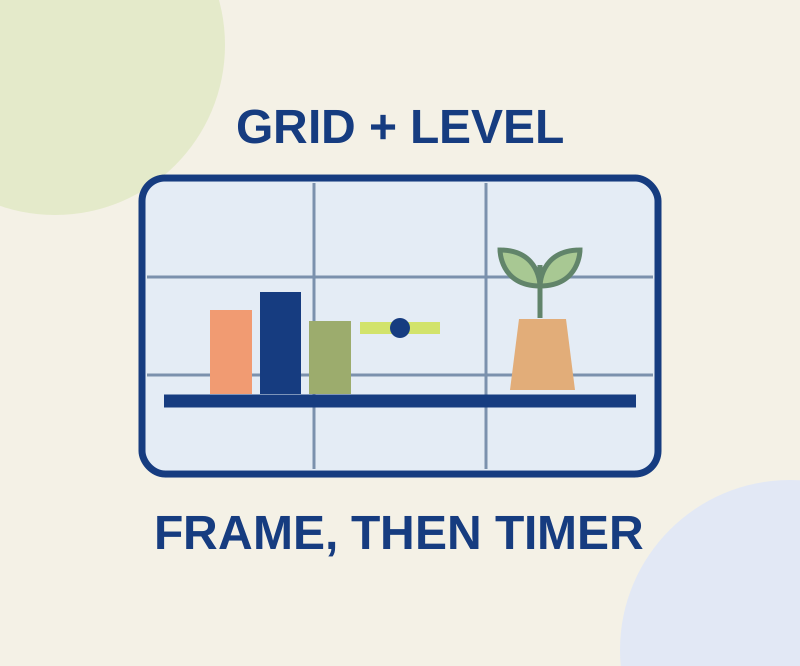
iPhone camera Grid, Level and Timer: frame a better photo
Separate framing, camera tilt and capture delay with three everyday photo setups.