SOURCE-CHECKED · EVERYDAY TECH
Fix duplicate iPhone contacts without joining the wrong people
Check suggested duplicates before merging, and link cards from different accounts when they belong to the same person.

A matching first and last name is a reason to check two cards before merging them. Imagine two cards named Maya Chen: one has a work number, the other an email address. Merge them only if you recognize both details as belonging to the same Maya. Otherwise, leave the pair unmerged.
Review a suggested duplicate
Open Contacts on your iPhone and tap View Duplicates below My Card. Tap an individual contact to review its cards, then merge them if they belong to the same person. Apple also offers Merge All, which skips that individual review.
Link cards across accounts
If cards in different accounts belong to the same person, open one card, tap Edit, then tap Link Contacts. Choose the other entry and tap Link.
Linked cards appear once in All Contacts as a unified contact, while each source card remains separate. If the cards have different names, their individual names stay the same. To choose the name shown on the unified contact, tap a linked card, tap its name, then tap Use This Name For Unified Card. Changes or additions to a unified contact are copied to each source account where that information already exists.
Source: Apple’s Get rid of duplicate contacts on iPhone. The Maya Chen example is hypothetical; the steps above are documented, not device-tested.
KEEP GOING
More to explore.
SOURCE-CHECKEDEveryday tech
An unknown tracker alert on iPhone: find the item and keep its details
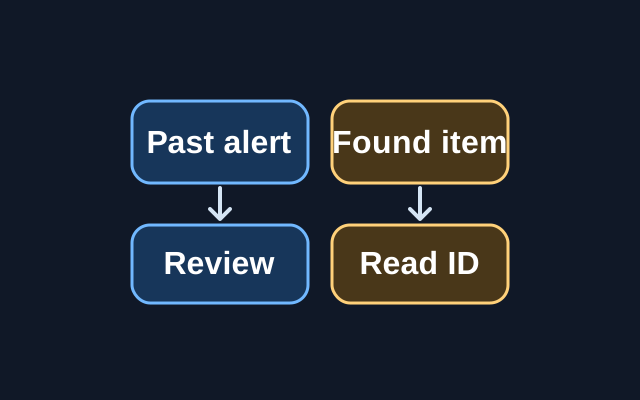
A previous alert can be reviewed in Find My, but Apple’s step for viewing a tracker’s serial number or device ID requires the physical item.
SOURCE-CHECKEDEveryday tech
iPhone Back Tap: set a screenshot gesture and stop the wrong action
Check the gesture assignment and the resulting action separately with a harmless changing capture target.