SOURCE-CHECKED · EVERYDAY TECH
Pixel split screen: keep a recipe beside your notes
Open two supported apps on a Pixel phone, scale a four-serving recipe to six, handle a cramped keyboard and return to one full-screen app.
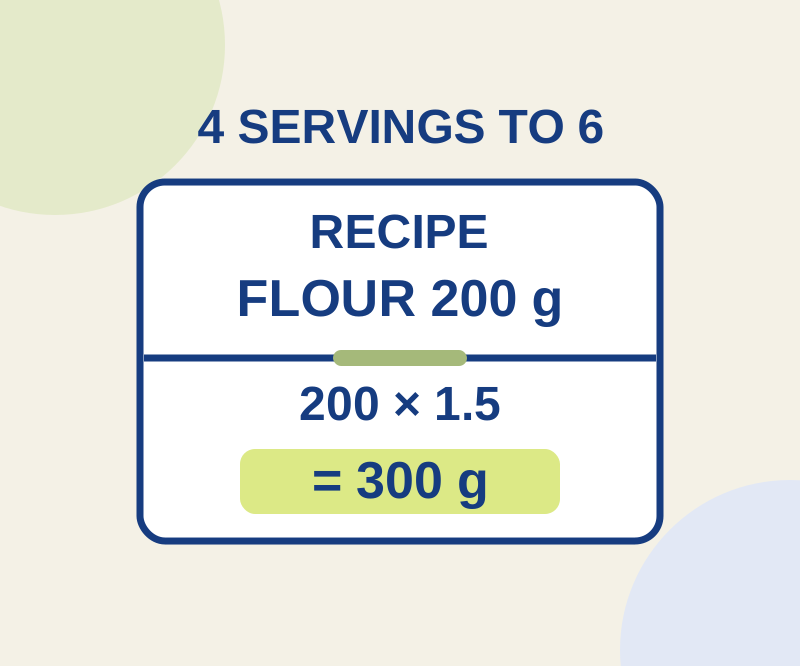
Pixel split screen can put a recipe beside your notes while you adjust ingredient amounts. Google’s current Pixel guide gives the following steps for gesture navigation and marks some of its instructions as Android 14 or later. Whether you can use split screen also depends on the apps involved.
Open two apps
- Open the app with your recipe.
- Swipe up from the bottom of the screen, hold, then release to open Overview.
- Tap the app icon above the recipe’s preview. This is the icon in Overview, not one on your home screen.
- Tap Split screen, then tap the second app you want to use.
For a six-serving version of a fictional four-serving recipe, calculate the multiplier once: 6 ÷ 4 = 1.5. That changes 200 g of flour to 300 g, 160 mL of milk to 240 mL, and 2 eggs to 3 eggs. Keep the units with each result.
A notes app can hold both the arithmetic and the revised list. If you use a calculator beside the recipe instead, you may need to switch apps to record the finished amounts: split screen shows two apps, not three.
Work with the smaller view
The keyboard takes up part of an already shorter pane. Keep the relevant ingredient line visible while writing a short calculation. If a quantity is visible but its ingredient or qualifier is cut off, open the source full screen and read the complete line before copying it.
If Split screen is missing
Start in Overview and tap the icon above the app preview. If the option still is not available, try another pair of apps you are willing to use. A missing option for one app does not establish that the phone lacks multitasking or that reinstalling an app will help.
A small floating video is picture-in-picture, a separate feature from two split-screen panes. Google says a video app may offer it when you swipe home or tap a picture-in-picture control. If the app closes or the control is absent, picture-in-picture may not work with that app.
Return to one app
Drag the divider between the two panes all the way to the top or bottom of the screen.
Source and scope: Google’s Pixel phone guide, checked October 10, 2026. The instructions here are source-based; no physical Pixel test or specific app-pair compatibility test was recorded.
KEEP GOING
More to explore.
SOURCE-CHECKEDEveryday tech
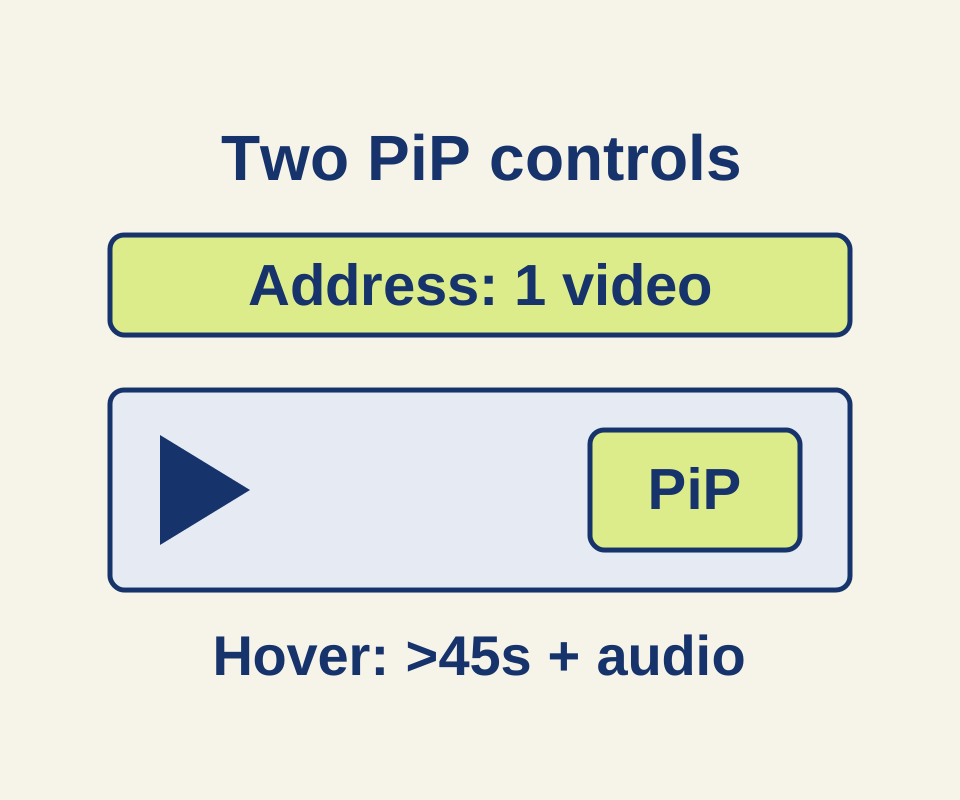
Firefox Picture-in-Picture: pop out a video and find missing controls
A manual helper explains why the hover toggle and address-bar icon can disappear for different reasons, with three worked video examples.
SOURCE-CHECKEDEveryday tech
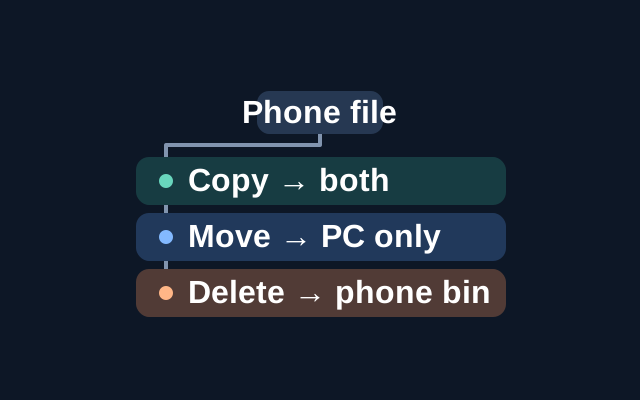
Open Android phone files in Windows File Explorer
Microsoft’s File Explorer feature lets a paired Android phone appear in Windows 11 File Explorer. Copying a file to the PC keeps the phone original; moving relocates it; deleting through this view sends it to a recoverable folder on the phone.