SOURCE-CHECKED · EVERYDAY TECH
iPhone hotspot not connecting? Check the last step that worked
Find whether your iPhone hotspot failed at network discovery, password entry or mobile internet access, then try the action for that stage.
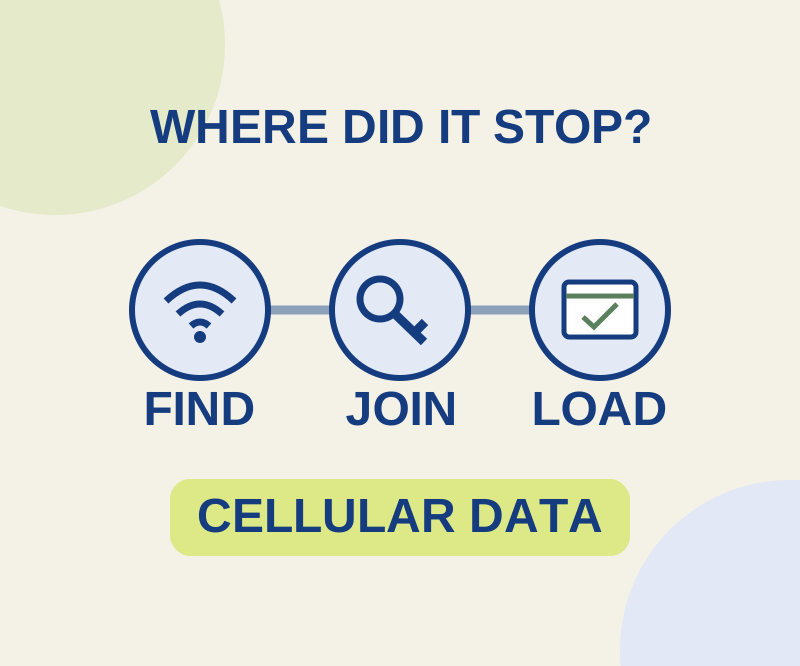
An iPhone Personal Hotspot connection has three stages: the other device finds the phone’s Wi-Fi network, joins it with the hotspot password, and loads a page through the phone’s mobile data. Start with the first stage that fails. A Wi-Fi icon or “connected” message does not, by itself, show that internet access works.
The phone’s name does not appear
If your laptop never lists the iPhone’s name, the password has not been tested yet. On the iPhone, open Settings > Personal Hotspot, or Settings > Cellular > Personal Hotspot, and turn on Allow Others to Join. Keep that screen open until the other device connects. Apple also says to keep the devices nearby with Wi-Fi and Bluetooth on.
Turn the laptop’s Wi-Fi off and back on, then look again for the phone’s name. Retry after that single change before changing anything else.
If Personal Hotspot is missing or dimmed on the iPhone, check Cellular Data and whether your carrier and plan support hotspot use. Extra fees may apply.
The network appears, but the password is rejected
Choose the network bearing the iPhone’s device name and enter the password displayed on its Personal Hotspot screen. It is neither your Apple Account password nor your home router’s password.
An “incorrect password” message after selecting the iPhone’s name points you to the password shown on the phone. Check the network name and password exactly, then retry. If you change the hotspot password, Apple requires at least eight ASCII characters.
The device joins, but pages do not load
Personal Hotspot shares the iPhone’s cellular data, not its connection to your home Wi-Fi. As an isolation check, turn Wi-Fi off on the iPhone and try loading a small public page over cellular. Then try that same page on the connected device. This comparison can narrow the failure; it cannot establish every possible cause.
If the laptop says “connected” but two pages fail to load, check a page on the iPhone first. If the iPhone cannot load it over cellular, repeatedly changing the laptop’s hotspot password cannot supply the missing internet connection. If the page loads on the iPhone but not the laptop, try a second, unrelated page on the laptop to see whether the failure affects one service or both pages.
If the stage still fails
Restart both devices and check for updates, retrying after each change. On an iPhone 12 or later, Maximize Compatibility is another setting to try; Apple warns that it may reduce internet performance and Wi-Fi security. Leave Reset Network Settings until last: it removes saved Wi-Fi networks and passwords, along with cellular, VPN, and APN settings.
When you finish, switch the joining device to a different network or turn off Allow Others to Join on the iPhone.
When seeking help, give the exact error, the last stage that worked, the iPhone model and iOS version, and whether your carrier confirms hotspot eligibility. Do not send your actual passwords.
Source and scope: This guide uses Apple’s Personal Hotspot setup instructions and troubleshooting instructions. Both were checked October 10, 2026. The page comparison is a suggested check; no physical devices were tested for this article.
KEEP GOING
More to explore.
SOURCE-CHECKEDEveryday tech
iPhone Calculator history: copy the expression, not just the answer
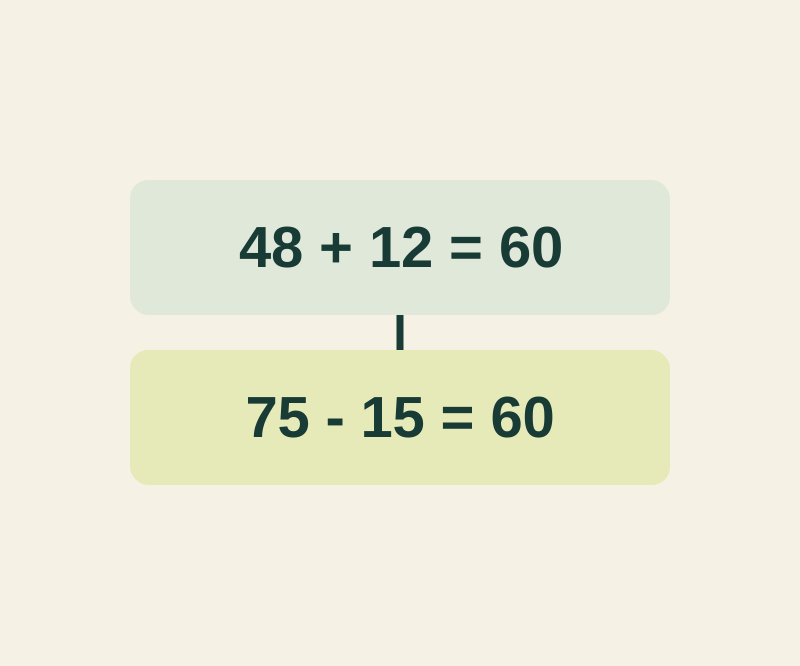
Two calculations can both equal 60. Keep the expression and a short label when the result alone would lose the context.
SOURCE-CHECKEDEveryday tech
Share an iPhone Wi-Fi connection when the password prompt does not appear
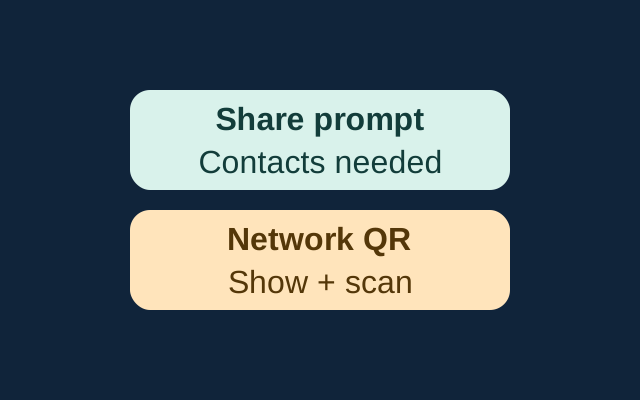
Apple’s sharing prompt requires nearby, prepared devices and mutual Contacts entries. The iPhone guide also documents a network QR code that someone can scan to join.